Do you think IIT Guwahati certified course can help you in your career?
Introduction
JavaFX 3D shapes are geometrical figures that can be represented on the X, Y, and Z planes at the same time. The length or depth is represented by the X plane, the height by the Y plane, and the width by the Z plane. Cube, Cuboid, Cylinder, Cone, Sphere, and other general 3D shapes Shape3D class includes 3D shapes, and the Shape class includes all shapes (2D and 3D shapes).
JavaFX Glow
JavaFX includes the Glow class. Glow is a high-level effect that uses a configurable threshold to make the input image appear to glow. The Glow class derives from the Effect class. The glow effect is also used to illuminate the image's pixels. However, it brightens the image significantly. The javafx.scene.effect.Glow class represents the effect of glow. The class contains several properties that can be set to specific values to produce the desired effect.
Constructors in JavaFX Glow
Class constructors include:
Glow(): This function creates a new glow object with the default parameters.
Glow(double l): Creates a new Glow instance with the specified level.
Properties of Glow
1. input
This property belongs to the Effect class. Input property is used to represent the input required for the glow effect and is set using the setInput(Effect value) method.
2. level
This property has two types. It is used to set the intensity of the color of the shape to which the Glow effect is applied, and it is set using the setlevel(Double value) method.
Examples of JavaFX Glow Implementation
Shape
To create the Glow Effect in JavaFX, we must first import all of the necessary libraries, such as javafx.Application Application.Application, javafx.scene.Group, javafx.scene.Scene, javafx.scene.effect.ColorInput, javafx.scene.paint.Color, javafx.scene.shape.Circle, javafx.scene.effectGlow, javafx.stage.Stage.
Then we extended the Application class to create a new class called EffectUI. To provide implementation details, we must also override the start method. This method returns a Stage object as primaryStage. A Group object is created and then passed to the Scene class object to hold two circles with and without the glow effect.
The function Object() { [code]} is used to create the circle, which has the size parameter passed to it. The colour blue is filled in both circles, after which the glow function Object() { [native code] } is created and applied to the first.
The stage is set up, the title is entered, and the show() method is invoked to display the output. The main() method calls the launch(args) method to run the ApplicationApplication. The title "JavaFX Glow Effect example" is displayed in the output Frame-like container. It also shows the two circles with and without the glow effect.
Java Program to add a shape and add a Glow effect to it.
import javafx.application.Application;
import javafx.scene.Group;
import javafx.scene.Scene;
import javafx.scene.effect.Glow;
import javafx.scene.paint.Color;
import javafx.scene.shape.Circle;
import javafx.scene.text.Text;
import javafx.stage.Stage;

public class EffectUI extends ApplicationApplication {
 @Override
    public void start(Stage stage) throws Exception
    {
    Circle circle1 = new Circle(120,120,60);  //creating circle1
    circle1.setFill(Color.BLUE);
    Circle circle2 = new Circle(360,120,60);    //creating circle2
    circle2.setFill(Color.BLUE);
        Text text1 = new Text();
        Text text2 = new Text();
        text1.setText(" Shape with GLOW Effect ");
        text2.setText(" Shape without GLOW Effect ");
        text1.setX(45);
        text1.setY(200);
        text2.setX(295);
        text2.setY(200);
        text1.setFill(Color.RED);
        text2.setFill(Color.RED);
        text1.setStroke(Color.BLACK);
        text2.setStroke(Color.BLACK);
        text1.setStrokeWidth(0.2);
        text2.setStrokeWidth(0.2);
        Glow glow = new Glow();
            glow.setLevel(10);
        circle1.setEffect(glow);
        Group root = new Group();
        root.getChildren().addAll(circle1,circle2,text1,text2);
        Scene scene = new Scene(root,600,500);
         stage.setScene(scene);
        stage.setTitle(" JavaFx Glow Effect example ");
         stage.show();
     }

    public static void main(String[] args) {
        launch(args);
    }
}
Output
Image
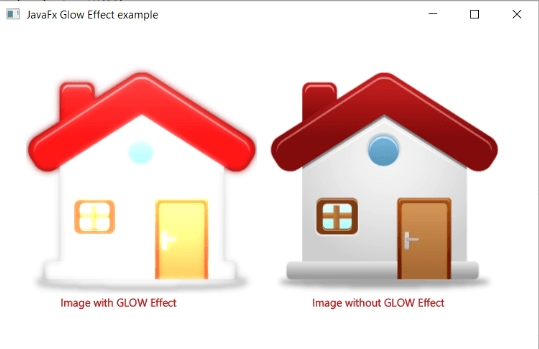
To create a Glow Effect on an image in JavaFX, we must first import all of the necessary libraries, such as javafx.application. javafx.scene is an application. javafx.scene.effect, javafx.scene.Scene Javafx.scene.paint, ColorInput javafx.scene.image, colour javafx.scene.image is an image. javafx.scene.effect, ImageView javafx.stage.Stage, glow.
Then we extended the Application class to create a new class called EffectUI. To provide implementation details, we must also override the start method. This method returns a Stage object as primaryStage. A Group object is created and passed to the Scene class object for the container to hold two images with and without the glow effect.
The function Object() { [code] } is used to create the image, and the size parameter is passed to it. The glow function Object() { [native code] } is then created and applied to the first image.
The stage is set up, the title is entered, and the show() method is invoked to display the output. The main() method calls the launch(args) method to run the ApplicationApplication. The title "JavaFX Glow Effect example" is displayed in the output Frame-like container. It also shows the images with and without the glow effect.
Java Program to add an image and then a Glow effect to it.
import javafx.application.Application;
import javafx.scene.Group;
import javafx.scene.Scene;
import javafx.scene.effect.Glow;
import javafx.scene.image.Image;
import javafx.scene.image.ImageView;
import javafx.scene.paint.Color;
import javafx.scene.shape.Circle;
import javafx.scene.text.Text;
import javafx.stage.Stage;

public class EffectUI extends ApplicationApplication {

    @Override
    public void start(Stage stage) throws Exception
    {

    Image img1 = new Image("https://icons.iconarchive.com/icons/custom-icon-design/pretty-office-4/256/home-icon.png");
         Image img2 = new Image("https://icons.iconarchive.com/icons/custom-icon-design/pretty-office-4/256/home-icon.png");

         ImageView imgview1 = new ImageView(img1);
         ImageView imgview2 = new ImageView(img2);

         imgview1.setX(30);
         imgview1.setY(40);
         imgview2.setX(300);
         imgview2.setY(40);


        Text text1 = new Text();
        Text text2 = new Text();
        text1.setText(" Image with GLOW Effect ");
        text2.setText(" Image without GLOW Effect ");
        text1.setX(65);
        text1.setY(310);
        text2.setX(345);
        text2.setY(310);

        text1.setFill(Color.RED);
        text2.setFill(Color.RED);
        text1.setStroke(Color.BLACK);
        text2.setStroke(Color.BLACK);
        text1.setStrokeWidth(0.2);
        text2.setStrokeWidth(0.2);
        Glow glow = new Glow();
            glow.setLevel(10);
            imgview1.setEffect(glow);
        Group root = new Group();
        root.getChildren().addAll(imgview1,imgview2,text1,text2);
        Scene scene = new Scene(root,600,500);
         stage.setScene(scene);
        stage.setTitle(" JavaFx Glow Effect example ");
         stage.show();
     }

    public static void main(String[] args) {
        launch(args);
    }
}
Output:
Frequently Asked Questions
What kinds of animations does JavaFX offer?
JavaFX offers several animations, including Fill Transition, Scale Transition, Fade Transition, Stroke Transition, Rotate Transition, and Sequential Transition. Each of them has its own class in the javafx. Animation package.
In JavaFX, how do you animate an object?
The Animation class is in charge of the core functionality of all JavaFX runtime animations. An animation can be made to loop by setting the cycle count. To make an animation loop back and forth, use the autoReverse -flag. Use play() or playFromStart to play an animation ().
Can an image be added to a JavaFX button?
The Button class's setGraphic() function adds a graphic object (node) to a button.
Conclusion
In this article, we have extensively discussed the concepts of JavaFX Glow. We started with introducing the JavaFX Glow, constructors of JavaFX Glow, and methods of JavaFX Glow, then concluded with JavaFX Glow implementation.







 7+ registered

