Do you think IIT Guwahati certified course can help you in your career?
Introduction
In this blog, we will learn about the JavaFX Inline Styles. JavaFX is the next-generation client application platform for Java-based desktop, mobile, and embedded computers. It results from a cooperative effort between numerous people and businesses to create a cutting-edge, practical, and feature-rich toolkit for creating rich client applications. The multiple CSS classes offered by JavaFX will be used in the JavaFX application to apply various Inline CSS effects. It involves different CSS effects to the given object to improve the user's understanding of the interface. This article describes the JavaFX Inline Styles, beginning with the most straightforward statements and progressing to the most significant modules.
Inline CSS in JavaFX
JavaFX allows you to use CSS to improve the look and feel of your application. The classes used to apply CSS to JavaFX applications are in the package javafx.css. To apply numerous Inline CSS effects in the JavaFX application, we will leverage the many CSS classes available in JavaFX. It is used to add numerous CSS effects to a given object to clarify the user interface. We utilise Inline style CSS to give varied colours, backdrops, text sizes, font style, spacings, paragraphs, and alignments for a specific item when designing webpages. In JavaFX, we use inline styles to define CSS rules within the JavaFX application. Generally, rules specified in JavaFX application code take precedence over rules written in a separate CSS file. In JavaFX code, we may apply the CSS rule to a specific node as follows:
Syntax:
You may use the setStyle() method to add inline styles. These styles are solely made up of key-value pairs and only apply to the nodes where they are set. The code for adding an inline style sheet to a button is shown below.
Code:
Label label_name= new Label(“label_id”);
label_name.setStyle(/*CSS Properties*/);
Example Code:
Label CodingNinjas= new Label(“Percentage”);
CodingNinjas.setStyle("-fx-background-color:Orange; -fx-text-fill:Blue; -fx-font-size:14");
Example Application
Example 1:
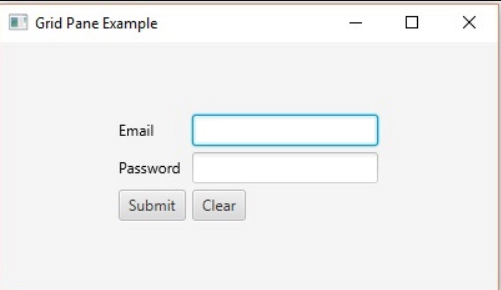
Assume we've created a JavaFX application that displays a form with a Text Field, a Password Field, and two buttons. By default, this form appears, as shown in the screenshot below.
The following programme is an example of how to apply styles to the preceding application in JavaFX.
JavaFXcss.java
import javafx.application.Application;
import static javafx.application.Application.launch;
import javafx.geometry.Insets;
import javafx.geometry.Pos;
import javafx.scene.Scene;
import javafx.scene.control.Button;
import javafx.scene.control.PasswordField;
import javafx.scene.layout.GridPane;
import javafx.scene.text.Text;
import javafx.scene.control.TextField;
import javafx.stage.Stage;

public class JavaFXcss extends Application {
   @Override
   public void start(Stage stage) {
      //creating label email
      Text text1 = new Text("Email");

      //creating label password
      Text text2 = new Text("Password");

      //Creating Text Filed for email
      TextField textField1 = new TextField();

      //Creating Text Filed for password
      PasswordField textField2 = new PasswordField();

      //Creating Buttons
      Button button1 = new Button("Submit");
      Button button2 = new Button("Clear");

      //Creating a Grid Pane
      GridPane cnGrid = new GridPane();

      //Setting size for the pane
      cnGrid.setMinSize(400, 200);

      //Setting the padding
      cnGrid.setPadding(new Insets(10, 10, 10, 10));
      cnGrid.setVgap(5);
      cnGrid.setHgap(5);

      //Setting the Grid alignment
      cnGrid.setAlignment(Pos.CENTER);

      //Arranging all the nodes in the grid
      cnGrid.add(text1, 0, 0);
      cnGrid.add(textField1, 1, 0);
      cnGrid.add(text2, 0, 1);
      cnGrid.add(textField2, 1, 1);
      cnGrid.add(button1, 0, 2);
      cnGrid.add(button2, 1, 2);

      //Styling nodes
      button1.setStyle("-fx-background-color: black; -fx-text-fill: white;");
      button2.setStyle("-fx-background-color: black; -fx-text-fill: white;");

      text1.setStyle("-fx-font: normal bold 20px 'serif' ");
      text2.setStyle("-fx-font: normal bold 20px 'serif' ");
      cnGrid.setStyle("-fx-background-color: Black;");

      // Creating a scene object
      Scene scene = new Scene(cnGrid);

      // Setting title to the Stage
      stage.setTitle("CSS Example");

      // Adding scene to the stage
      stage.setScene(scene);

      //Displaying the contents of the stage
      stage.show();
   }
   public static void main(String args[]){
      launch(args);
   }
}
Using the following commands, compile and execute the stored java file from the command prompt.
javac JavaFXcss.java
java JavaFXcss
When run, the preceding software generates the JavaFX window shown below.
Output:
Example 2:
To create the inline CSS effect on provided components in JavaFX, we must import all of the necessary libraries. Then we extended the Application class to create a new class called CN_JavaFX_CSS. The following programme is an example of how to apply styles to the preceding application in JavaFX.
We must import all necessary libraries in JavaFX before we can apply the inline CSS effect to the specified components. Then we extended the Application class by creating a class called CN_JavaFX_CSS. In order to provide implementation details, we also need to override the start method. This function generates a primaryStage object from a Stage object. A Group object is constructed and then handed to the Scene class object in order to establish the container for holding numerous components with inline CSS effects.
The show() method is used to display output when the stage has been set, and the title has been chosen. The launch(args) method is invoked in the main() method to start the application. Employee Information is displayed in an output frame-like container. Additionally, a submit button is displayed along with labels for the first name, last name, country, and language.
Frequently Asked Questions
Is CSS supported by JavaFX?
Every JavaFX application always uses the default CSS. To replace the JavaFX default styles, you can develop one or more custom stylesheets of your own and include them in your application.
Where do I put CSS in JavaFX?
With the aid of the setStyle() method, in-line styles can also be added. These styles are relevant to the nodes on which they are set and are made up solely of key-value pairs.
What is inset JavaFX?
The JavaFX Insets class is a component. The interior offsets for each of the four sides of the rectangular region are stored in the Insets class. The Insets class derives from Java.







 7+ registered

