Do you think IIT Guwahati certified course can help you in your career?
Introduction
In this article, we will learn about the JavaFX polygon in detail. A polygon is a simple shape with at least three straight sides that form a loop. With polygons, we primarily consider the length of the sides and the internal angles. Polygons include shapes like triangles, squares, Pentagons, hexagons, etc. Polygon can be produced in JavaFX by instantiating JavaFX.scene.shape.
Let's dive into the article to get more information about JavaFX polygons.
JavaFX Polygons
A component of the JavaFX library is the polygon class. The polygon class creates a polygon using the specified x and y coordinates and inherits the shape class. This class is a part of the JavaFX.scene.shape package.
Polygon class's constructors are:
Polygon(): Creates a blank polygon with no specified set of point coordinates using the polygon () function (vertices)
Polygon(double points[]): A polygon with a specified set of point coordinates is created using the function polygon(double points[]) (vertices)
Common method:
getPoints(): The function getPoints() returns the polygon's vertices' coordinates.
setFill(Paint p): The fill for the polygon is specified using setFill(Paint p).
The constructor of this class allows you to pass a double array as an argument, as demonstrated below:-
Polygon polygon = new Polygon(doubleArray);
You can also try this code with Online Java Compiler
The steps listed below should be followed to draw a polygon in JavaFX.
Step 1: Making a Class
Step 2: Creating a Polygon
Step 3: Setting the Polygon's Properties
Step 4: Making a Group Object
Step 5: Making a Scene Object is Step 5
Step 6: Choosing the Stage's Title
Step 7: Including a Scene on Stage
Step 8: Displaying the Stage's Contents
Step 9: Launching the Application
Example 1
As implied by the name polygon, this program constructs a Polygon. The polygon's vertices' coordinates are supplied as parameters. The polygon will be built inside a scene that is housed within a stage. The stage's title is provided through the setTitle() method. The polygon is then attached to the newly established group. The group is associated with the location. The show() method is then used to display the outcome.
Program:
import javafx.application.Application;
import javafx.scene.Scene;
import javafx.scene.control.Button;
import javafx.scene.layout.*;
import javafx.scene.paint.Color;
import javafx.scene.shape.Polygon;
import javafx.scene.control.*;
import javafx.stage.Stage;

import javafx.scene.Group;

public class App extends Application
{
    // launching the application
    public void start(Stage stage)
    {
        // setting title for the window.
        stage.setTitle("creation of polygon");

      Polygon polygon = new Polygon();

        // coordinates of the points of polygon that will be drawn
        polygon.getPoints().addAll(new Double[]{
            300.0, 50.0,
            450.0, 150.0,
            300.0, 250.0,
            150.0, 150.0,
         });


        Group group = new Group(polygon);
        Scene scene = new Scene(group, 500, 300);

        // setting the scene
        stage.setScene(scene);
        stage.show();
    }

    public static void main(String args[])
    {
        // launching the application
        launch(args);
    }
}
You can also try this code with Online Java Compiler
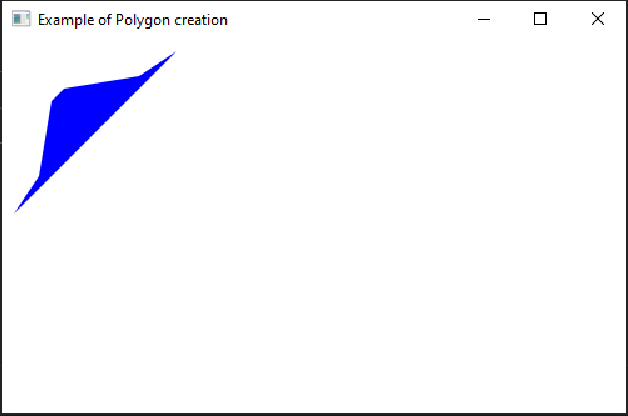
As implied by the name of the application, polygon, a Polygon is created. The polygon's vertices' coordinates are supplied as parameters. The polygon's fill is set using the set Fill() function. The polygon will be built inside a scene that is housed within a stage. The stage's title is provided through the setTitle() method. The polygon is then attached to the newly established group. The group is associated with the location. The show() method is then used to display the outcome.
Program:
import javafx.application.Application;
import javafx.scene.Scene;
import javafx.scene.control.Button;
import javafx.scene.layout.*;
import javafx.scene.paint.Color;
import javafx.scene.shape.Polygon;
import javafx.scene.control.*;
import javafx.stage.Stage;

import javafx.scene.Group;
public class App extends Application {

    // starting the application using this function
    public void start(Stage stage)
    {
        // setting the title for that stge so that test_polygon can be created.
        stge.setTitle("Example of Polygon creation");

        // these are the coordinates of coordinat of that test_polygon.
        double coordinat[] = { 10.0d, 140.0d, 30.0d, 110.0d, 40.0d,
            50.0d, 50.0d, 40.0d, 110.0d, 30.0d, 140.0d, 10.0d };

        // creating a polygon named test_polygon.
        Polygon test_polygon = new Polygon(coordinat);

        // setting fill for that polygon (test_polygon).
        test_polygon.setFill(Color.BLUE);

        // creating a Group for that polygon.
        Group grp = new Group(test_polygon);

        // creating a scene for that group.
        Scene scene = new Scene(grp, 500, 300);

        // setting that scene.
        stge.setScene(scene);

        stge.show();
    }

    public static void main(String args[])
    {
        // launching the application.
        launch(args);
    }
}
You can also try this code with Online Java Compiler
By instantiating the Rectangle class from the JavaFX.scene package, you may build a rectangle in JavaFX.
What approach is taken when drawing a polygon?
The polygon is drawn using the addPoint() and drawPolygon() methods.
What is the JavaFX inset?
The JavaFX Insets class is a component. The interior offsets for each of the four sides of the rectangular region are stored in the Insets class. The Insets class derives from Java.lang.Object class.
What does a JavaFX stage mean?
A Scene, made up of visual components, is hosted by a Stage in JavaFX. The Stage class in the JavaFX represents a stage in a JavaFX application. The start(Stage s) method of the Application class receives the platform-created primary stage as a parameter.
Conclusion
In this article, we have extensively discussed the JavaFX Polygons. In detail, we will discuss the procedure to draw a polygon in JavaFX with the help of various programs.








 7+ registered

