




Introduction
Hello and welcome, readers! We hope you are doing well.
Today, we will discuss the JSF <h:outputScript> Tag. After completing this article, you will clearly understand the JSF <h:outputScript> Tag. So follow the article till the end.
So, without further ado, let’s jump into the article.
JSF h:outputScript
In JSF 2.0, we can use <h:outputScript /> tag to render a HTML “script” element and link it to a JS file.
For example,
<h:outputScript library="js" name="filename.js" />
It will generate the following HTML output:
<script type="text/javascript"
   src="/JavaServerFaces/faces/javax.faces.resource/filename.js?ln=js">
</script>
Attributes
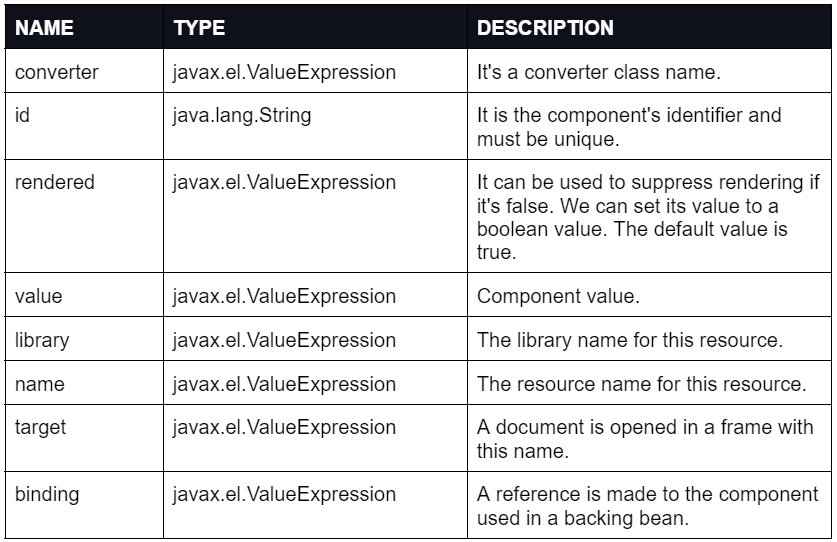
Code
The example application can be implemented using the following steps.
- Create a Demo Project in any Java Web Application supported IDEs like NetBeans. For the following implementation program, we will use the Apache Netbeans IDE.
- Choose Java with the Maven category and the project type as Web Application.
- Choose any convenient project name and package name.
- Choose GlassFish Server and Java EE version as Java EE 7 web.
- Now, right-click on the project name present in the folder section of the project window and click on Properties.
- Under the frameworks tab, add the Java Server Faces framework.
- Inside the Web Pages folder, create a “resources” folder.
- Now create a subdirectory “js” under the resources folder.
- Now create the “external.js” file inside the previously created “js” folder.
- Modify the “external.js,” "pom.xml," and “index.xhtml” files as given below.
- Now let's compile and run the application to see if it’s being compiled in the previous setup environment.
- Now, build the web application as a war file and deploy it using the GlassFish server. After running the program, it should open the default browser window to display the output.
The folder structure of the above application should look like the below diagram.

External.js:
function DispMessage(){
    alert("External JS Loaded using h:outputscript");
 }
POM.js:
<?xml version="1.0" encoding="UTF-8"?>
<project xmlns="http://maven.apache.org/POM/4.0.0" xmlns:xsi="http://www.w3.org/2001/XMLSchema-instance" xsi:schemaLocation="http://maven.apache.org/POM/4.0.0 http://maven.apache.org/xsd/maven-4.0.0.xsd">
    <modelVersion>4.0.0</modelVersion>

    <groupId>com.mycompany</groupId>
    <artifactId>DemoProject</artifactId>
    <version>1.0-SNAPSHOT</version>
    <packaging>war</packaging>

    <name>DemoProject</name>

    <properties>
        <endorsed.dir>${project.build.directory}/endorsed</endorsed.dir>
        <project.build.sourceEncoding>UTF-8</project.build.sourceEncoding>
    </properties>

    <dependencies>
        <dependency>
            <groupId>javax</groupId>
            <artifactId>javaee-web-api</artifactId>
            <version>7.0</version>
            <scope>provided</scope>
        </dependency>
    </dependencies>

    <build>
        <plugins>
            <plugin>
                <groupId>org.apache.maven.plugins</groupId>
                <artifactId>maven-compiler-plugin</artifactId>
                <version>3.1</version>
                <configuration>
                    <source>1.7</source>
                    <target>1.7</target>
                    <compilerArguments>
                        <endorseddirs>${endorsed.dir}</endorseddirs>
                    </compilerArguments>
                </configuration>
            </plugin>
            <plugin>
                <groupId>org.apache.maven.plugins</groupId>
                <artifactId>maven-war-plugin</artifactId>
                <version>2.3</version>
                <configuration>
                    <failOnMissingWebXml>false</failOnMissingWebXml>
                </configuration>
            </plugin>
            <plugin>
                <groupId>org.apache.maven.plugins</groupId>
                <artifactId>maven-dependency-plugin</artifactId>
                <version>2.6</version>
                <executions>
                    <execution>
                        <phase>validate</phase>
                        <goals>
                            <goal>copy</goal>
                        </goals>
                        <configuration>
                            <outputDirectory>${endorsed.dir}</outputDirectory>
                            <silent>true</silent>
                            <artifactItems>
                                <artifactItem>
                                    <groupId>javax</groupId>
                                    <artifactId>javaee-endorsed-api</artifactId>
                                    <version>7.0</version>
                                    <type>jar</type>
                                </artifactItem>
                            </artifactItems>
                        </configuration>
                    </execution>
                </executions>
            </plugin>
        </plugins>
    </build>

</project>
XHTML.js:
<?xml version='1.0' encoding='UTF-8' ?>
<!DOCTYPE html PUBLIC "-//W3C//DTD XHTML 1.0 Transitional//EN" "http://www.w3.org/TR/xhtml1/DTD/xhtml1-transitional.dtd">
<html xmlns="http://www.w3.org/1999/xhtml"
      xmlns:h="http://xmlns.jcp.org/jsf/html">
    <h:head>
        <title>My Facelet</title>
        <h:outputScript library="js" name="external.js" />
    </h:head>
    <h:body>
        <h2>Demonstration of h:outputScript</h2>
        Click below button to see if h:ouputScript loads external JS.
        <h:form>
         <h:commandButton value="Click Me!" onclick = "DispMessage();" />
      </h:form>
    </h:body>
</html>
Output 1 (Before Clicking the Button)

Output 2 (After Clicking the Button)

Must Read Apache Server



 7+ registered

