




Introduction
Welcome readers! When we run the Mocha test, it will show the report of all the test cases in the terminal like tests passed, failed, pending, and much other information in a fun and interactive way. Mocha provides numerous options for reporters to select from.
This blog will learn about these reporters and the different reporters that Mocha provides.
Let's get started, and I hope you learn a lot from this tutorial.
Reporters
Mocha reporters are used to creating reports of our choice. These reporters will adjust to the terminal window. When the stdio streams are associated with a TTY., it will always disable ANSI-escape colouring.
By default, Mocha uses Spec reporter. We have to specify it in the test script in the package.json file to use other reporters.
"scripts": {
    "test": "mocha --reporter spec"
  },
Spec
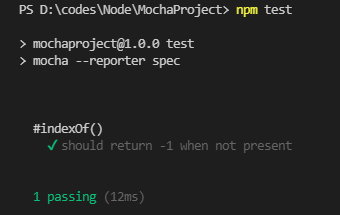
As previously mentioned, Spec is the default reporter. It outputs a hierarchical view nested just as the test cases are.
Dot-matrix
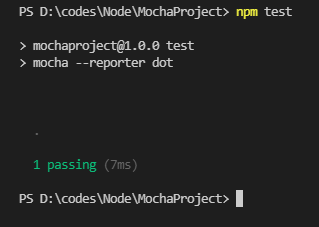
Use the following configuration to use Dot-matrix reporter.
"test": "mocha --reporter dot"The dot-matrix reporter will simply create a series of characters representing test cases. The pending tests will be shown with a blue comma. The failures will be highlighted in red exclamation marks, while slow tests will be yellow. A Dot-matrix reporter is preferred if we want the tiniest output.
Nyan
The "Nyan" reporter will create a cat image in the report. Tests are shown in numbers. Passing tests are shown in green while failing, and pending tests are shown in red and blue, respectively. See the below report to understand better.
Use the following configuration to use Nyan reporter.
"test": "mocha --reporter nyan"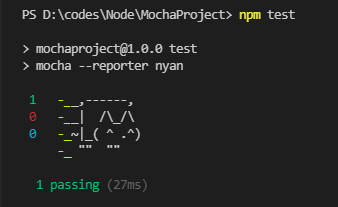
Tap
The TAP reporter will emit lines for a Test-Anything-Protocol consumer.
It will show an ok check for each passing test with the console output. Also, passed and failed tests are shown in numbers.
Use the following configuration to use Tap reporter.
"test": "mocha --reporter tap"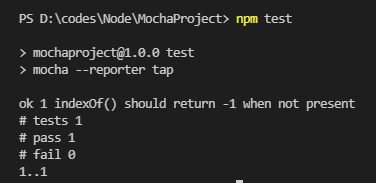
Landing Strip
The landing Strip reporter stimulates a plane landing Unicode ftw.
Use the following configuration to use Landing strip reporter.
"test": "mocha --reporter landing"
List
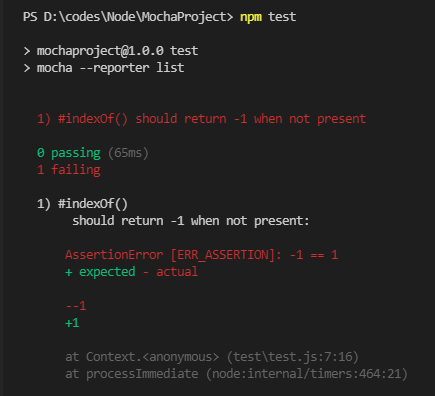
The "list" reporter will output a list with a green check if test cases pass, or it outputs the failure details at the bottom in case the test fails.
Use the following configuration to use List reporter.
"test": "mocha --reporter list"Passing tests: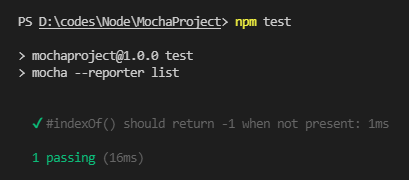
Failed tests:
Progress
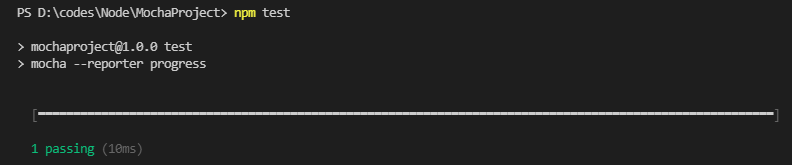
This reporter will implement a simple progress bar to show passed and failed tests.
Use the following configuration to use Progress reporter.
"test": "mocha --reporter progress"
JSON
The "JSON" reporter will output a JSON object which contains stats like no of suites, tests, start time, end time. Details of a particular test are also shown like title, err, etc. it also contains passed tests, failed tests, pending tests, etc.
Use the following configuration to use JSON reporter.
"test": "mocha --reporter json"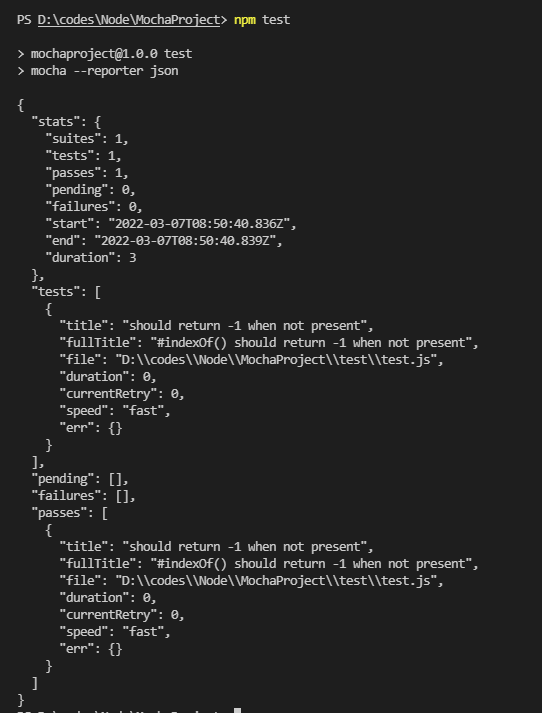
JSON stream
The "JSON stream" reporter will output JSON events as they occur with a new line in between each event. It displays start, pass, end events in order.
Use the following configuration to use JSON Stream reporter.
"test": "mocha --reporter json-stream"
Min
The "min" reporter will display the minimalist summary of the tests. In case of a failure, it will output errors. Since it clears the terminal to keep your test summary at the top, it will work great with -watch.
Use the following configuration to use Min reporter.
"test": "mocha --reporter min"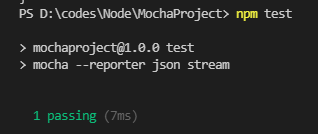
Doc
The "doc" reporter will output a hierarchical HTML body representation of your tests. To make it look even better, you can wrap it with a header, footer, and some styling.
Use the following configuration to use Doc reporter.
"test": "mocha --reporter doc"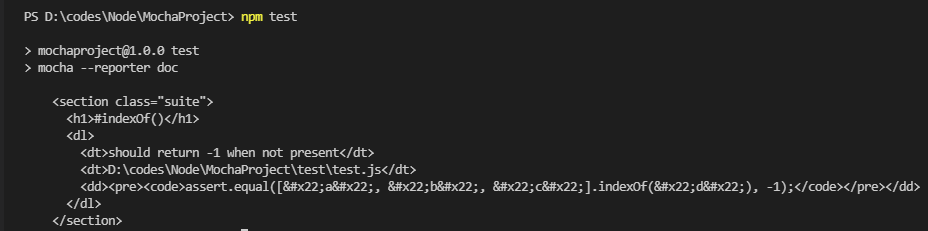
Markdown
The "markdown" reporter will generate a markdown TOC and body for your test suites.
By default, the report is displayed in the terminal. You can use --reporter-options output=filename.xml if you want to write directly to a file.
You can use --reporter-options suiteName="Custom name" if you want to specify a custom report title.
Use the following configuration to use Markdown reporter.
"test": "mocha --reporter markdown"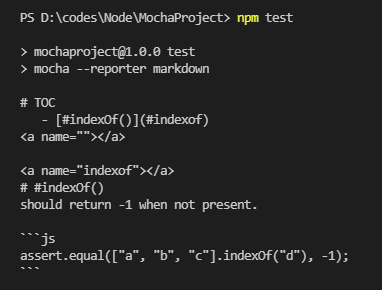
Third-party reporters
Mocha 1.3.0 allows you to define custom third-party reporters within your test suite or by using npm modules. For example, if "lcov-reporter" were published to npm, you would simply add it to your package.json in devDependencies and use --reporter lcov-reporter.
You can use third-party reporters by executing mocha --reporter my-reporter.js


 1+ registered

