Creating a Motion Layout
The following steps need to be followed while creating a simple motion layout in an Android application.
Creating an Android Studio Project
The first and foremost step to start building an application is to create an Android Studio project for the same. Refer to the blog Android App components and folder structure to understand an Android application's various components and understand an Android project's directory structure.
Adding Motion Layout to your Android Project
It is pretty likely that Motion Layout might not be present by default inside our Android app. So it is advised to add the dependency for the same in our Android app under the build.gradle (:app) file before using the Motion Layouts.
implementation ‘androidx.constraintlayout:constraintlayout:2.0.0-beta7’

It is important to sync the changes made in the build.gradle file. If the file is not synced, it might create problems in the further development process while using this library. Android Studio will notify you to sync changes to your project, as shown below.


Adding non coding assets
I will be using the following image (logo of coding ninjas) in the demo application created in this blog. You are free to use your own image or the same image as in this tutorial.

Add the image named coding_ninjas.png in the directory app/res/drawable.
The activity_main.xml file
This is the file that contains our Motion Layout as the root element. It also defines its other related parameters, such as width and height. Motion Layouts can also include other views such as Button, TextView and different layouts such as Frame Layout, Relative Layout inside it. The following is the code to be written inside the activity_main.xml file.
The app:layoutDescription is assigned the value as @xml/scene. By this, we refer to the newly created scene.xml file inside our newly created xml folder under the app/res directory. This file contains the code which describes the working of animation. In this example, we have applied a transition on an ImageFilterView. More details about the scene.xml file are specified in the next section.
Code:
<?xml version="1.0" encoding="utf-8"?>
<androidx.constraintlayout.motion.widget.MotionLayout
    xmlns:android="http://schemas.android.com/apk/res/android"
    xmlns:app="http://schemas.android.com/apk/res-auto"
    xmlns:tools="http://schemas.android.com/tools"
    android:id="@+id/motionLayout"
    app:layoutDescription="@xml/scene"
    android:layout_width="match_parent"
    android:layout_height="match_parent"
    tools:context=".MainActivity">

    <androidx.constraintlayout.utils.widget.ImageFilterView
        android:id="@+id/logo_coding_ninjas"
        android:scaleType="centerInside"
        android:layout_width="match_parent"
        android:layout_height="match_parent"
        android:src="@drawable/coding_ninjas" />

</androidx.constraintlayout.motion.widget.MotionLayout>
The scene.xml file
This file is not present by default in our project. We need to create a folder named xml inside our res folder. Inside that folder, create a new XML file with the name scene.xml. This is the same file that is referenced in the activity_main.xml file under the property app:layoutDescription. This file contains the complete description of our animation and what the animations should do. To create the motion layout described in this blog, add the following code to this file.
Code:
<?xml version="1.0" encoding="utf-8"?>
<MotionScene
    xmlns:android="http://schemas.android.com/apk/res/android"
    xmlns:motion="http://schemas.android.com/apk/res-auto">

    <Transition
        motion:constraintSetStart="@+id/start"
        motion:constraintSetEnd="@+id/end"
        motion:duration="1500">
        <OnSwipe
            motion:touchAnchorId="@id/logo_coding_ninjas"
            motion:touchAnchorSide="top"
            motion:dragDirection="dragUp" />
    </Transition>

    <ConstraintSet android:id="@+id/start">
        <Constraint
            android:id="@id/logo_coding_ninjas"
            android:layout_width="match_parent"
            android:layout_height="100dp"
            motion:layout_constraintStart_toStartOf="parent"
            motion:layout_constraintTop_toTopOf="parent">
        </Constraint>
    </ConstraintSet>

    <ConstraintSet android:id="@+id/end">
        <Constraint
            android:id="@id/logo_coding_ninjas"
            android:layout_width="match_parent"
            android:layout_height="200dp"
            motion:layout_constraintBottom_toBottomOf="parent"
            motion:layout_constraintEnd_toEndOf="parent">

        </Constraint>
    </ConstraintSet>

</MotionScene>
The MainActivity.kt file
We don't need to change much in this file and just use the code which is provided when we create an Android application with an empty activity. This file contains the onCreate callback method, which loads the main activity layout.
Code:
package com.example.motionlayout

import androidx.appcompat.app.AppCompatActivity
import android.os.Bundle

class MainActivity : AppCompatActivity() {
    override fun onCreate(savedInstanceState: Bundle?) {
        super.onCreate(savedInstanceState)
        setContentView(R.layout.activity_main)
    }
}
The strings.xml file
The contents of this file are presented below. In my demo application, this file only contains the name of my application.
Code:
<resources>
    <string name="app_name">Motion Layout</string>
</resources>
Final Motion Layout
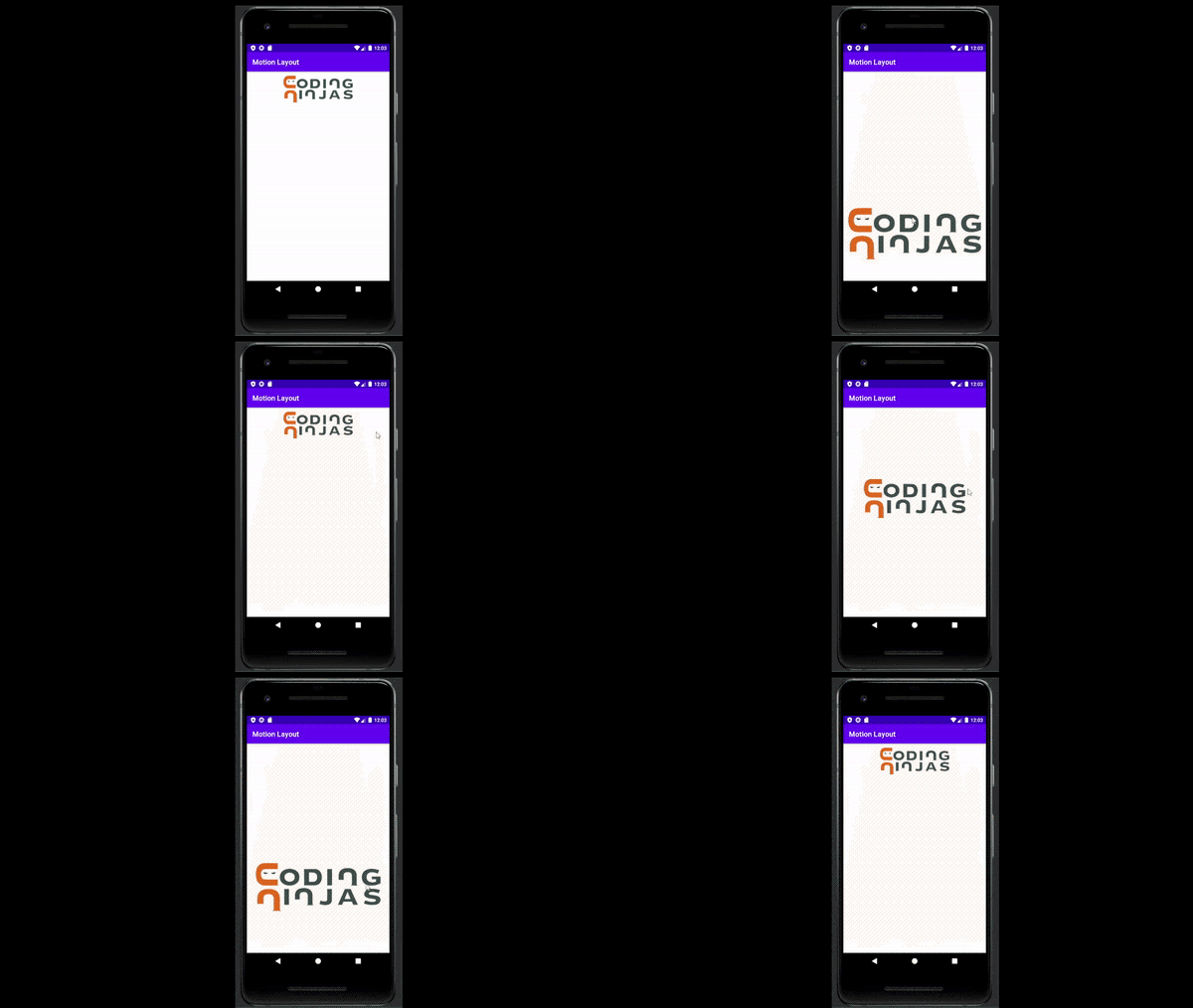
After following all the steps written above, run your application using an AVD. The following video demonstrates the final motion layout, which will be created after running the application. It works in the following manner. Just hold the image and try to drag it up and down. The image will move, giving a sense of animation, and also the size of the image also changes dynamically.
FAQs
-
Where are the endpoints of a motion-defined?
Ans: The endpoints of the motion are referenced by motion:constraintSetStart and motion:constraintSetEnd. They are defined in the <ConstraintSet> elements later in the MotionScene.
-
How can I specify the duration for the motion to complete?
Ans: The number of milliseconds it takes for the motion to complete is specified by motion:duration.
-
What is the role of the Constraint Set?
Ans: We define the various constraints affecting our motion inside the Constraint Set.
Key Takeaways
In this article, we have extensively discussed Motion Layouts and saw a demo application in which we implemented a simple motion layout using XML. There are many other layouts that you can try implementing in your Android application. For example, you can create Frame Layout and Relative Layout by referring to our Coding Ninjas Website blogs.
We hope that this blog has helped you enhance your knowledge regarding Motion Layouts and if you would like to learn more, check out our Android Development Course on the Coding Ninjas Website to learn everything you need to know about Android development. Do upvote our blog to help other ninjas grow. Happy Coding!





 1+ registered

