Do you think IIT Guwahati certified course can help you in your career?
Introduction
Hi Ninja🥷! Let’s learn an exciting topic today. You may have seen Date and Time Pickers on many websites and apps and wondered how they are created. Well, let's see.
Here we will be using a particular type of Java framework called Vaadin. It helps a lot in specifying different kinds of Vaadin-Date Time pickers. So without any delay, let's dive into the topic directly.
Date Time Picker
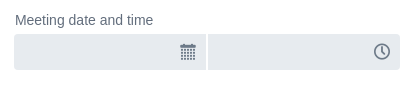
We use the Vaadin-Date Time Picker input field to select a date and time.
We can enter the date and time directly using the keyboard in the current locale format or through the two overlays of Vaadin-Date Time Picker. The overlays open when we click their respective fields or enter any input.
<!-- Coding Ninjas -->
<!-- Sample code for reference -->


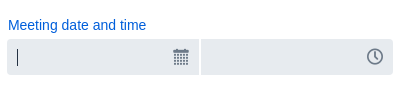
DateTimePicker dateTimePicker = new DateTimePicker();
dateTimePicker.setLabel("Meeting date and time");
add(dateTimePicker);
Output:
Common Input Field Features
Vaadin-Date Time Picker contasins all the features of the Text Field and shared input field.
Step
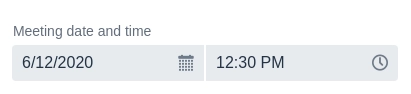
The step parameter of the Vaadin-Date Time Picker specifies the time interval (in seconds) between the elements displayed in the time picker overlay.
It also defines the amount by which the time increases/decreases using the up/down arrow keys (when we disable the overlays).
The default step is one hour (i.e., 3600 seconds). Vaadin-Date Time Picker accepts values that do not align with the specified step.
<!-- Coding Ninjas -->
<!-- Sample code for reference -->


DateTimePicker dateTimePicker = new DateTimePicker();
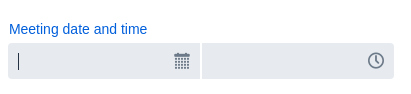
dateTimePicker.setLabel("Meeting date and time");
dateTimePicker.setStep(Duration.ofMinutes(30));
dateTimePicker.setValue(LocalDateTime.of(2020, 6, 12, 12, 30, 0));
add(dateTimePicker);
Output:
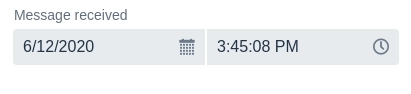
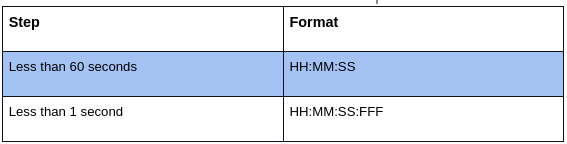
Based on the step, the displayed time format changes.
The overlay opens automatically when we focus on the field using a pointer (mouse or touch) or when we type in the area. We can disable this so that the overlay opens only when we press the toggle button or up/down arrow keys.
We can define a min and max value for Vaadin-Date Time Picker if you need to restrict the input to a specific range:
<!-- Coding Ninjas -->
<!-- Sample code for reference -->

DateTimePicker dateTimePicker = new DateTimePicker();
dateTimePicker.setLabel("Appointment date and time");
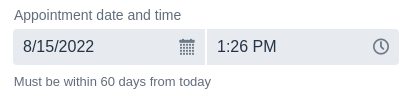
dateTimePicker.setHelperText("Must be within 60 days from today");
dateTimePicker.setAutoOpen(true);
dateTimePicker.setMin(LocalDateTime.now());   //Setting min value
dateTimePicker.setMax(LocalDateTime.now().plusDays(60)); //Setting maxvalue
dateTimePicker.setValue(LocalDateTime.now().plusDays(7));
add(dateTimePicker);
Output:
Custom Validation
We can also apply custom validation if the minimum and maximum values are insufficient.
<!-- Coding Ninjas -->
<!-- Sample code for reference -->

DateTimePicker dateTimePicker = new DateTimePicker();
dateTimePicker.setLabel("Appointment date and time");  //Creating Vaadin-Date time picker a custom date and time of a meeting

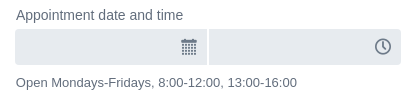
dateTimePicker.setHelperText("Open Mondays-Fridays, 8:00-12:00, 13:00-16:00"); // This text helps the user to know the format of the date and time

dateTimePicker.setStep(Duration.ofMinutes(30));

add(dateTimePicker);

Binder<Appointment> binder = new Binder<>(Appointment.class);

binder.forField(dateTimePicker).withValidator(startDateTime -> {
    boolean validWeekDay = startDateTime.getDayOfWeek().getValue() >= 1
            && startDateTime.getDayOfWeek().getValue() <= 5;

    return validWeekDay;
},

("The selected day of week is not a valid day").withValidator(startDateTime -> {
    LocalTime startTime = LocalTime.of(startDateTime.getHour(), startDateTime.getMinute());  //CustomizingThePicker with local date and time

    boolean validTime = !(LocalTime.of(7, 0).isAfter(startTime)
            || (LocalTime.of(12, 0).isBefore(startTime) && LocalTime.of(13, 0).isAfter(startTime))
            || LocalTime.of(16, 0).isBefore(startTime));

    return validTime;
},

("The selected time is not available").bind(Appointment::getStartDateTime, Appointment::setStartDateTime);  //When the user enters some invalid date
Output:
Week Numbers
We can configure Vaadin-Date Time Picker to show week numbers in the date picker overlay.
Numbers of the week are displayed according to ISO-8601. Notably, the first day of the week must be Monday for Vaadin-Date Time Pickers to work correctly.
Initial Position
The initial position parameter of Vaadin-Date Time Picker defines which date will be focused in the calendar overlay when we open the overlay. We use this feature to minimise the need for additional navigation or scrolling when we expect the user's input to be within a specific time frame.
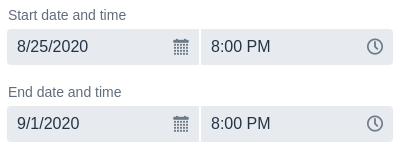
We can accomplish a date time range picker using two Vaadin-Date Time Pickers.
<!-- Coding Ninjas -->
<!-- Sample code for reference -->

DateTimePicker startDateTimePicker = new DateTimePicker("Start date and time");
startDateTimePicker.setValue(LocalDateTime.of(2022, 8, 25, 20, 0, 0));
//Setting start date

DateTimePicker endDateTimePicker = new DateTimePicker("End date and time");
endDateTimePicker.setValue(LocalDateTime.of(2022, 9, 1, 20, 0, 0));
//Setting end date

startDateTimePicker.addValueChangeListener(e -> endDateTimePicker.setMin(e.getValue()));

add(startDateTimePicker, endDateTimePicker);
Output:
To disable the days earlier than the start date in the end date picker, we should alter the selection in the start date picker and the range in the end date picker.
Best Practices
We should use Vaadin-Date Time Picker only when the user needs to choose dates and a time of day. If we need a date only or time of day, we should use Date Picker or Time Picker, respectively.
Picking vs Typing
The calendar overlay is helpful in cases where we need to choose a day close to the current date or when details such as day of the week, week number, valid dates, and so on can help us choose the best option.
Typing the date can be convenient for days well into the past or future and for dates such as birthdays. It is essential to verify that we can enter that dates according to the user's locale.
Providing Input Guidance
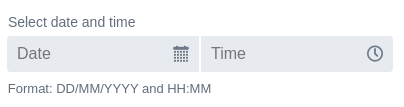
We should use additional text to indicate the expected date and time formats and placeholders to assist users in identifying the two subfields correctly.
<!-- Coding Ninjas -->
<!-- Sample code for reference -->

DateTimePicker dateTimePicker = new DateTimePicker();
dateTimePicker.setLabel("Select date and time");
dateTimePicker.setHelperText("Format: DD/MM/YYYY and HH:MM");
dateTimePicker.setDatePlaceholder("Date");
dateTimePicker.setTimePlaceholder("Time");
add(dateTimePicker);
Output:
Frequently Asked Questions
What is the use of Vaadin-Date Time Picker?
We can enter the date and time directly by using a keyboard in the format of the current area or through two overlays of the Vaadin Date Time Picker. Date Picker is an input field that permits the user to enter a date by typing or to select from a calendar overlay.
Can we validate the date time picker in Vaadin?
Yes, we can validate by defining min and max values. We can also configure the Vaadin-Date Time picker to show week numbers. We can also localise the Date-Time format using the internationalising feature Vaadin-Date Time picker.
Is Vaadin an MVC?
Vaadin doesn't wholly fit the MVC model. Vaadin isn't based on MVP. The MVP pattern is used in many enterprise application projects using Vaadin, so it is entirely usable with Vaadin, but Vaadin is not based on it.
Conclusion
Hurray! You have learnt a very new topic today-the, the vaadin-Date Time Picker. Vaadin is a Java web framework. It includes a set of Web Components and tools that help developers implement modern web graphical user interfaces (GUI) using the popular programming language, Java only (instead of HTML and JavaScript), TypeScript only, or a combination of both.
But suppose you have just started your learning process and are looking for questions asked by tech giants like Amazon, Microsoft, Uber, etc. In that case, you must look at the problems, interview experiences, and interview bundles for placement preparations.
We hope you have a good experience going through our article on the vaadin-date picker.
Nevertheless, you may consider our paid courses to give your career an edge over others!
Upvote our Hibernate and Spring Integration blog if you find it helpful and engaging!









 7+ registered

