Table of contents
1.
Introduction
2.
Analyze Test Execution Logs
2.1.
Log Viewer
2.2.
Scroll Lock 
3.
View Test Suite Reports 
4.
Frequently Asked Questions
4.1.
Can I perform Mobile testing using Katalon Studio? 
4.2.
How can I set up an emulator for testing in Katalon Studio? 
4.3.
Can I use a physical mobile device for testing in Katalon Studio? 
5.
Conclusion
Last Updated: Mar 27, 2024

Analyze Test Execution logs and Reports in Katalon Studio

Author Neha Chauhan
0 upvote
Career growth poll
Do you think IIT Guwahati certified course can help you in your career?

Introduction

Katalon Studio is a test automation tool. It can be used for web, mobile and API testing. You can create test suites, test cases and test objects. You can record test cases and play them later i.e. you can manually set a test case, later on Katalon automation tool will imitate the user’s behavior and run the actions in a repeatable manner.

Test execution logs Katalan Studio

 In this article, we will discuss how to analyze test execution logs after running the test cases in Katalon Studio. We will also discuss how to analyze the execution reports in Katalon Studio. 

Analyze Test Execution Logs

Log Viewer

After the test execution is completed, we can view information about the test execution from the “Log Viewer”. 
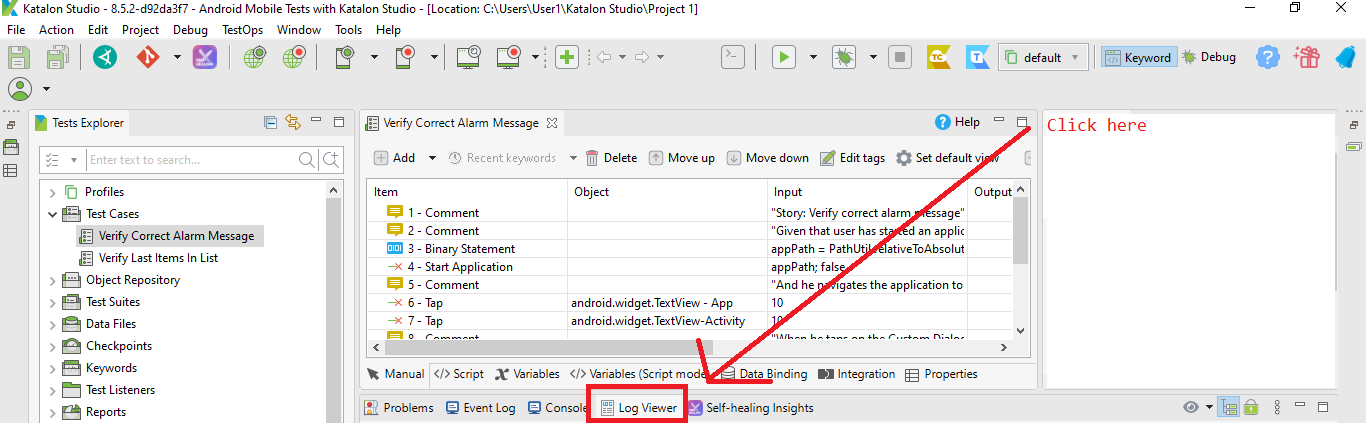
Katalan Studio verify

➡️ There are two types of views available -

⭐ Tree View: The logs are organized properly in the way they are executed. Click on the Tree view button to switch to the Tree View. 
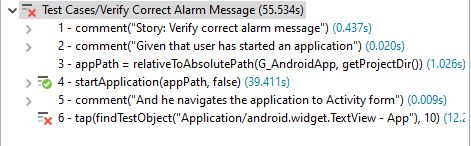
Katalan Studio test cases

⭐ Standard View: The log is organized step-wise, with each step visible. 

On the left-hand side, you can find the filter options that allow you to view logs of your choice i.e. if you want to view the tests that have been passed you can select Passed.

We have described the filter options in the below image -
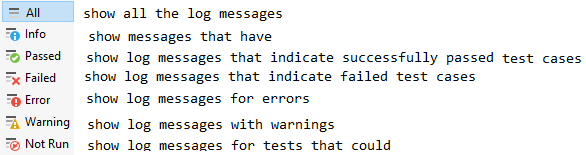
Katalan Studio all

➡️ The detailed information about the test steps is displayed on the right side of the log messages (it is the same for both Standard and Tree view). 

➡️ Click on the test case to view its details. 
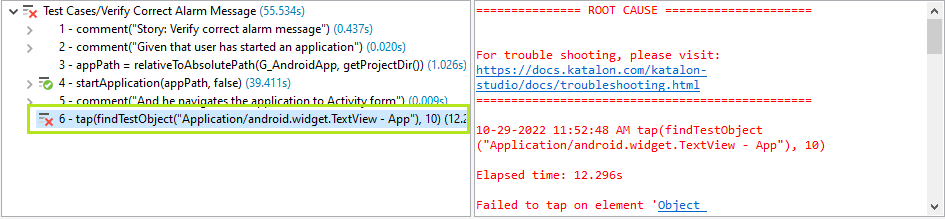
Katalan Studio test cases verify

Scroll Lock 

As the test is being executed, new messages keep getting added to the bottom of the log messages, so the logs keep getting scrolled down. If you want to stop scrolling, click on the scroll lock button. 

output

Note: We have used the Sample Android Project provided by Katalon Studio as an example in this entire article. 
View Test Suite Reports 

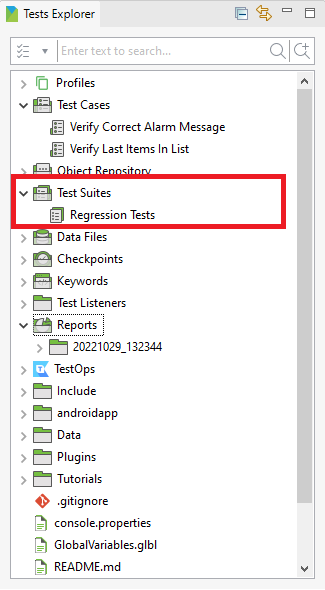
A Test Suite is a collection of Test Cases. In Katalon, a Report is generated for every test suite. In this section of the article, we will discuss how to analyze test suite reports. 

You can select a test suite from the test explorer and run it from the RUN button on the toolbar. 

Katalan Studio test explorer

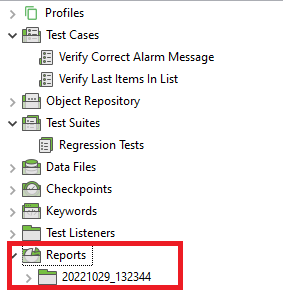
All the reports are located under the Reports directory. 

Katalan Studio profiles

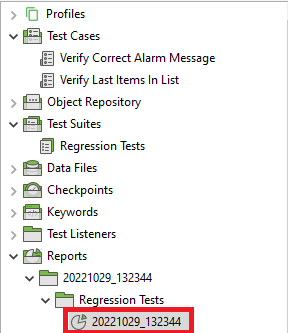
Here we view the latest execution report by expanding the folder. Double-click on the report to open it. 

Katalan Studio profiles

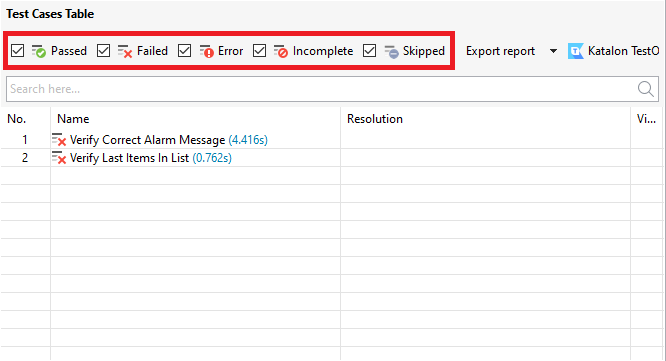
All the test cases in the test suite can be accessed from the “Test Case” Table.  

There are different execution statuses available: Passed, Failed, Error, Incomplete and Skipped. You can filter which test cases should be shown by unchecking the execution status. 

Katalan Studio test cases table

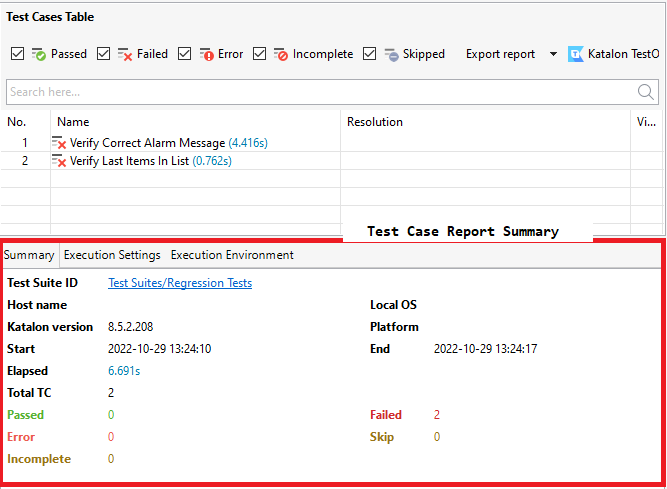
Under the Test Cases table, there is a Report Summary Section, with information about the Test Suite, such as the Test Suite ID, execution environment, execution time, and execution status.

Katalan Studio test cases table

Click on Show Test case Details and check out the test case steps in detail. 

Test case table Katalan Studio

Frequently Asked Questions

Can I perform Mobile testing using Katalon Studio? 

Yes. Katalon Studio can be used for testing Android and iOS mobile devices. It can also be used for web and API testing.

How can I set up an emulator for testing in Katalon Studio? 

You can set up an emulator from the command line and from Android Studio. 

Can I use a physical mobile device for testing in Katalon Studio? 

Yes. Switch on the developer mode on the mobile device and connect the mobile device to the system using a USB cable. Katalon studio will automatically detect the mobile device.

Conclusion

Pat yourself on the back for finishing this article. In this article, we discussed how to analyze logs for test cases in Katalon Studio. We discussed how to view and analyze the Test Suite reports in Katalon Studio.

Do not stop learning! We recommend you read these articles on Katalon Studio-

🔥 Install Katalon Studio on windows and iOS

🔥 Katalon and Import Preferences in Katalon Studio

🔥 Keyboard Shortcuts in Katalon Studio

🔥 Katalon Studio vs ReadyAPI

Head to the Guided Path on the Coding Ninjas Studio and upskill in Data Structures and AlgorithmsCompetitive ProgrammingSystem Design, and many more courses.

If you want to Practice top Coding Problems, attempt mock tests, or read interview experiences, head to the Coding Ninjas Studio, our practice platform.

We wish you Good Luck!🎈 Please upvote our blog 🏆 and help other ninjas grow.

Live masterclass