




Introduction
Developers can use JavaFX to build, test, debug, and deploy rich client apps that work reliably across several platforms. We may create a wide range of applications with JavaFX. They are typically network-aware apps that run across several platforms, and present data in a modern high-performance user interface with audio, video, graphics, and animation. A ColorPicker in JavaFX is a typical feature of practically all software and online image and text editing programs. JavaFX's ColorPicker lets users make quick and accurate color selections. It enables us to modify the colors of visual elements such as text or shapes in a document or graphic.
ColorPicker in JavaFX
A color picker is a tool that allows you to select and alter color values. Graphic design and image editing users frequently select colors through a user interface with a visual representation of colors rather than entering alphanumeric text values. The interface is generally arranged using hue, saturation, and brightness parameters that are nearly perceptually suitable (HSL).
The JavaFX ColorPicker control lets the user select a color in a popup window. The JavaFX application can later access the ColorPicker's selected color. The javafx.scene.control class. ColorPicker is a JavaFX ColorPicker control. An Action event is triggered when the user selects a color from the color picker. This event can be handled using an event handler.
We have listed the advantages and disadvantages of ColorPicker in JavaFX below:
Advantages
Here, we have listed the advantages of ColorPicker in JavaFX.
- Selection accuracy: Using a color picker can assist us in obtaining the correct color irrespective of the origin location. Two users can obtain the same shade using hex codes that specify the color.
- Ease of selection: In JavaFX, we may easily select the color we desire by using a ColorPicker. To alter the color of the text and the backdrop, use a ColorPicker in JavaFX.
- Shade availability: There are multiple shades of the same color, and JavaFX's ColorPicker supports the use of numerous widely available colors from the same color line. Because it is readily available, the effort required to obtain proper shade is considerably decreased.
Disadvantages
- Wrong selection of color: The user might choose a different shade of color than the intended one. As there are a lot of colors presented as options, the user might choose a shade that might be similar but not the actual shade of color intended to be used.
- The impracticality of printing: With the option to choose from thousands of colors that can be taken from the custom color selection option, the user might select a color that may be extremely difficult to print. As all the color tones are not readily available, it might cause an increase in the cost of production.
Uses of ColorPicker
Below we see the uses of ColorPicker in JavaFX:
- To set the foreground, background, and text colors in JavaFX, we use the ColorPicker. This lets the user have control over the appearance of the created content.
- ColorPicker in JavaFX allows us to change the colors of numerous tools, actions, and options. This also helps us to make them stand out to the user. Making the designs more approachable and user-friendly.
- In JavaFX, we can occasionally edit the ColorPicker to allow us to select only colors from the web-safe palette or specific color schemes. This helps the users in real-life situations where the color pigment may not be easily printable or suitable for a dedicated color theme. Therefore an alternate web-friendly color or specific scheme helps with the practicality of usage.
Example
We will look into an example of ColorPicker in JavaFX
// Java Program to create a color picker
import javafx.application.Application;
import javafx.scene.Scene;
import javafx.scene.control.*;
import javafx.scene.layout.*;
import javafx.stage.Stage;
public class ColorPickerDemo extends Application {
 @Override
	// launch the application
	public void start(Stage primaryStage) throws Exception{
	 ColorPicker colorPicker=new ColorPicker();

	 BorderPane root=new BorderPane();
	 root.setCenter(colorPicker);
	 Scene scene=new Scene(root,300,300);
	 primaryStage.setScene(scene);
	 primaryStage.setTitle("ColorPicker Example");
	 primaryStage.show();
 }
	public static void main(String args[])
	{
		// launch the application
		launch(args);
	}
}

Output
We can view our output of the code in different stages. The output shows how a ColorPicker in JavaFX is displayed.

When the code is executed, the ColorPicker Example is displayed. It shows the default color selected as white. The user can now click on the color button to enable the color palette option from where the users can make their color choices.
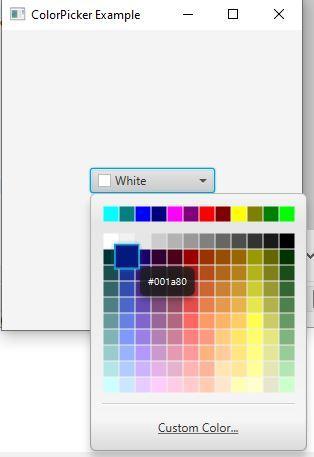
After pressing the color menu, the next popup shows an array of colors distributed in various shades. The user can pick their choice of color from these options. Suppose the users cannot find their desired color in the palette. In that case, they can manually choose the custom color option to define and select their color option.
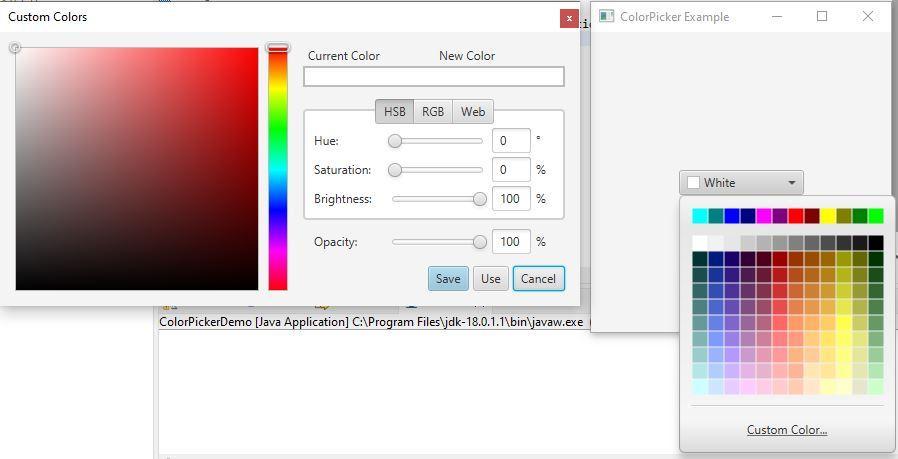
If the user intends to choose the "Custom Color" option, the "Custom Colors" popup will be displayed. This is where the users can make their custom color choices if they are not finding their choice of color from the default color palette provided.
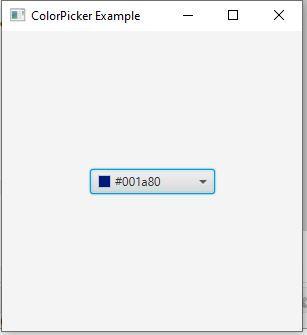
Once the choice of color is made, the chosen color is selected and shown in the final window. Thus confirming that the color has been selected successfully.



 7+ registered

