Do you think IIT Guwahati certified course can help you in your career?
Introduction
Hello and Welcome, readers! We hope that you are doing well.
JavaFX is a Java library consisting of graphics and media packages for creating, designing, debugging, testing and deploying rich client applications that can operate across multiple platforms.
If you want to learn more about JavaFX, follow the article, JavaFX.
This article will discuss the JavaFX RadioButton with proper explanations and implementations. We will show you different examples to easily grasp the topic.
So, without further ado, let's get started.
JavaFX RadioButton
We know that a button is nothing but a component that, when pressed, performs an action. In JavaFX, a radio button is also a kind of circular shape button which performs similar actions to a normal button.
It has two states: either we can select a radio button or deselect it. We can also group radio buttons using the toggle groups where we can only select one of the radio buttons. The radio buttons look and act like the below.
The radio button in JavaFX is under the package of javafx.scene.control, represented by javafx.scene.control.RadioButton class.
RadioButton Constructors
The JavaFX RadioButton has two constructors:
RadioButton(): This will create a radio button with an empty string for its label.
RadioButton(String s): This will create a radio button with a string for its label.
RadioButton Methods
The JavaFX RadioButton Methods are as follows:
isSelected(): This method returns whether the radio button is selected or not.
setSelected(boolean x): This method sets whether the radio button is selected or not.
setToggleGroup(ToggleGroup g): This method sets the toggle group for the radio button.
getText(): It returns the text label for the radio button.
fire(): It returns the state of the radio button if the radio button has not yet been selected and is not a part of any toggle group.
RadioButton Examples
This section will show some programs related to the radio button in JavaFX.
Example1
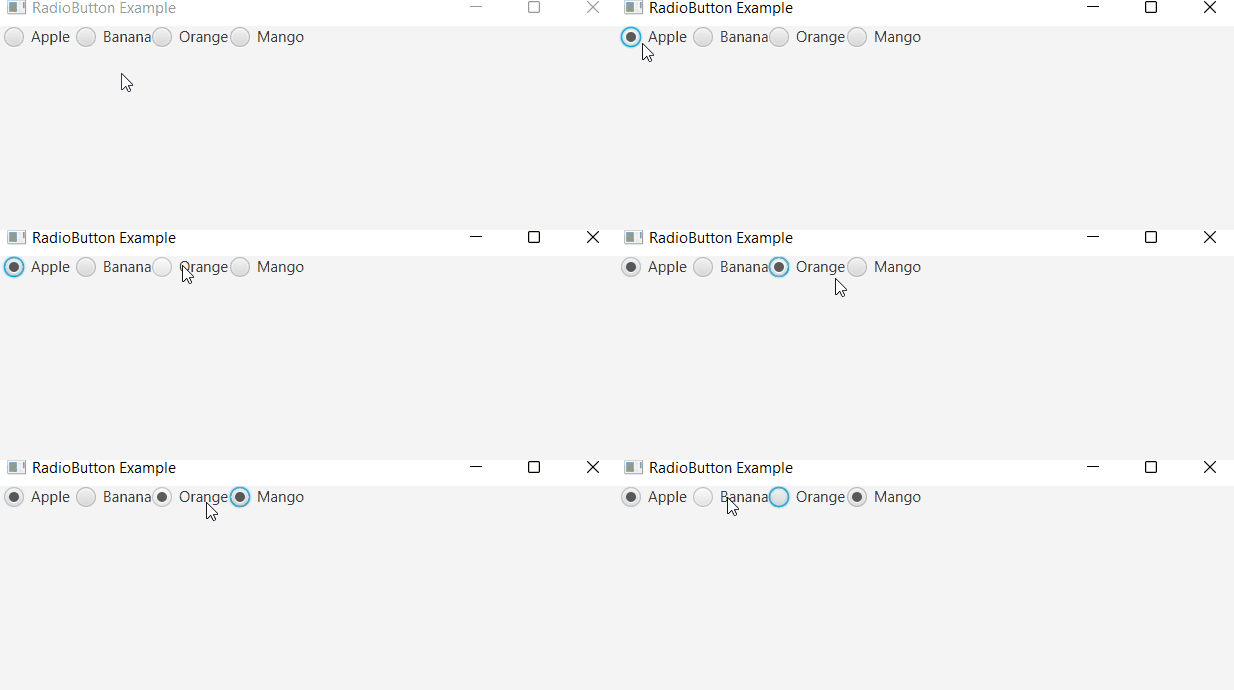
In this example, we will show you how to create a simple radio button using JavaFX.
Code
import javafx.application.Application;
import javafx.scene.Scene;
import javafx.stage.Stage;
import javafx.scene.layout.TilePane;
import javafx.scene.control.RadioButton;

public class App extends Application {

    // launch application
    public void start(Stage s) {

        // set the title of the stage created
        s.setTitle("RadioButton Example");

        // creating radio buttons

        RadioButton rb1 = new RadioButton("Apple");
        RadioButton rb2 = new RadioButton("Banana");
        RadioButton rb3 = new RadioButton("Orange");
        RadioButton rb4 = new RadioButton("Mango");

        // create a tile pane
        TilePane tp = new TilePane();

        // add all the radio button
        tp.getChildren().addAll(rb1 , rb2 , rb3, rb4);

        // create a scene with (500 x 500) resolution
        Scene sc = new Scene(tp, 500 , 500);

        // finally host the scene inside the stage
        s.setScene(sc);

        // display the result
        s.show();
    }

    public static void main(String args[]) {
        // launch the application
        launch(args);
    }
}
You can also try this code with Online Java Compiler
We first set the stage title inside the start method using the method setTitle().
Then, we created four radio buttons using RadioButton rb = new RadioButton("label of the radio button").
Then, we created a tile pane and added the radio buttons inside the tile pane.
Then, to make the above Tile pane visible, we added it inside the scene by setting the dimension of the scene as 500 x 500.
Then, we added the scene to the stage.
Finally, the show() method displays the result.
Example2
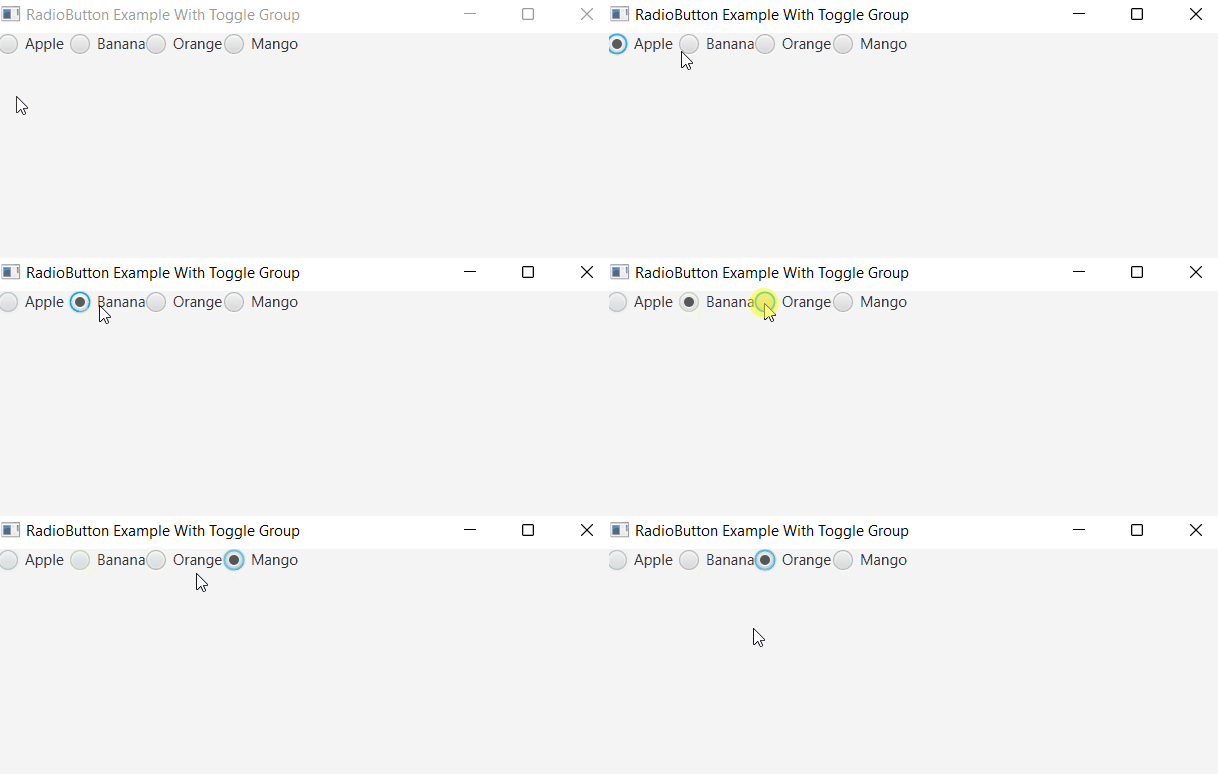
In this example, we will show you how to add radio buttons inside a toggle group and how they behave inside a toggle group.
Code
import javafx.application.Application;
import javafx.scene.Scene;
import javafx.stage.Stage;
import javafx.scene.layout.TilePane;
import javafx.scene.control.RadioButton;
import javafx.scene.control.ToggleGroup;

public class App extends Application {

    // launch application
    public void start(Stage s) {

        // set the title of the stage created
        s.setTitle("RadioButton Example With Toggle Group");

        // creating radio buttons

        RadioButton rb1 = new RadioButton("Apple");
        RadioButton rb2 = new RadioButton("Banana");
        RadioButton rb3 = new RadioButton("Orange");
        RadioButton rb4 = new RadioButton("Mango");

         // Create a Toggle Group

         ToggleGroup g = new ToggleGroup();

         // set the toggle group for each radio button

         rb1.setToggleGroup(g);
         rb2.setToggleGroup(g);
         rb3.setToggleGroup(g);
         rb4.setToggleGroup(g);


        // create a tile pane
        TilePane tp = new TilePane();

        // add all the radio button
        tp.getChildren().addAll(rb1 , rb2 , rb3, rb4);


        // create a scene with (500 x 500) resolution
        Scene sc = new Scene(tp, 500 , 500);

        // finally host the scene inside the stage
        s.setScene(sc);

        // display the result
        s.show();
    }

    public static void main(String args[]) {
        // launch the application
        launch(args);
    }
}
You can also try this code with Online Java Compiler
The above code is more or less similar to the code explained in example1. The only difference is the below part:
   // Create a Toggle Group

         ToggleGroup g = new ToggleGroup();

         // set the toggle group for each radio button

         rb1.setToggleGroup(g);
         rb2.setToggleGroup(g);
         rb3.setToggleGroup(g);
         rb4.setToggleGroup(g);
You can also try this code with Online Java Compiler
The ToggleGroup() constructor will create an instance of the ToggleGroup class.
Then we used the setToggleGroup() method for each radio button, which takes a toggle group object and adds the radio button inside the toggle group.
Example3
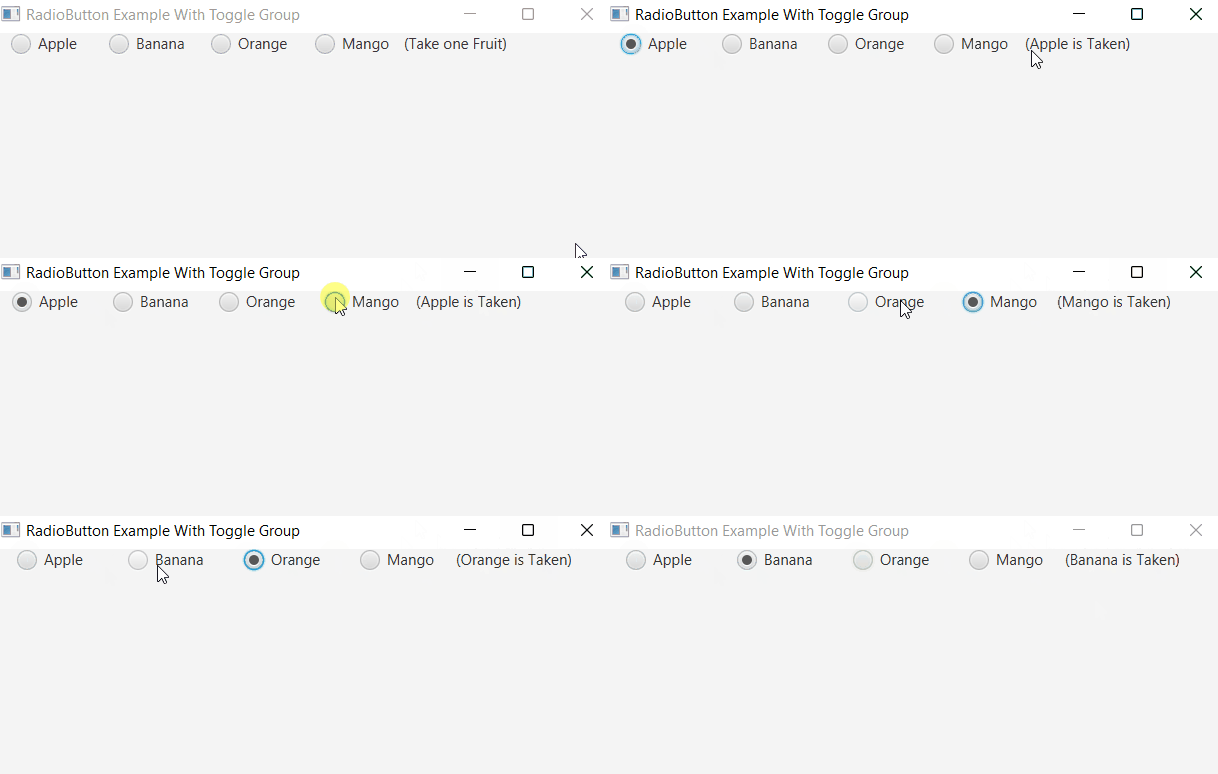
In this example, we will show you how you can add an event listener to the radio buttons inside a toggle group.
Code
import javafx.application.Application;
import javafx.scene.Scene;
import javafx.stage.Stage;
import javafx.scene.layout.TilePane;

import javafx.scene.control.*;

import javafx.beans.value.ChangeListener;
import javafx.beans.value.ObservableValue;

public class App extends Application {

    // launch application
    public void start(Stage s) {

        // set the title of the stage created
        s.setTitle("RadioButton Example With Toggle Group");

        // creating radio buttons

        RadioButton rb1 = new RadioButton("Apple");
        RadioButton rb2 = new RadioButton("Banana");
        RadioButton rb3 = new RadioButton("Orange");
        RadioButton rb4 = new RadioButton("Mango");

         // Create a Toggle Group

         ToggleGroup g = new ToggleGroup();

         // set the toggle group for each radio button

         rb1.setToggleGroup(g);
         rb2.setToggleGroup(g);
         rb3.setToggleGroup(g);
         rb4.setToggleGroup(g);

         // the label messge
         Label  lb = new Label("(Take one Fruit)");

        // set the change listener
        g.selectedToggleProperty().addListener(new ChangeListener<Toggle>()
        {
            public void changed(ObservableValue<? extends Toggle> ob, Toggle o, Toggle n)
            {
                if (g.getSelectedToggle() != null) {

                    // get the selected radio button
                    RadioButton r = (RadioButton)g.getSelectedToggle();

                    // get the label of the selected radio button

                    String label = r.getText();

                    // change the label messges
                    lb.setText("(" + label + " is Taken)");
                }
            }
        });


         // create a tile pane
         TilePane tp = new TilePane();

         // add all the radio button
         tp.getChildren().addAll(rb1 , rb2 , rb3 , rb4 , lb);

        // create a scene with (500 x 500) resolution
        Scene sc = new Scene(tp, 500 , 500);

        // finally host the scene inside the stage
        s.setScene(sc);

        // display the result
        s.show();
    }

    public static void main(String args[]) {
        // launch the application
        launch(args);
    }
}
You can also try this code with Online Java Compiler
The above code is more or less similar to the code explained in example1. The only difference is the below part:
  // set the change listener
        g.selectedToggleProperty().addListener(new ChangeListener<Toggle>()
        {
            public void changed(ObservableValue<? extends Toggle> ob, Toggle o, Toggle n)
            {
                if (g.getSelectedToggle() != null) {

                    // get the selected radio button
                    RadioButton r = (RadioButton)g.getSelectedToggle();

                    // get the label of the selected radio button

                    String label = r.getText();

                    // change the label messges
                    lb.setText("(" + label + " is Taken)");
                }
            }
        });
You can also try this code with Online Java Compiler
We have added a change listener in the toggle group.
The ChangeListener object checks for the selected radio button in the group.
The getSelectedToggle() method returns the selected radio button.
We get the label of the selected radio button from the method getText().
After that, we changed the label using the setText() method.
Frequently Asked Questions
What are the main components of the JavaFX Application?
The three major components of a JavaFX application are Stage, Scene and Nodes.
What is the toggle group in JavaFX?
The ToggleGroup() is a class that references all Toggles and modifies the behaviour of the set of Toggles such that only a single Toggle may be selected within the Toggle Group.
How do you create a toggle group and add a radio button?
Below is the implementation of creating a toggle group and adding some radio buttons to it:
         // Creating three radio buttons

         RadioButton b1 = new RadioButton("Button 1");
         RadioButton b2 = new RadioButton("Button 2");
         RadioButton b3 = new RadioButton("Button 3");

         // Creating a Toggle Group

         ToggleGroup g = new ToggleGroup();

         // setting the toggle group for each radio button

         b1.setToggleGroup(g);
         b2.setToggleGroup(g);
         b3.setToggleGroup(g);
You can also try this code with Online Java Compiler
In this article, we have extensively discussed the JavaFX RadioButton.
We started with the basic introduction. Then we discussed JavaFX RadioButton,JavaFX RadioButton Constructors, and JavaFX RadioButton Methods. Finally, we showed some examples.










 7+ registered

