Do you think IIT Guwahati certified course can help you in your career?
Introduction
Got bored seeing lots of Dialog boxes while surfing the internet? Well, It is time to learn how to create one with the help of the GWT DialogBox Widget!
In this article, we will discuss the use of the GWT DialogBox widget in creating the user interface. But before we discuss something about GWT Dialog boxes we first need to understand the Dialog boxes. Like - Where dialog boxes are used? what is the purpose of dialog boxes and how does it work?
In the next section, we will discuss the GWT DialogBox in a very efficient manner.
GWT DialogBox Widget
Dialog boxes are used to show information and request input from the user, explaining how to use the standard dialogue boxes in your application's user interface.
And the GWT Dialogbox offers a way to display more interactive pop-ups so the user can give the application feedback. The DialogBox widget is an example of a popup with a user-draggable caption area at the top. Instead of a PopupPanel, it will automatically adjust the width and height of the DialogBox itself when you call PopupPanel.setWidth(String) and PopupPanel.setHeight(String), even if a widget has not been created yet.
In the next section, we’ll discuss the GWT DialogBox Widget class Declaration.
GWT DialogBox Class Declaration
Check out the declaration of com.google.gwt.user.client.ui.DialogBoxDialogBox
public class DialogBox
       extends DecoratedPopupPanel
            implements HashHTML, HashsafeHtml
This code successively inherits the features of DecoratedPopupPanel and PopupPanel. The PopupPanel pops up over other widgets and the client area of the browser.
Nested Class
In this section, we will see two of the important nested class for GWT DialogBox Widget.
Constructors
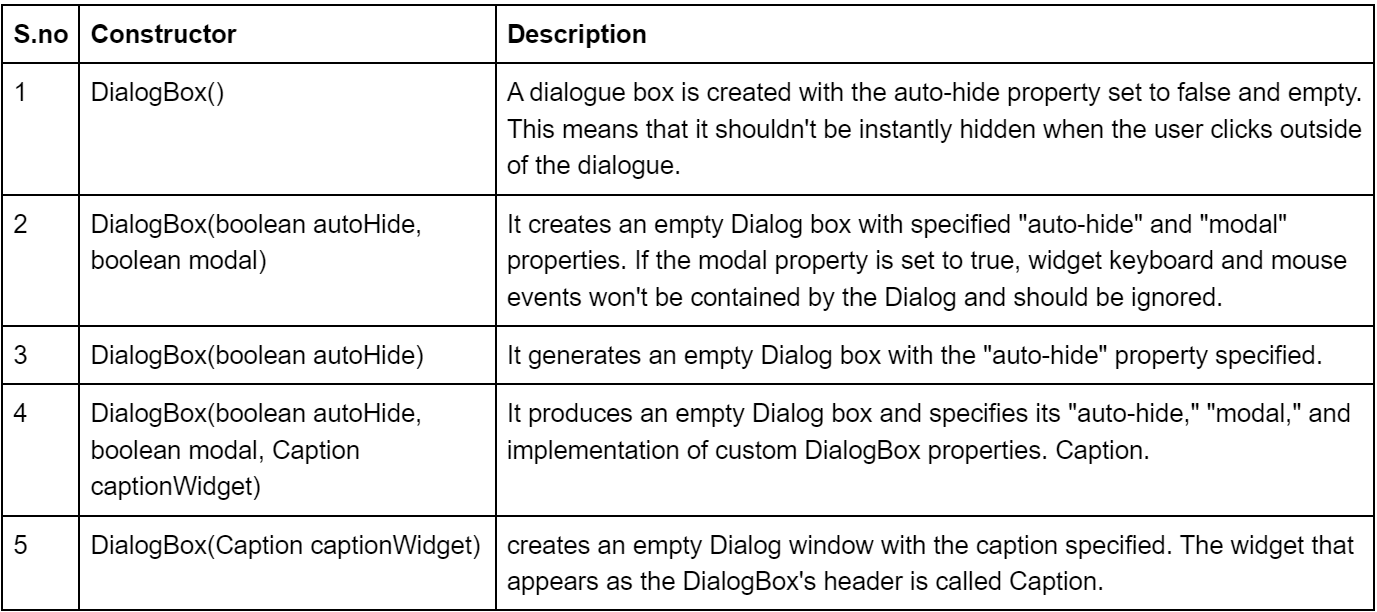
This section will discuss constructors along with their descriptions which are used in GWT DailogBox Widget.
Methods
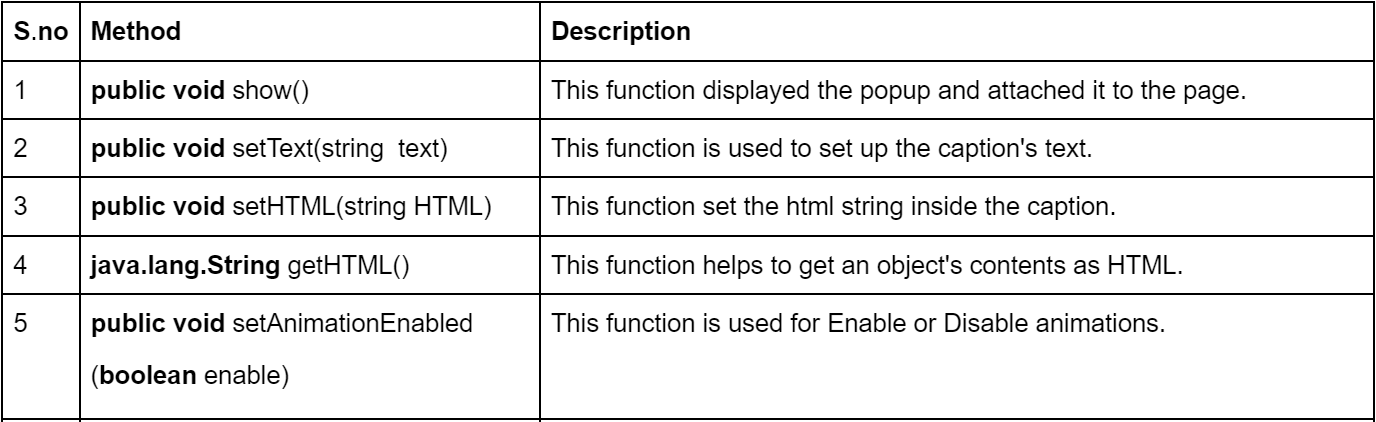
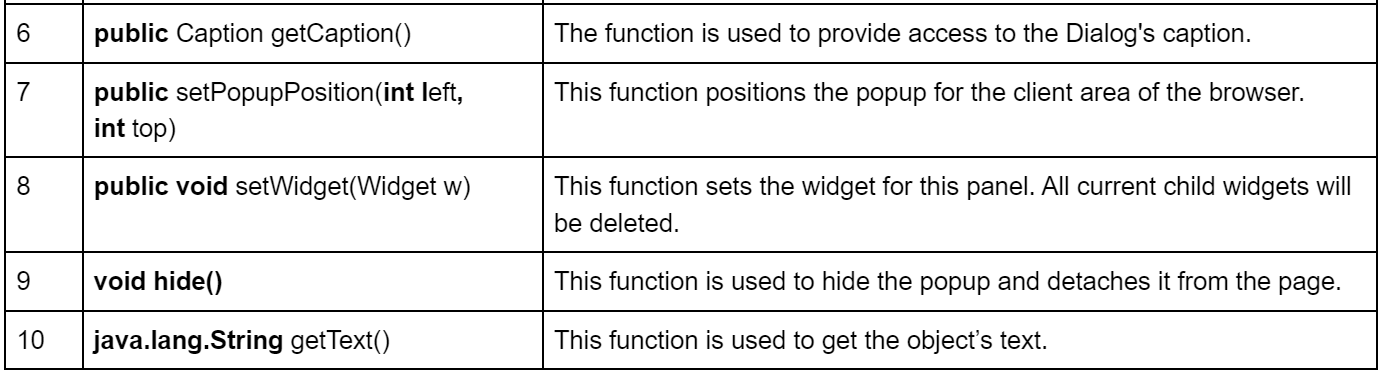
In this section, we will see some methods' names and functions used in GWT DialogBox Widget.
GWT DialogBox Widget Examples
Without seeing some real examples, it would have been really difficult to understand the blog. So the following two examples will let you clearly understand the creation of the GWT DialogBox Widget.
EXAMPLE
import com.google.gwt.core.client.EntryPoint;
import com.google.gwt.event.dom.client.ClickEvent;
import com.google.gwt.event.dom.client.ClickHandler;
import com.google.gwt.user.client.Window;
import com.google.gwt.user.client.ui.Button;
import com.google.gwt.user.client.ui.DialogBox;
import com.google.gwt.user.client.ui.HasHorizontalAlignment;
import com.google.gwt.user.client.ui.Label;
import com.google.gwt.user.client.ui.RootPanel;
import com.google.gwt.user.client.ui.VerticalPanel;


public class HelloWorld implements EntryPoint {
   private static class MyDialog extends DialogBox {
      public MyDialog() {

          // Set the caption for the dialogue box.

          setText("My First Dialog");

         // Enable the animation.

         setAnimationEnabled(true);

         // Enable the glass background.

         setGlassEnabled(true);

         // As a SimplePanel, DialogBox requires that its widget be configured.
         // anything you want its contents to be, property.

          Button ok = new Button("OK");
         ok.addClickHandler(new ClickHandler() {
            public void onClick(ClickEvent event) {
               MyDialog.this.hide();
            }
         });
         Label label = new Label("This is a simple dialog box.");
         VerticalPanel panel = new VerticalPanel();
         panel.setHeight("100");
         panel.setWidth("300");
         panel.setSpacing(10);
         panel.setHorizontalAlignment(HasHorizontalAlignment.ALIGN_CENTER);
         panel.add(label);
         panel.add(ok);
         setWidget(panel);
      }
   }
   public void onModuleLoad() {
      Button b = new Button("Click me");
      b.addClickHandler(new ClickHandler() {
         @Override
         public void onClick(ClickEvent event) {

              // Create the dialogue box and display it.

             MyDialog myDialog = new MyDialog();
            int left = Window.getClientWidth()/ 2;
            int top = Window.getClientHeight()/ 2;
            myDialog.setPopupPosition(left, top);
            myDialog.show();
         }
      });
      RootPanel.get().add(b);
   }
}
   public void onModuleLoad() {
      Button b = new Button("Click me");
      b.addClickHandler(new ClickHandler() {
         @Override
         public void onClick(ClickEvent event) {

             // Show the dialogue box once it has been created.

               MyDialog myDialog = new MyDialog();
            int left = Window.getClientWidth()/ 2;
            int top = Window.getClientHeight()/ 2;
            myDialog.setPopupPosition(left, top);
            myDialog.show();
         }
      });
      RootPanel.get().add(b);
   }
}
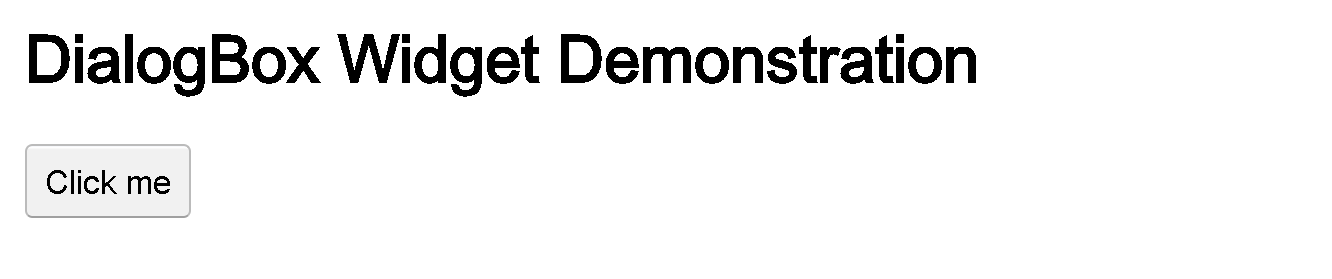
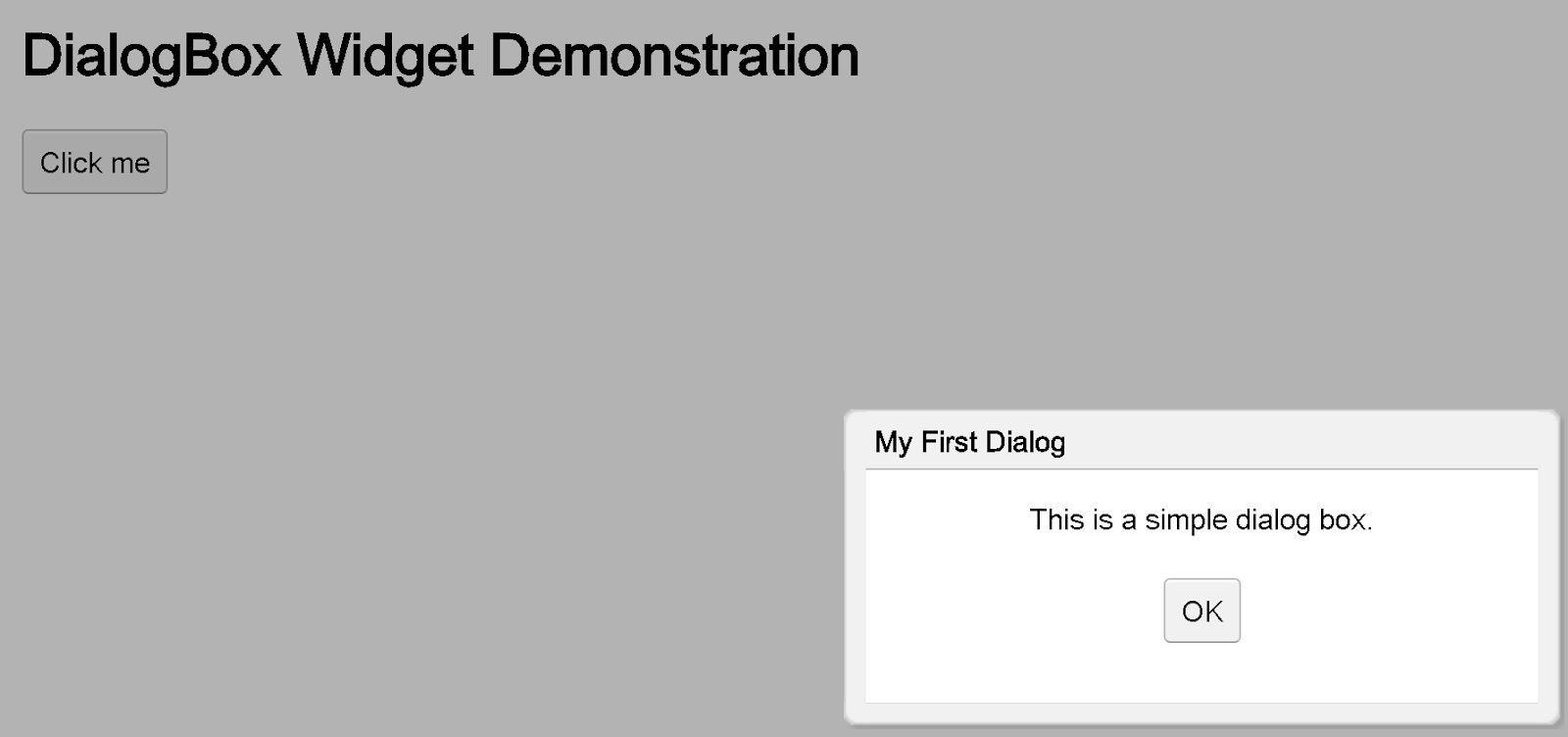
Output
This marks the end of this blog, hope you enjoyed it and will create your first GWT DialogBox widget successfully will let me know in the comments below. Let us now discuss some of the frequently asked questions related to the topic.
Frequently Asked Questions
What does GWT's Composite mean?
This widget is an example of a type of widget that can hide the methods of another widget it is wrapping. A composite functions exactly as if the widget it wraps had been added when it is introduced to a panel.
Which GWT widget serves as the panel's base class when it just contains one widget?
The base class for panels with just one widget is called SimplePanel.
What does GWT's PopupPanel do?
This widget represents a panel that can appear over other widgets. It covers up any previously created popups and the browser's client area.
What does GWT's HTMLPanel do?
This widget shows an HTML-containing panel that allows child widgets to be attached to specific HTML components.
What does GWT's TabPanel do?
This widget is a panel that displays a tabbed collection of pages, each containing a different widget. As the user chooses multiple tabs, its child widgets are displayed. Any HTML can be placed inside the tabs.
We have come so far, and it's time to close the discussion.
Let us now move to the conclusion part of this article.
Conclusion
In this article, we've extensively discussed the GWT DialogBox Widget and some constructors which can be used in GWT DialogBox Widget. We have seen a class declaration in GWT DialogBox, end with two examples for a better understanding of GWT DailogBox Widget, and at last, some frequently asked questions related to the topic.









 1+ registered

