Do you think IIT Guwahati certified course can help you in your career?
Introduction
The official open source project for GWT versions 2.5 and later is called GWT. This website contains links to the documentation, the source code repository, the issues list, and details about the GWT release roadmap. It is meant to inform people about recent and upcoming changes to GWT, GWT-related events, and other news, as well as developers who are interested in contributing to GWT.
The list box is an HTML document graphical control element that allows the user to select one or even more options from a list of options.
Use the HTML element <select>, which has two attributes, Name and Size, to create a list box. The Name attribute defines the name for calling the list box, and the size attribute specifies the numerical value that indicates how many options it contains.
<select Name="Name_of_list_box" Size="Number_of_options">
 <option> List item 1 </option>
 <option> List item 2 </option>
 <option> List item 3 </option>
 <option> List item N </option>
</select>
The addItem method inserts items into the list box. ‘setVisibleItemCount’ specifies the number of visible items. If there is only one item visible, the box will be displayed as a drop-down list.
Class Declaration
Declaration for com.google.gwt.user.client.ui.ListBox class −
public class ListBox
   extends FocusWidget
      implements SourcesChangeEvents, HasName
Constructor
The constructors of GWT Listbox widget are:
Constuctor
Modifier
Description
ListBox()
Public
In single selection mode, this Constructor generates an empty list box.
ListBox(boolean isMultipleSelect)
Public
This Constructor generates an empty list box.
ListBox(Element element)
Protected
Subclasses use this to explicitly use an existing element.
Determines whether a specific list item is chosen.
void setItemText(int index,java.lang.String text)
Sets the text at given index.
void setMultipleSelect(boolean multiple)
Sets whether this list allows multiple selections.
void setName(java.lang.String name)
Sets the widget's name
void setSelectedIndex(int index)
Alters the index that is currently chosen.
void setValue(int index, java.lang.String value)
Determine the value linked to the item at the specified index.
void setVisibleItemCount(int visibleItems)
Determines how many items will be visible.
static ListBox wrap(Element element)
Creates a ListBox widget that encloses a select element that already exists.
void addChangeListener(ChangeListener listener)
This function adds a listener interface for receiving change events.
Inherited Methods📝
We've already seen many of the ListBox widget's commonly used methods. Since not all methods can be implemented for every class, a few methods from this class are inherited by other classes.
This GWT ListBox Area Widget class inherits methods from the classes listed below:
com.google.gwt.user.client.ui.UIObject
com.google.gwt.user.client.ui.Widget
com.google.gwt.user.client.ui.FocusWidget
java.lang.Object
Example of GWT ListBox Widget
This example will take you through the steps of using a ListBox Widget in GWT. To update the GWT application we make in Google Web Toolkit, follow the steps below -
Make an Application Chapter.
As described in the GWT - Create Application chapter, create a project called ‘HelloNinjas’ in the package ‘com.codingninjas’.
Make the following changes to ‘HelloNinjas.gwt.xml’, ‘HelloNinjas.css’, ‘HelloNinjas.html’, and ‘HelloNinjas.java’: Leave the rest of the files alone.
Compile and run the application to validate the logic that was implemented.
The Eclipse IDE and file structure will look something like this -
XML
src/com.codingninjas/HelloNinjas.gwt.xml
<?xml version = "1.0" encoding = "UTF-8"?>
<module rename-to = 'helloNinjas''>
   <!-- Inherit core Web Toolkit stuff.-->
   <inherits name = 'com.google.gwt.user.User'/>

   <!-- Inherit default Google Web Toolkit  style sheet.-->
   <inherits name = 'com.google.gwt.user.theme.clean.Clean'/>

   <!-- Specify  app entry point class.-->
   <entry-point class = 'com.codingninjas.client.Hello'/>

   <!-- Specify paths for translatable code-->
   <source path = 'client'/>
   <source path = 'shared'/>

</module>
Let us look at the Java file src/com.codingninjas/HelloNinjas.java, which shows how to use the GWT ListBox widget.
package com.codingninjas.client;
import com.google.gwt.core.client.EntryPoint;
import com.google.gwt.user.client.ui.ListBox;
import com.google.gwt.user.client.ui.RootPanel;
import com.google.gwt.user.client.ui.VerticalPanel;

public class HelloNinjas implements EntryPoint {
  public void onModuleLoad() {

      // Create a new list box and add a few items to it.
      ListBox listBox1 = new ListBox();
      listBox1.addItem("Ninja 1");
      listBox1.addItem("Ninja 2");
      listBox1.addItem("Ninja 3");
      listBox1.addItem("Ninja 4");
      listBox1.addItem("Ninja 5");

      // Create a new list box, adding a few items to it.
      ListBox listBox2 = new ListBox();
      listBox2.addItem("Ninja 1");
      listBox2.addItem("Ninja 2");
      listBox2.addItem("Ninja 3");
      listBox2.addItem("Ninja 4");
      listBox2.addItem("Ninja 5");

      // Create enough room for all five items
      listBox1.setVisibleItemCount(5);

      // Setting itemcount value to 1 turns listbox into a drop-down list.
      listBox2.setVisibleItemCount(1);

      // Add listboxes to the root panel.
      VerticalPanel panel = new VerticalPanel();
      panel.setSpacing(10);
      panel.add(listBox1);
      panel.add(listBox2);

      RootPanel.get("gwtContainer").add(panel);
  }
}
You can also try this code with Online Java Compiler
After making changes to all the files, right-click the project, select GWT, and then click the compile button. A dialogue box will appear, requiring one more click on the compile button.
You will see the following output in the console
Now select the project you want to run by clicking on the drop-down menu next to the run button, in this instance ‘GWTProjectOne’.
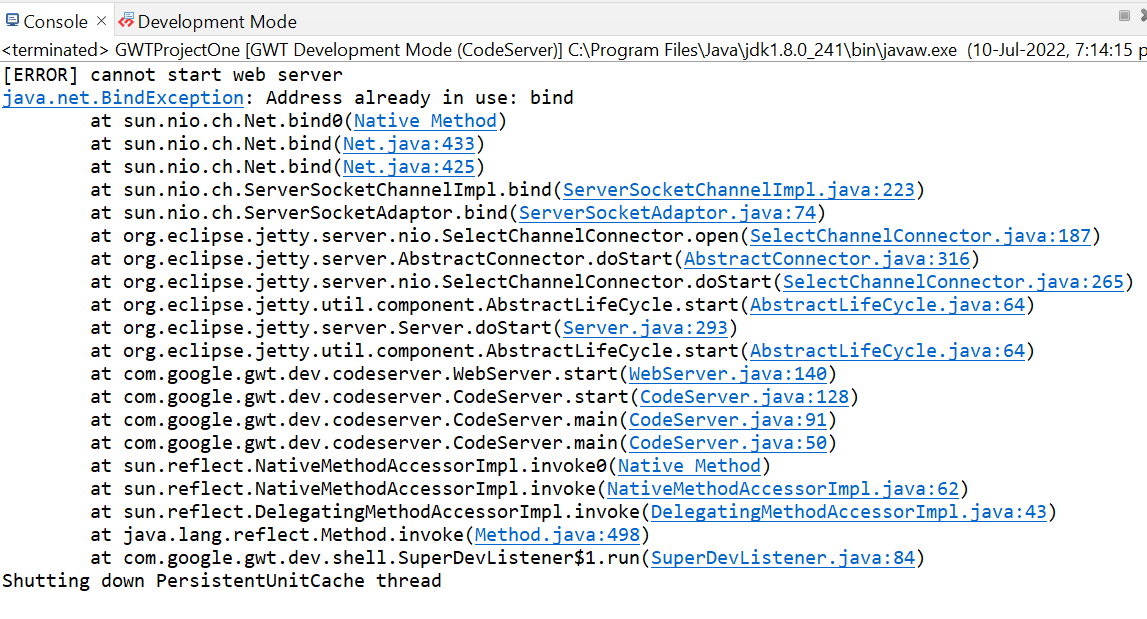
The following outputs will appear in the console and development mode tabs after you click.
After clicking on the link in development mode, you will see the output of the code.
Output
Frequently Asked Questions
What are HTML tags?
The Starting and the end of an HTML element in an HTML document are indicated by an HTML tag, which is a component of markup language.
What is a destructor?
Destructor is a unique method that is used when the object is no longer in need.
What do you mean by CSS?
The language used to describe how Web pages are presented, including their colors, design, and fonts, is called CSS.
What is a nested class?
A nested class is a component of the class it is enclosed in. Even though they are private, non-static nested classes (inner classes) can access other members of the enclosing class.
What is a void keyword in java?
Java's keyword "void" is used to indicate that the method returns void and has no return type in the method declaration and definition.
Conclusion
In this article, we have studied about GWT ListBox Widget. We have also discussed the constructors as well as the properties of the GWT ListBox Widget class in detail.
We hope that this article has provided you with the help to enhance your knowledge regarding GWT ListBox Widget with its constructors and its properties and if you would like to learn more, check out our articles on GWT vs. AngularJS and GWT Popup Panel.










 1+ registered

