Do you think IIT Guwahati certified course can help you in your career?
Introduction
A development toolkit for making RICH Internet Applications(RIA) is called Google Web Toolkit (GWT). It gives programmers the option to create client-side Java applications. The Java code is converted to JavaScript code via GWT.
An attractive stateful button that enables the user to switch between up and down states is represented by the ToggleButton widget.
The user can switch between two states of a setting using a GWT ToggleButton Widget.
ToggleButton Class
The ToggleButton class in the GWT (Google Web Toolkit) ToggleButton widget, is declared as follows:
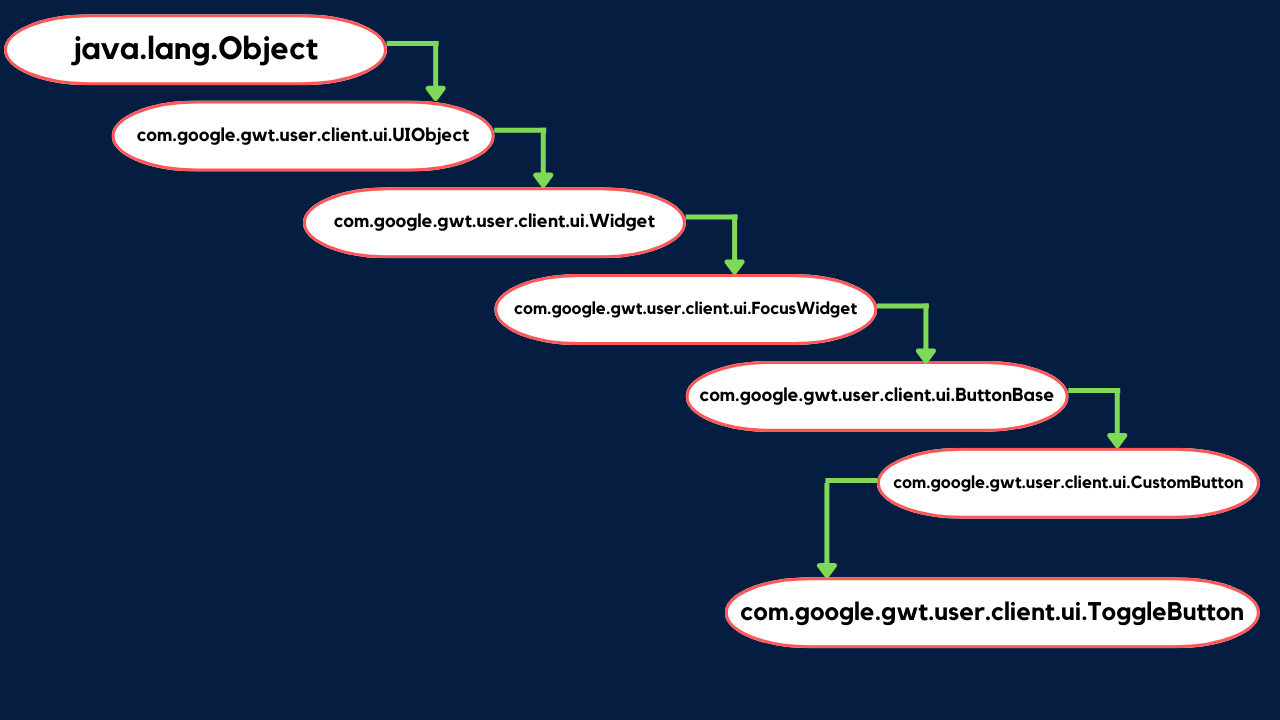
public class ToggleButton extends CustomButton
You can also try this code with Online Java Compiler
The following classes' methods are inherited by the ToggleButton class:
The ToggleButton class's implemented interfaces are listed below:
IsEditor<LeafValueEditor<java.lang.Boolean>>
HasAllDragAndDropHandlers
HasAllFocusHandlers
HasAllGestureHandlers
HasAllKeyHandlers
HasAllMouseHandlers
HasAllTouchHandlers
HasBlurHandlers
HasClickHandlers, etc.
CSS Style Rules
The GWT PushButton widgets shown below will all be styled using the standard CSS(Cascading Style Sheets) guidelines. Following your needs, you can override it.
Creates a ToggleButton with an upstate text, a downstate text, and a click listener.
Methods
In the GWT ToggleButton Widget, the following are the methods mentioned below:
Sr. No.
Function
Description
1.
boolean isDown()
This will check whether the button is down or not.
Overrides: isDown in class CustomButton
If the button is pressed or down, it returns true.
2.
protected void onClick()
When the user has finished selecting this button, a call is made. The click event is fired to listeners by default. Overriding subclasses of CustomButton This method should be overridden by onClickStart() to bring back the default widget display.
Overrides: OnClick in class CustomButton
3.
void setDown(boolean down)
Whether or not this button is pressed or down. notifies ValueChangeEvent of changes. (Use setValue(Boolean, boolean) if you want the event to fire.)
Sets if the button is pressed down and, if necessary, triggers a ValueChangeEvent.
GWT ToggleButton Widget Example
This example will walk you through some straightforward GWT ToggleButton Widget usage instructions. To upgrade the GWT application we developed in GWT, follow these steps:
Step 1: Project Creation👨💻
Create a project with the name GWTToggleButton.
Step 2: Modification in Files👨🔧
Modify the GWTToggleButton.gwt.xml, GWTToggleButton.css, GWTToggleButton.html, and GWTToggleButton.java files as explained below. Keep the rest of the files unchanged.
Step 3: Check the Result🤳🏼
Compile and run the application to check your results.
The changed module description, located at ‘src/com.codingninjas.gwttogglebut/GWTToggleButton.gwt.xml’, contains the content given below:
<? xml version = "1.0" encoding = "UTF-8" ?>
  <module rename-to='gwttooglebutton'>
    <inherits name='com.google.gwt.user.User' />
    <!-- for default stylesheet, you can add any style to your project-->
    <!-- <inherits name='com.google.gwt.user.theme.clean.Clean' /> -->

    <entry-point class='com.codingninjas.gwttogglebut.client.GWTToggleButton' />
    <source path='client' />
    <source path='shared' />
    <!-- allow Super Dev Mode -->
    <add-linker name="xsiframe" />
  </module>
Now write some styling in the CSS file for your project which is located at ‘war/GWTToggleButton.css’.
body {
  text - align: center;
  font - family: verdana, sans - serif;
}

h1 {
  font - size: 3em;
  font - weight: bold;
  color: #004080;
  margin: 30px 0px 80px;
  text - align: center;
}

.gwt - ToggleButton {
  color: #32CD32;
}

.gwt - ToggleButton - up {
  color: #5e17eb;
}

.gwt - ToggleButton - down {
  color: purple;
}

.gwt - ToggleButton - up - hovering {
  color: yellow;
}

.gwt - ToggleButton - down - hovering {
  color: blue;
}

.gwt - ToggleButton - up - disabled {
  color: violet;
}

.gwt - ToggleButton - down - disabled {
  color: red;
}
Now write in the HTML host file for your project which is located at ‘war/GWTToggleButton.html’.
When you are finished and have made all the necessary modifications, compile and run the application in development mode.
Output
An alert box containing the text "You have clicked on ToggleButton!" will appear when you choose the "ToggleButton" button.
Frequently Asked Questions
What are the GWT system prerequisites?
JRE(Java Runtime Environment1.5) and Java 2, Operating systems: Mac OS X 10.4+ (Tiger or Leopard), Linux with GTK+ 2.2.1+, Windows Vista/XP/2000,
Hardware: 512MB RAM and 100MB of free disc space.
Is GWT is too expensive?
No, GWT is totally cost-free. In actuality, the Apache 2.0 open source license applies to the entire GWT source code.
Can I create an enterprise or commercial application with GWT?
Yes, GWT can be used for enterprise, commercial, and non-commercial applications. The Apache 2.0 open source license governs the whole GWT source code.
Which browsers is GWT compatible with?
Firefox, Internet Explorer(8, 9, 10, 11), Safari 5, and Chromium.
Is GWT offered in India? Does it translate into my language?
GWT is accessible worldwide and ought to operate in the majority of languages, despite the fact that the documentation is currently only available in American English.
Conclusion
In this article, we have discussed the GWT ToggleButton Widget. We have discussed its constructors, methods, and implementation. GWT ToggleButton Widget is a part of form widgets that are used in many places while developing applications.









 1+ registered

