Get a skill gap analysis, personalised roadmap, and AI-powered resume optimisation.
Introduction
Python is a popular programming language used for various applications, from web development to data analysis. It is known for its simplicity, readability, & versatility. Python's easy-to-learn syntax makes it a great choice for beginners, while its powerful features make it suitable for advanced users as well.
In this article, we will guide you through the process of installing Python on different operating systems, including Windows 10, macOS, & Linux.
Downloading Python
Before you can start using Python, you need to download it. This process is straightforward. Visit the official Python website at python.org. Once there, you'll find the "Downloads" section at the top of the page. The website automatically suggests the best version for your operating system, so it’s easy to find the right download link. Click on the suggested version and the download will start immediately. Remember, downloading Python is free and you are getting a powerful tool without any cost.
Install Python on Windows 10
Installing Python on Windows 10 is a simple process that will take only a few minutes. Here’s how to do it:
1. Start the Installation
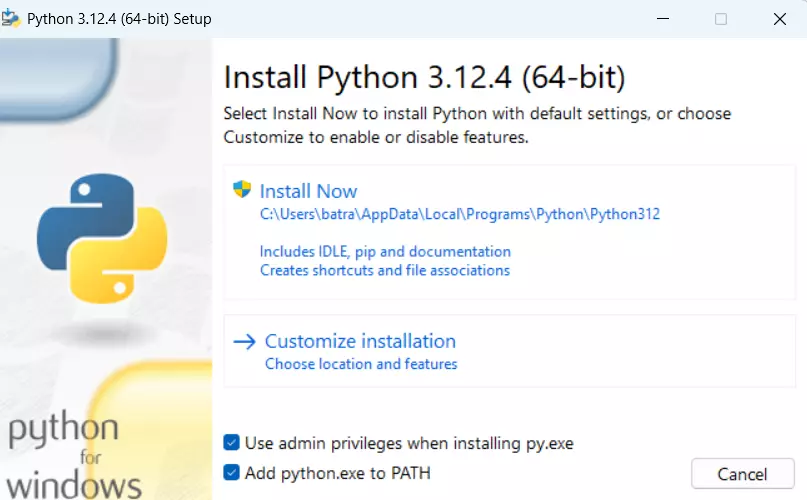
After downloading Python, locate the downloaded file, usually in your 'Downloads' folder. It should have a name like python-3.x.x.exe. Double-click this file to start the installation.
2. Adjust the Installation Settings
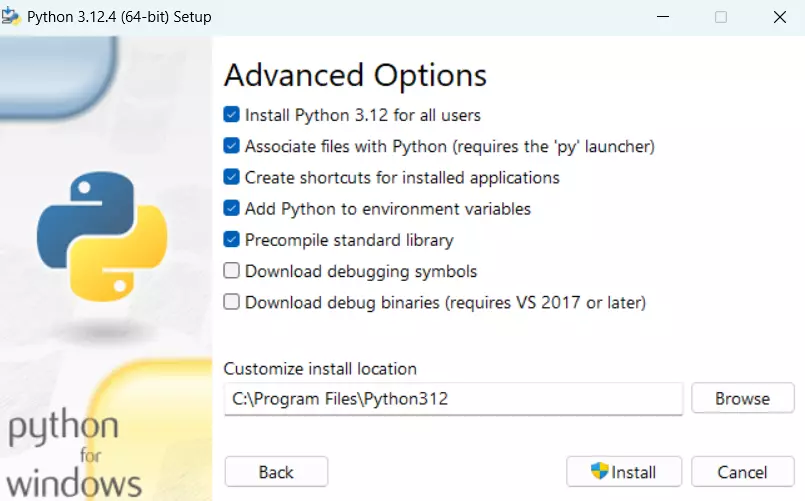
Upon starting the installer, make sure to check the box that says “Add Python 3.x to PATH” before clicking “Install Now.” This step is crucial as it makes Python accessible from the command line.
3. Proceed with the Installation
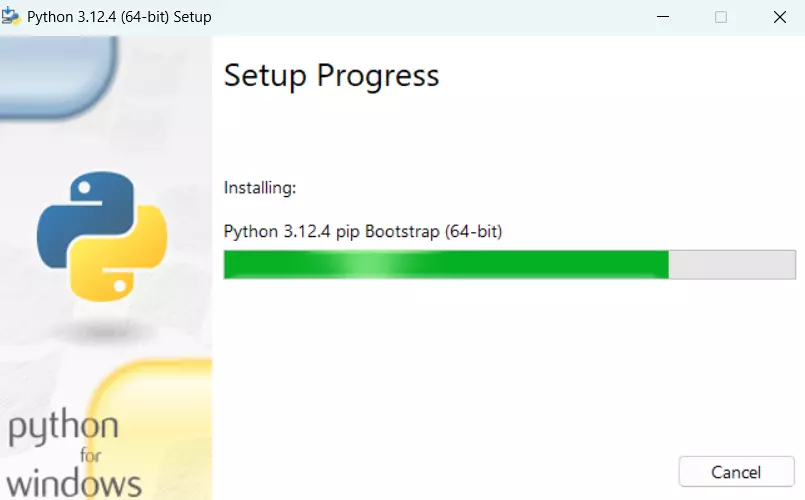
Follow the on-screen instructions to complete the installation. The installer will display a progress bar to show how the installation is proceeding.
4. Verify the Installation
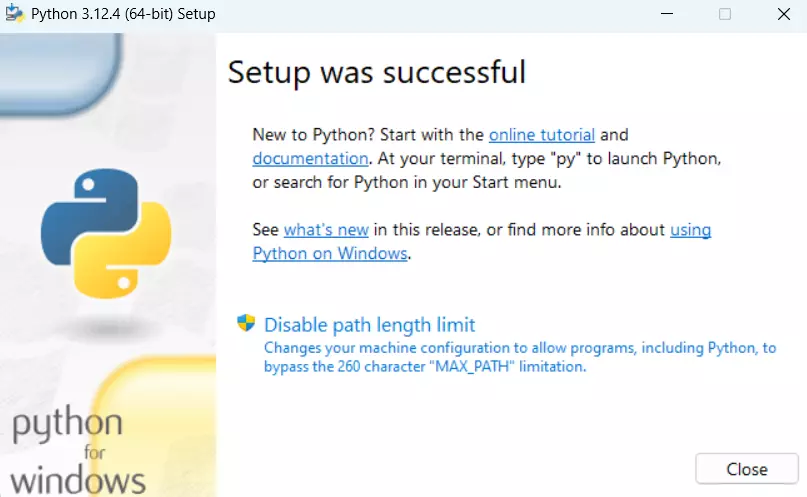
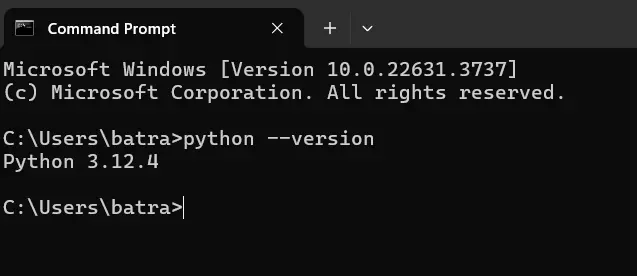
Once the installation is complete, verify it by opening the command prompt (search for 'cmd' in the Windows search bar). Type python --version and press enter. If Python is installed correctly, it will display the version number.
5. Update pip (optional)
It’s a good practice to ensure that pip, Python’s package installer, is up-to-date. You can update it by typing python -m pip install --upgrade pip in the command prompt.
Install Python on MacOS
Installing Python on MacOS is straightforward with these steps:
1. Download the Installer
Navigate to python.org and go to the "Downloads" section for MacOS. Select the latest version recommended for MacOS and download the .pkg installer file.
2. Run the Installer
Locate the downloaded .pkg file, usually in your 'Downloads' folder, and double-click it to begin the installation. This will open the Python Installer, a guided setup that will help you install Python.
3. Follow the Installer Instructions
Follow the steps provided by the installer. You will need to agree to the license agreement and select the install location. Typically, the default settings are suitable for most users.
4. Complete the Installation
After following the installer instructions, click "Install" to start the installation process. You may be required to enter your MacOS user password to authorize the installation.
5. Verify the Installation
Once the installation is complete, open the Terminal app (found in 'Applications' > 'Utilities'). Type python3 --version to check the installed version of Python, confirming the installation was successful.
6. Update pip (optional)
It is also advisable to update pip, the Python package installer. In the Terminal, type python3 -m pip install --upgrade pip to ensure you have the latest version
Install Python on Linux
Installing Python on Linux systems can vary slightly depending on the distribution, but here’s a general guide using Ubuntu, one of the most popular Linux distributions:
1. Open the Terminal
You can access the terminal by searching for it in your applications menu or by pressing Ctrl+Alt+T.
2. Check for Existing Python Versions
Before installing a new version of Python, check if you already have Python installed by typing python3 --version in the terminal. If it’s installed, it will show the version number.
3. Update & Upgrade Your System:
It's a good idea to ensure your package list and the system are up-to-date. Run sudo apt update && sudo apt upgrade to update and upgrade your packages.
4. Install Python
To install Python, you can use the package manager by typing sudo apt install python3. This command installs the latest version of Python3 available in your distribution's repositories.
5. Verify the Installation
After the installation is complete, verify it by typing python3 --version in the terminal. This will show the installed Python version, confirming the installation was successful.
6. Install pip (optional)
If your version of Python does not include pip, you can install it by typing sudo apt install python3-pip. This is the package installer for Python, allowing you to install other Python packages easily.
7. Set Python3 as the Default Version (optional)
If your system uses Python2 as the default, and you wish to make Python3 the default, you can create an alias by adding alias python=python3 to your .bashrc file.
Frequently Asked Questions
Can I have multiple versions of Python installed on my computer?
Yes, you can install multiple versions of Python on the same system. Tools like pyenv can help manage different versions without conflicts.
How do I uninstall Python?
On Windows, you can uninstall Python through the 'Add or Remove Programs' feature in the Control Panel. On MacOS and Linux, it typically involves deleting the Python files directly from the directories where they were installed.
What is pip and why is it important?
Pip is Python’s package installer. It’s important because it allows you to install and manage additional libraries and dependencies that are not included in the standard Python installation.
Conclusion
In this article, we have learned the essential steps to download and install Python on various operating systems—Windows 10, MacOS, and Linux. Each method is customised to the specifics of the operating system to ensure a smooth and successful setup. With Python installed, you can now explore the wide range of possibilities this powerful programming language offers, from simple scripts to complex applications.








 7+ registered

