Do you think IIT Guwahati certified course can help you in your career?
Introduction
“If you learn this language in this country, you'll blend with the people of that country very well!” we all have been taught about blending in, in society. Well, what does blending mean?
It means to mix thoroughly. We all have seen examples of blendings since childhood; the rainbow is a beautiful example of blended colors. Don’t you think blending these colors on our system is an equally fascinating task?
In this article on JavaFX Blend, we will see how to blend colors on our system using the JavaFX Blend class, so let’s get started!
Blend Class
A blend is a combination of two or more different things or substances. In general, the blend effect generates output due to the combination of two or more different input nodes. It takes the pixels of two or more nodes, blends them according to the blend mode selected, and generates the output node at the same location.
We use the Blend class in the JavaFX application to apply various blend effects. It can blend the shape's colors. The javafx.scene.effect.Blend package contains all of the methods required for this purpose and the combine style.
Constructor
There are three different types of constructors available in the Blend effect:
Blend(): Create an instance of the Blend class with the default values.
Blend(BlendMode mode): Create an instance of the Blend class with the specified mode.
Blend(BlendMode mode, Effect BottomInput, Effect TopInput): Create an instance of the Blend class with the desired blend mode, Bottom Input effect, and Top Input effect.
Properties and their Corresponding Setter Methods
Javafx.scene.effect.Blend class properties and their setter methods are described in the table below.
Implementation
import javafx.application.Application;
import javafx.scene.Group;
import javafx.scene.Scene;
import javafx.stage.Stage;
import javafx.scene.shape.Circle;
import javafx.scene.effect.Blend;
import javafx.scene.effect.BlendMode;
import javafx.scene.effect.ColorInput;
import javafx.scene.paint.Color;

public class BlendEffectExample extends Application {
   @Override
   public void start(Stage stage) {
       //first draw a Circle
      Circle circle = new Circle();

      //now set the center of the Circle
      circle.setCenterX(75.0f);
      circle.setCenterY(75.0f);

      //now set radius of the circle
      circle.setRadius(30.0f);

      //now set the fill color of the circle
      circle.setFill(Color.RED);

      //Instantiating the blend class
      Blend blend = new Blend();

      //Prepare the input object first
      ColorInput topInput = new ColorInput(70, 20, 160, 150, Color.LIMEGREEN);

      //now set the top input to the blend object
      blend.setTopInput(topInput);

      // now set the blend mode
      blend.setMode(BlendMode.SRC_OVER);

      // now apply the blend effect to circle
      circle.setEffect(blend);

      //now create a Group object
      Group root = new Group(circle);

      //now create a scene object
      Scene scene = new Scene(root, 150, 150);

      //now setting title to the Stage
      stage.setTitle("Blend Example");

      //now add scene to the stage
      stage.setScene(scene);

      //now display the contents of the stage
      stage.show();
   }
   public static void main(String args[]){
      launch(args);
   }
}
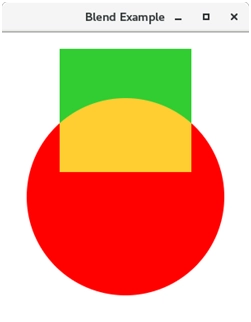
Output:
Blend Modes
Modes and Description
Output
ADD
The top and bottom color inputs are added and displayed in this mode.
MULTIPLY
The top and bottom color values are multiplied and displayed in this mode.
DIFFERENCE
The darker the top and bottom color values are subtracted from, and the lighter is displayed in this mode.
RED
The bottom input's red components were replaced by the top input's red components in this mode.
BLUE
The bottom input's blue components were replaced by the top input's blue components in this mode.
GREEN
The bottom input's green components were replaced by the top input's green components in this mode.
EXCLUSION
Color components from the two inputs were multiplied and divided by two. The sum of color components of the bottom input is then subtracted. The outcome is then displayed in this mode.
COLOR_BURN
The top input color component was divided by the inverse of the bottom input color component. As a result, the calculated value is inverted and displayed in this mode.
COLOR_DODGE
The inverse of the bottom input color components was divided by the bottom input color components, and the resulting value was inverted and displayed in this mode.
LIGHTEN
The lighter color component, among both inputs, is displayed in this mode.
DARKEN
The darker color component of the top and bottom inputs are shown in this mode.
SCREEN
The top and bottom color components of the inputs were inverted, multiplied, and the resulting value was inverted and displayed in this mode.
OVERLAY
The color components of two input values were multiplied or screened based on the bottom input color, and the resultant is displayed in this mode.
HARD_LIGHT
The color components of two input values were multiplied or screened based on the top input color, and the resultant is displayed in this mode.
SOFT_LIGHT
The color components of two input values were softened or lightened based on the top input color, and the result is shown in this mode.
SRC_ATOP
The color component of the bottom input is used to fill the overlapping area. At the same time, the nonoverlapping area is filled with the top input's color component in this mode.
SRC_OVER
The top input is drawn over the bottom input in this mode.
Frequently Asked Questions
What is blend mode in JavaFX?
A blending mode specifies how the inputs of a Blend effect are combined or how a Node is blended into a scene's background.
Can JavaFX run in a browser?
The Deployment Toolkit library is recommended for embedding a JavaFX application into a web page or launching it from within a web browser. The Deployment Toolkit includes a JavaScript API for web deployment of JavaFX applications, which improves the end-user experience when launching the application.
Is JavaFX suitable for desktop applications?
JavaFX is a compelling way of creating GUI applications for developers familiar with Java.
Conclusion
In this article, we have extensively discussed the Blend class present inside JavaFX Framework. We have seen different constructors initialized in the Blend class along with properties and setter methods available for the blend class. We had also seen the implementation of blend class and various blend modes that can be used during the implementation.
If you think this blog has helped you enhance your knowledge about JavaFx ColorInput and if you would like to learn more, check out our articles java archives, JavaFX, JavaFX Stack Pane, Introduction to JavaFX Layout, and many more on our Website.
But suppose you have just started your learning process and are looking for questions asked by tech giants like Amazon, Microsoft, Uber, etc. In that case, you must look at the problems, interview experiences, and interview bundle for placement preparations.
Nevertheless, you may consider our paid courses to give your career an edge over others!







 7+ registered

