




Introduction
JavaFX is an open-source client application platform compatible with any type of system built on Java. They help create and deliver rich desktop and web applications that are capable of running across a wide variety of devices. It is one of the most popular libraries in Java, with numerous tools and frameworks. The Eclipse Integrated Development Environment provided by The Eclipse Foundation is very popular for Java Programming. It provides developer tools and plug-ins for various distributed services used by cloud IDEs and browser interfaces. It contains GUI builders and tools for modelling, reporting, charting, testing, and many more. The Eclipse IDE needs to be configured to run JavaFX applications. Let us see how to do this step by step.
Export JavaFX jar files to Java Project
Step 1: Create a new Java Project by navigating to File > New >Java Project.
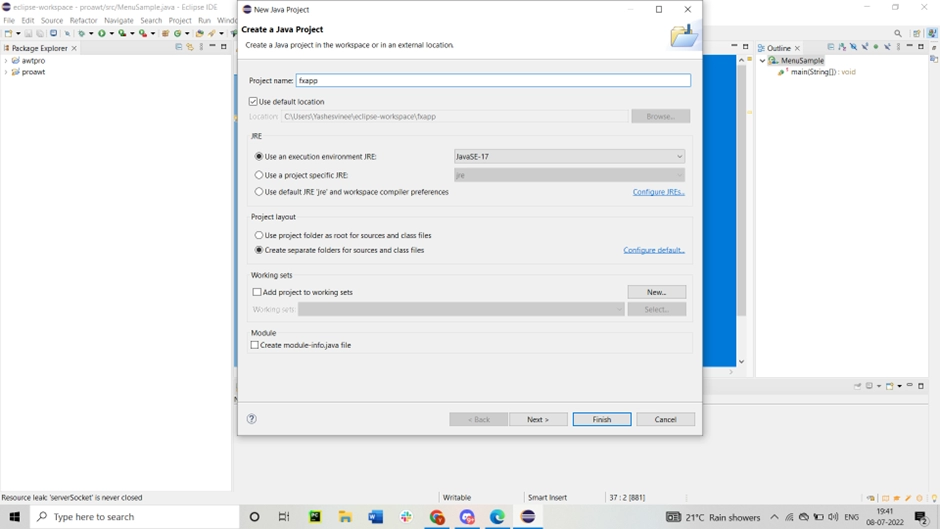
Step 2: Right-click on the project in the Package Explorer and click on Properties.
Step 3: Navigate to Java Build Path and open the Libraries tab. This will show the list of libraries accessible by the Project.
Step 4: Click on Add Library and choose User Library. Click on Next.

Step 5: Click on New under User Libraries and give an appropriate name. Click on Ok.

Step 6: Click on Add External JAR. In File Explorer, navigate to C:\Program Files \Java\jre1.8.0_333\lib. Locate jfxswt.ja and select it.
Step 7: Add another external Jar file - jfxrt.jar in C:\Program Files\Java\jre1.8.0_333\ext.
Step 8: Click on Apply and Close.

Step 9: Right-click on the project in the Package Explorer and go to New > Class.

Step 10: Give a name and click on Finish. In the editor, write a simple program to display Hello World.
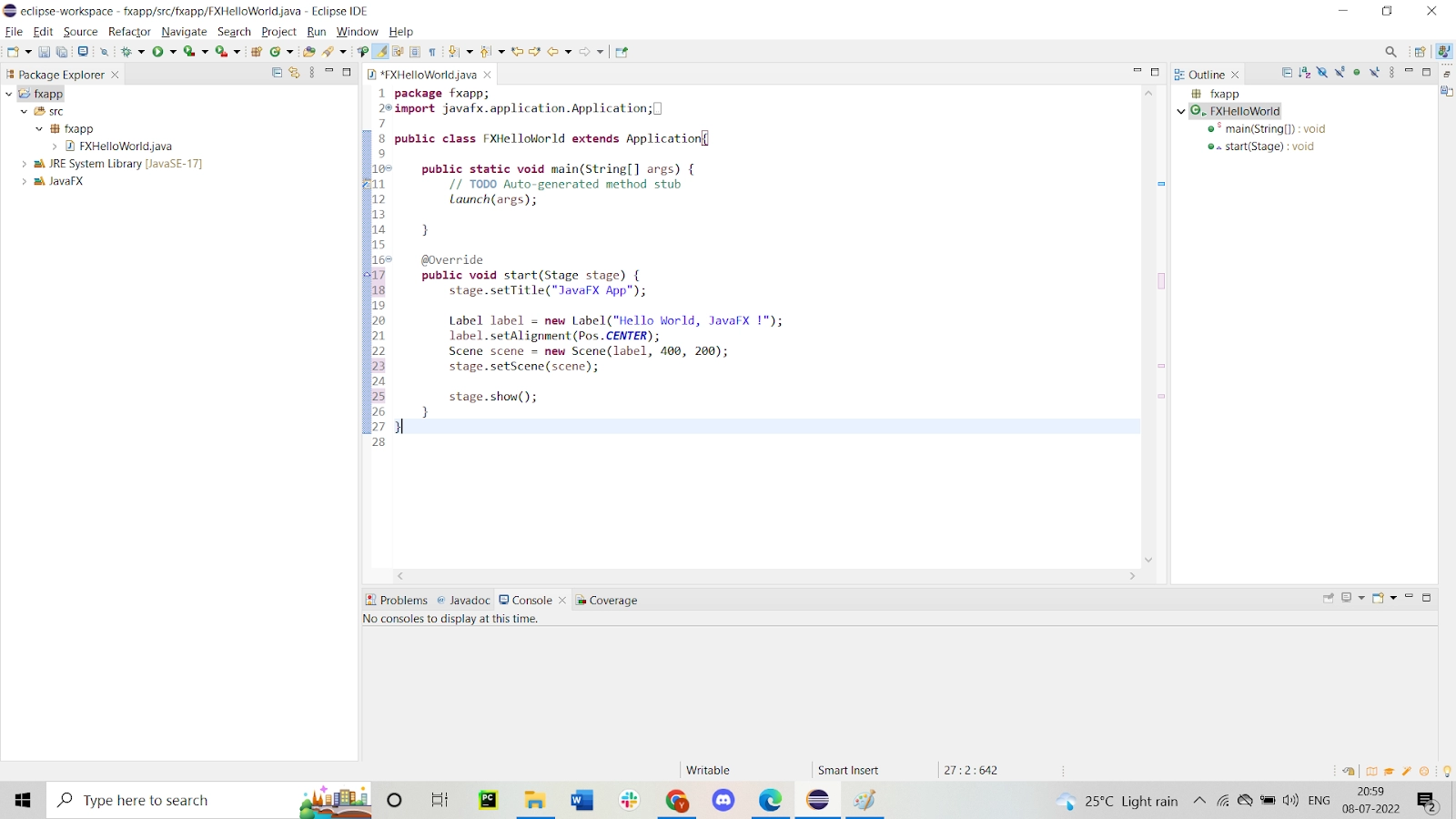
A simple program to display Hello World.
import javafx.application.Application;
import javafx.scene.Scene;
import javafx.scene.control.Label;
import javafx.stage.Stage;

public class FXHelloWorld extends Application
{

    public static void main(String[] args)
    {
        launch(args);
    }

    @Override
    public void start(Stage stage)
   {
        primaryStage.setTitle("JavaFX App");

        Label label = new Label("Hello World, JavaFX !");
        label.setAlignment(Pos.CENTER);
        Scene scene = new Scene(label, 400, 200);

        stage.setScene(scene);
        stage.show();
    }
}
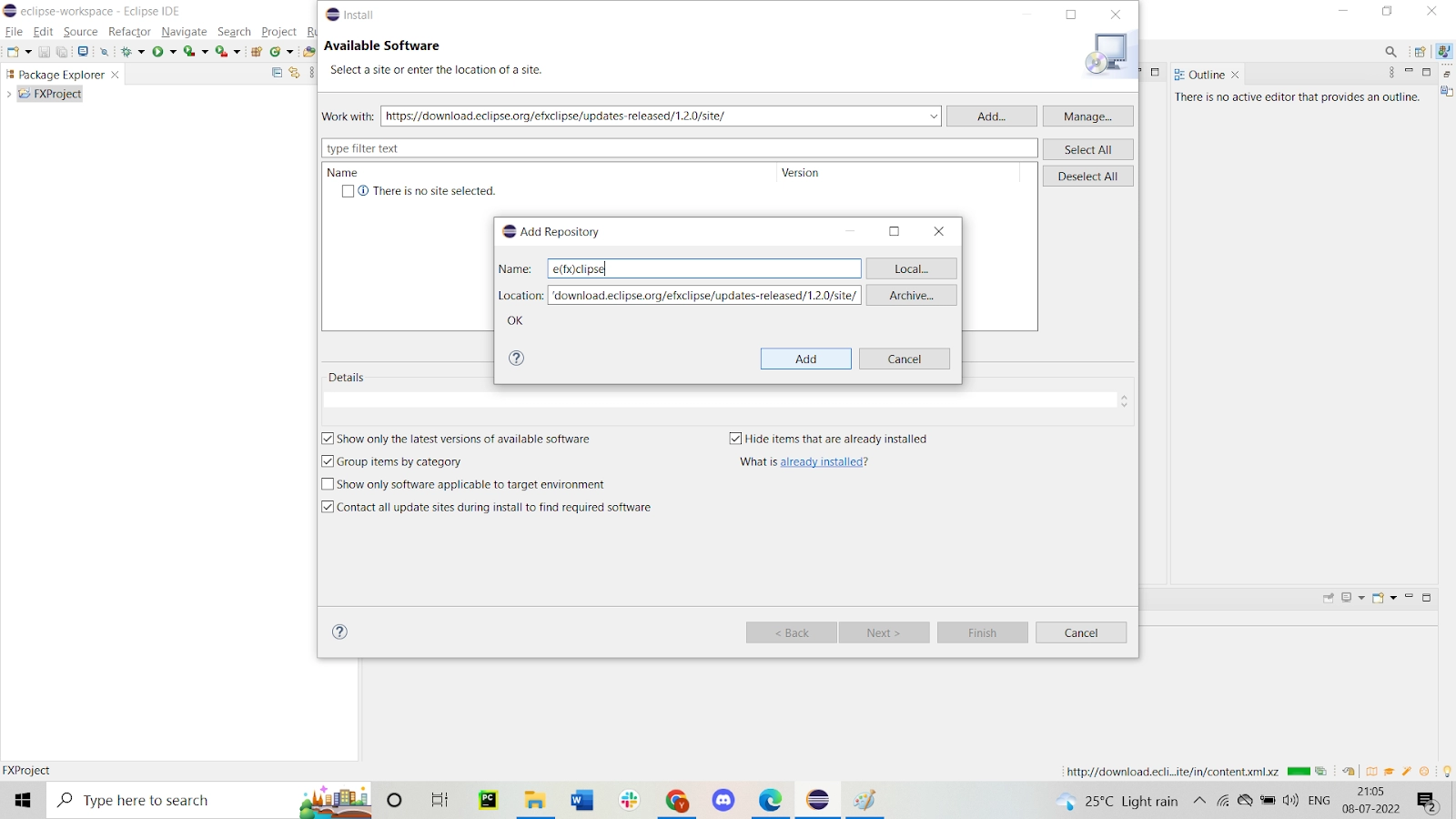
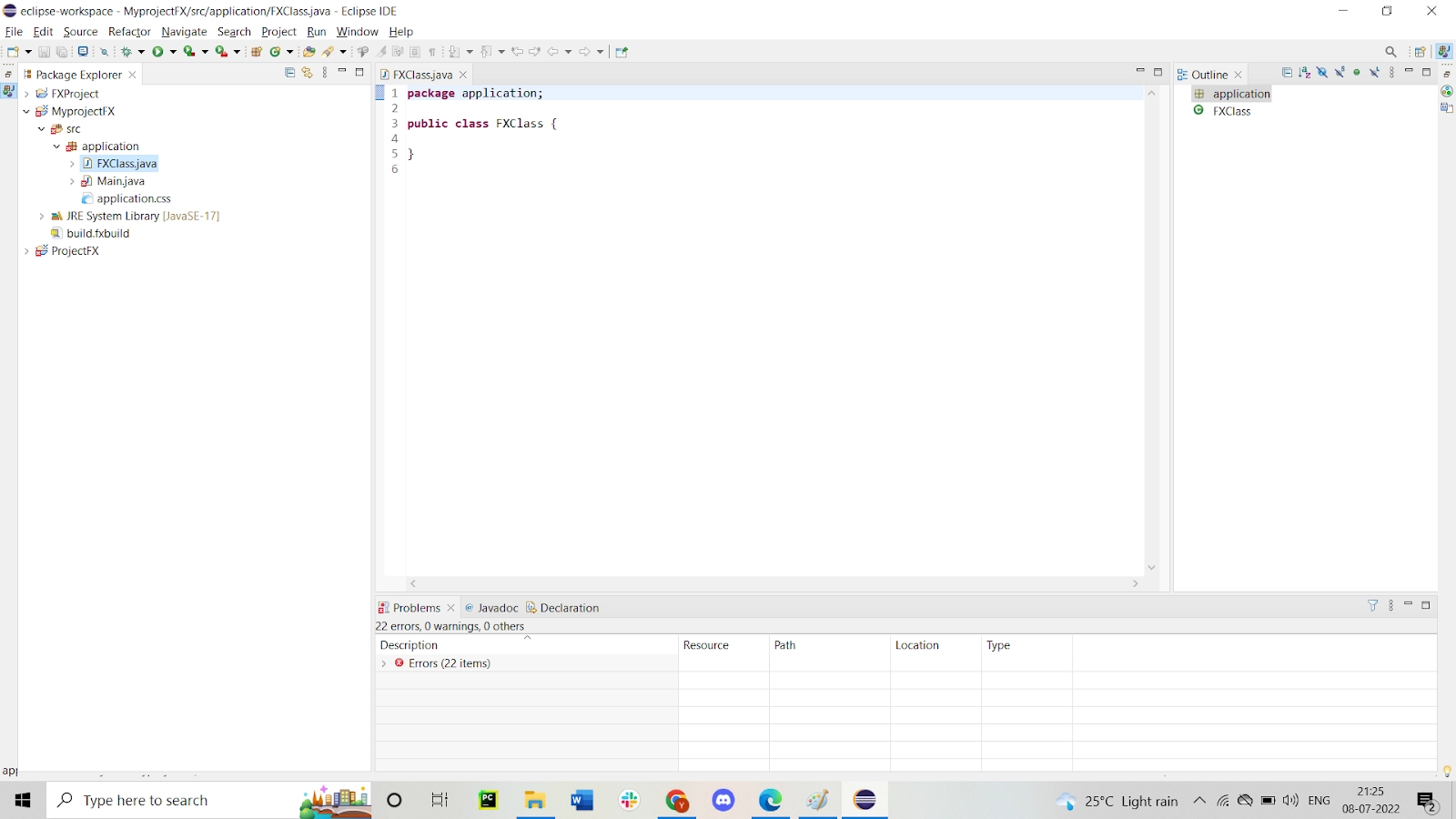
Output:






 1+ registered

