Constructors of JCheckBox 📖
Here are the following constructors of JCheckBox-
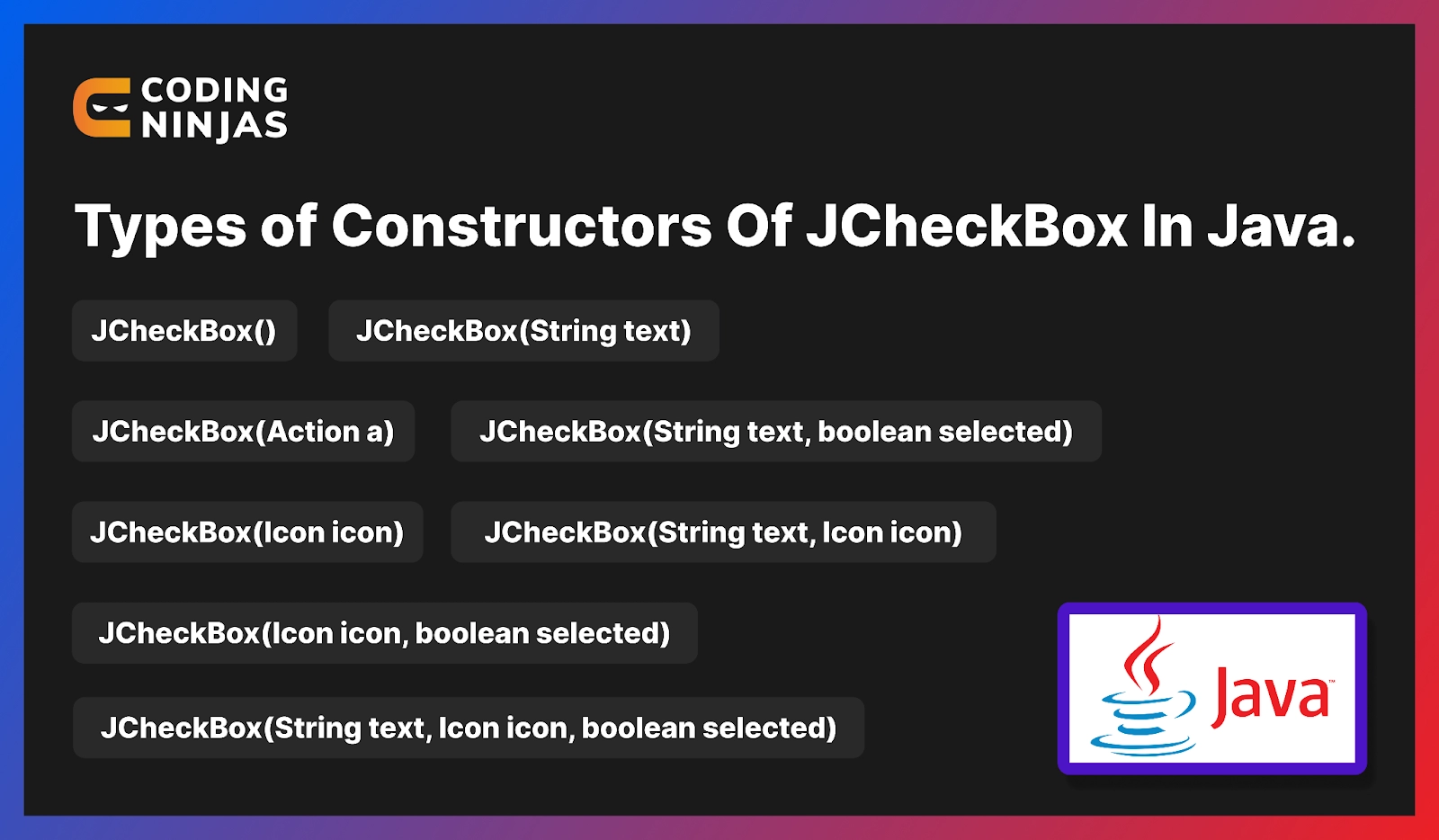
-
JCheckBox() - Initially, an unselected check box button is created with no text or icon.
-
JCheckBox(Action a) - This constructor creates a checkbox where the properties are taken from the Action supplied.
-
JCheckBox(Icon icon) - This constructor initially creates an unselected checkbox with an icon.
-
JCheckBox(Icon icon, boolean selected) - It creates a checkbox with an icon that specifies if it is initially selected or unselected.
-
JCheckBox(String text) - This constructor creates an unselected checkbox with the text.
-
JCheckBox(String text, boolean selected) - A checkbox with text is created and specifies if it is initially selected or unselected.
-
JCheckBox(String text, Icon icon) - An unselected checkbox is created with the specified icon and text.
-
JCheckBox(String text, Icon icon, boolean selected) - A checkbox is created with text and icon and specifies if it is initially selected or unselected.
Methods of JCheckBox 📝
After going through the various type of constructors of JCheckBox, we will now study about methods of JCheckBox that form the basis of JCheckBox in java.

-
AccessibleContext getAccessibleContext() - By using this method, we get AccessibleContext associated with this JCheckBox.
-
String getUIClassID() - This method returns a string that specifies the name of the L&F class, which renders this component.
-
boolean isBorderPaintedFlat() - By using this method, we get the value of the borderPaintedFlat property.
-
protected String paramString() - A string representation of this JCheckBox is returned by using this method.
-
void setBorderPaintedFlat(boolean b) - The borderPaintedFlat property, which gives a hint to the look and feel of the appearance of the border of the checkbox, is set by using this method of JCheckBox In Java.
- void updateUI() - From the contemporary look and feel, it reset the UI property to a value.
Example of JCheckBox👩🏻🏫
Here we will see three different examples of JCheckBox in java.
Here we have used IntelliJ IDE. You can use whatever you wish. 😁
Program to Create a Simple JCheckBox
Open your IDE and copy-paste the following code into the java file you created like this. For example, we have written the code in ‘JTextBox.java’ file -

import java.awt.*;
import javax.swing.*;
class solve extends JFrame {

  static JFrame f;
  public static void main(String[] args)
  {
      f = new JFrame("Coding Ninjas");
      f.setLayout(new FlowLayout());

      JCheckBox c1 = new JCheckBox("Ninja 1");
      JCheckBox c2 = new JCheckBox("Ninja 2");

      JPanel p = new JPanel();

      p.add(c1);
      p.add(c2);

      f.add(p);
      f.setSize(400, 400);
      f.show();
  }
}
Output-
Now right click and click on the run button to see the output.

After selecting a check box you will see the following output-

Program to Create Checkbox with Icon
Open your IDE ( integrated development environment )and copy-paste the following code into the java file you created like this. For example, we have written the code in the ‘JTextBoxicon.java’ file -
Note- Save your icon image on your desktop and change its path in the code accordingly.

import java.awt.*;
import javax.swing.*;
class check extends JFrame {

  static JFrame f;

  public static void main(String[] args)
  {
      f = new JFrame("Coding Ninjas");

      f.setLayout(new FlowLayout());
      //Save your icon image on your desktop and change its path in the code accordingly.

      JCheckBox c1 = new JCheckBox("Ninja with image", new ImageIcon("C://Users//devik//Downloads//Coding_Ninjas.jpg/"), true);
      JCheckBox c2 = new JCheckBox("Ninja 2");

      JPanel p = new JPanel();

      p.add(c1);
      p.add(c2);

      f.add(p);

      f.setSize(400, 400);

      f.show();
  }
}
Output-
Now right click and click on the run button to see the output.

Program to Create Checkbox with ItemListener
Open your IDE and copy-paste the following code into the java file you created like this. For example, we have written the code in the ‘JTextBoxItemListener.java’ file -
Note- Save your icon image on your desktop and change its path in the code accordingly.

import java.awt.event.*;
import java.awt.*;
import javax.swing.*;
class itemListener extends JFrame implements ItemListener {

  static JFrame f;

  static JLabel l, l1;

  static JCheckBox c1, c2;

  public static void main(String[] args)
  {
      f = new JFrame("Coding Ninjas");

      itemListener t = new itemListener();

      f.setLayout(new FlowLayout());
//Save your icon image on your desktop and change its path in the code accordingly.

      c1 = new JCheckBox("Coding ninjas", new ImageIcon("C://Users//devik//Downloads//Coding_Ninjas_new.jpg/"), false);
      c2 = new JCheckBox("Ninja 2", false);

      c1.addItemListener(t);
      c2.addItemListener(t);

      l = new JLabel("Coding ninja not selected");
      l1 = new JLabel("Ninjas 2 not selected");

      l.setForeground(Color.red);
      l1.setForeground(Color.blue);

      JPanel p = new JPanel();

      p.add(c1);
      p.add(c2);
      p.add(l);
      p.add(l1);

      f.add(p);

      f.setSize(600, 300);

      f.show();
  }
  public void itemStateChanged(ItemEvent e)
  {
      if (e.getSource() == c1) {
          if (e.getStateChange() == 1)
              l.setText("Coding ninja selected");
          else
              l.setText("Coding ninja not selected");
      }

      else {
          if (e.getStateChange() == 1)
              l1.setText("Ninja 2 selected");
          else
              l1.setText("Ninja 2 not selected");
      }
  }
}
Output-
Now right click and click on the run button to see the output.

Frequently Asked Questions🤔
What is Java?
Java is a class-based, high-level, object-oriented programming language with as many implementation dependencies as possible.
What is JCheckBox In Java?
JCheckBox In Java implements the check box where an item can be selected or deselected and display the state to the user. JCheckBox In Java inherits JToggleButton class.
Clicking in the check box turns its state from “off” to “on” or “on” to “off".
JCheckBox is a part of which package?
JCheckBox is a part of the Java Swing package.
What is the swing package in java?
Swing packages in java provide classes of java swing APIs, for example, JCheckBox, JRadioButton, JMenu, JColorChooser, JButton, JTextField, JCheckbox, etc.
Which classes in java are used to inherit methods of JCheckBox?
The following classes in java are used to inherit methods -
🎯 javax.swing.AbstractButton
🎯 javax.swing.JComponent
🎯 java.awt.Component
🎯 java.awt.Container
🎯 javax.swing.JToggleButton
🎯 java.lang.Object
Conclusion 🙋🏻♀️
We covered JCheckBox In Java in this blog. Furthermore, we discussed the class declaration, constructors, and methods of JCheckBox In Java with an example and if you would like to learn more, check out our articles on-
Refer to our guided paths on Coding Ninjas Studio to learn more about DSA, Competitive Programming, JavaScript, System Design, etc. Enroll in our courses and refer to the mock test and problems available. Take a look at the interview experiences and interview bundle for placement preparations.
Do upvote our blog to help other ninjas grow.

Happy Learning Ninja! 🥷





 1+ registered

