




Introduction
In this article we are going to learn about the JDesktopPane class that is available in Java Swing. We are going to see how we can import this class in our code and utilise it.but before learning about that lets have a brief introduction about Java Swing for a better understanding of the topic.

Java Swing is a GUI widget toolkit that is a part of the java foundation class. It contains various components or packages like buttons, textfield, and many more that we can utilise to create a graphical user interface for the window based applications. It is lightweight and platform independent. Swing packages provide classes that we can use such as JDesktopPane, JButton, JSlider, and many more.
Syntax to import Swing:
Import java.swing.*; //(* includes all the classes it contains in swing package)
JDesktopPane
JDesktopPane is a class that is available in java swing that we can implement in our code if we want to develop a “multi-document” application.
A “multi-document” application is that application which can handle multiple documents of the same or different extensions at the same time for example: photoshop. We do this by making the main window's contentPane an instance of the JDesktopPane class or a subclass of it. JInternalFrame instances are added to the JdesktopPane instance by internal windows. JInternalFrame or its subclasses are used to create internal windows.
Syntax
You can also try this code with Online Java Compiler |
In the above syntax JDesktopPane acts as a constructor for the creation of new JDesktopPane in the windows.
Implementation
import java.awt.BorderLayout;
import java.awt.Container;
import javax.swing.JDesktopPane;
import javax.swing.JFrame;
import javax.swing.JInternalFrame;
import javax.swing.JLabel;
public class Main extends JFrame
{
  public Main()
  {
    // initialise the constructor for JDesktopPane
    DesktopPaneCustom desktopPane = new DesktopPaneCustom();
    // creates a container
    Container PaneContent = getContentPane();
    // add desktoppane to the container
    PaneContent.add(desktopPane, BorderLayout.CENTER);
    // display the Pane
    desktopPane.display(desktopPane);
  // sets the title,Size and visibility of the container
    setTitle("JDesktopPane Demo");
    setSize(400,450);
    setVisible(true);
  }
  public static void  main(String args[])
  {
    // main constructor call
    new Main();
  }
}
// extends the JDesktopPane class in DesktopPaneCustom
class DesktopPaneCustom extends JDesktopPane
{
  // declare the number of frames and positioning
  int numFrames = 3,  x = 20, y = 20;
  // display function to create internal frames

  public void display(DesktopPaneCustom dp)
  {
    for(int  i = 0; i < numFrames ; ++i )
    {
      // create a JFrame and declare its arguments

      JInternalFrame jframe = new JInternalFrame("internal frame" + i  ,  true, true, true, true);

      jframe.setBounds(x, y, 350, 100);
      //create a container c1
     Container c1 = jframe.getContentPane( ) ;
      // adding label in the container
     c1.add(new JLabel("coding ninjas"));
      // add the frame in JDesktopane
     dp.add( jframe );
      //set the visibility
     jframe.setVisible(true);
      // increase the positioning of y axsis
     y +=85;
    }
  }
}Output of the program
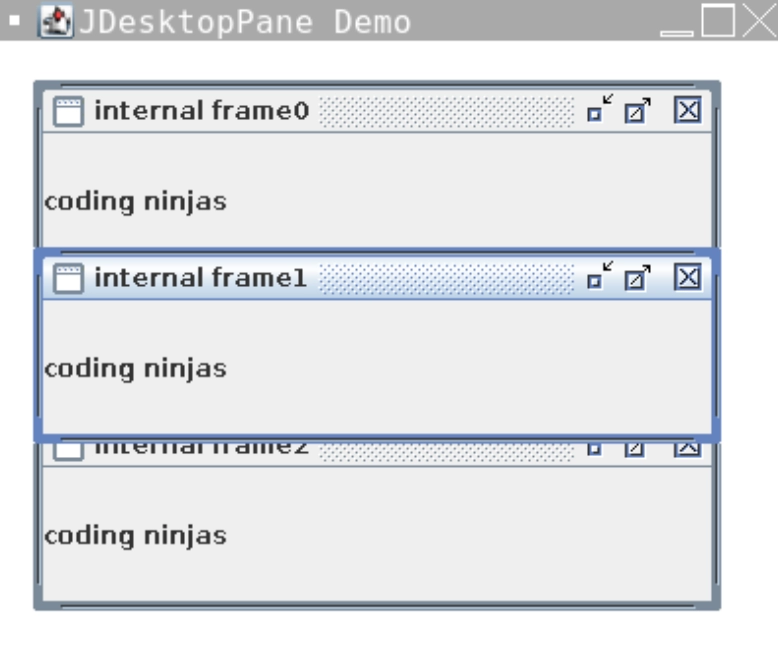
Methods
Below are the methods which can we implement in the JDesktopPane class:

1.getAllFrames(): JInternalFrames that are currently shown on the desktop will be returned by getAllFrames().
2.getAllFramesInLayer(int l): JInternalFrames that are now displayed in the desktop on the provided layer l will be retrieved by getAllFramesInLayer(int l).
3.getDesktopManager() returns a desktop manager that manages desktop-specific User Interface operations.
4.getAccessibleContext() returns the AccessibleContext associated with the JDesktopPane.
5.getUI() returns a Look and Feel object that renders the component.
6.remove(int I )This pane's indexed component I will be removed.
7.removeAll(): This function removes all of the container's components.
8.getDragMode() will return the dragging style that the desktop pane is presently using.
9.getSelectedFrame() returns JInternalFrame, which is the active frame in the desktop pane. If there is no active JInternalFrame,null will be returned.
10.setUI(DesktopPaneUIuserinterface): The component's look and feel will be changed.
11.setDragMode(int dm): The desktop pane will be set to the dragging style dm.
12.remove(Component cmp): Removes component cmp from the container.
13.selectFrame(boolean fwd): JInternalFrame, which is next in this desktop pane, will be selected.
14.setSelectedFrame(JInternalFrame jf): The current active JInternalFrame in the desktop window will be set.
15.getUIClassID() returns the name of the Look and Feel object that renders the component.
16.updateUI(): UIManager will send a message that the Looks and Feels object has changed.
17.setDesktopManager(DesktopManagerd): The DesktopManager will be set to manage the desktop's User Interface operations.
18.paramString(): For the JDesktopPane, a string representation will be returned.
19.addImpl(Component cmp, Object constr, int I)The container's specified component cmp will be added in the index i.



 1+ registered

