What are Keyboard Shortcuts?
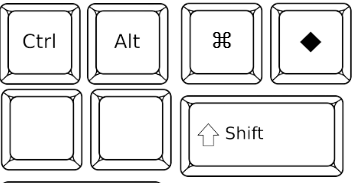
Shortcuts provide you the functionality to apply keyboard shortcuts to your components that will help you enhance the end-user experience.
You can customize the response that occurs when a shortcut is activated, add new shortcuts that are already accessible, or both.
A shortcut key combination is the combination of a primary key and 0 to 4 key modifiers (Alt, Ctrl, Meta, Shift).
How to add Click Shortcuts?

Click shortcuts are used to specify different ways to perform the click action in the components that implement the interface known as ClickNotifier.
The addClickShortcut() method can be used to add a click shortcut.
Now, let's see an example in which we will try to add a click shortcut to a "Button component" using the method addClickShortcut().
TextField loginID = new TextField("Login ID");
PasswordField passkey = new PasswordField("Password");

Button signin = new Button("Sign IN");
signin.addClickListener(event -> this.login());
signin.addClickShortcut(Key.ENTER);

You can also try this code with Online Java Compiler
The user can accomplish the action connected to clicking the button by using the Enter key instead of the button.
After this, now let's see how we can add Focus Shortcuts.
How to Add Focus Shortcuts?
Focus shortcuts are used to place focus on a component. But the component must be Focusable, just like an input field.
The addFocusShortcut() method allows you to create a focus shortcut.
Let's see an example in which we will try to add a focus shortcut to a "TextField" using the method addFocusShortcut().
TextField testTextField = new TextField("Test");
testTextField.addFocusShortcut(Key.KEY_F, KeyModifier.ALT);
You can also try this code with Online Java Compiler
By pressing ALT+F on the keyboard, the user can focus on the Label text box.
After this, now let's see how we can add Custom Shortcuts.
How to add Custom Shortcuts?

After Click Shortcuts and Focus Shortcuts, it's Custom Shortcuts' turn.
A Custom Shortcut is a shortcut that executes custom code when it is activated.
The addShortcutListener() method allows you to create a custom shortcut.
Let's say you have a custom method called public void openClientCreation() that launches a form where users can enter details about a new client.
Let's see an example in which we will try to add a custom shortcut that will execute the openClientCreation() method.
UI.getCurrent().addShortcutListener(
        this::openClientCreation, Key.KEY_N,
        KeyModifier.CONTROL, KeyModifier.ALT);
You can also try this code with Online Java Compiler
By pressing Ctrl+Alt+N, the user can access the form and enter the details for a new client.
Any piece of code that complies with the Command functional interface can also be configured to run through a shortcut. execute() is the only method that is available for this interface. This method takes no arguments.
Let's see an example where we will try to show a notification using the addShortcutListener() method.
UI.getCurrent().addShortcutListener(
        () -> Notification.show("Shortcut triggered"),
        Key.SPACE);
You can also try this code with Online Java Compiler
Configuration of the Active Scope of the Shortcuts

Shortcuts are by default registered to the global scope. This means that the shortcut is activated when the user hits the appropriate keys, regardless of where the cursor is or which element is in focus on the screen.
Using the addShortcutListener() method provided by the fluent ShortcutRegistration API, you can specify the conditions under which a shortcut is made available (for instance, only when the user focuses on a particular element).
Let's see an example in which we will try to define the component that will be attached to the listener using the addShortcutListener() method.
public class Scope extends Div {
    public Scope() {
        TextField name = new TextField();
        TextField surName = new TextField();

        add(name, surName);

        Command cmd = () -> {
            name.setValue("");
            surName.setValue("");
            name.focus();
        };
        /* The first parameter is the lifecycle owner of the shortcut. We will discuss it next. */
        Shortcuts.addShortcutListener(this,
                    cmd, Key.ESCAPE)
                /* It defines the component on which the shortcuts listener will be attached */
                .listenOn(this);
    }
}
You can also try this code with Online Java Compiler
The shortcut is connected to the input components' parent component (Scope).
Both input fields are emptied, and focus is sent back to the first field if the user puts something into either TextField before pressing the Escape key.
This is helpful when a shortcut specified on all fields contained within the same scope but not outside of the enveloping component, should initiate the same operation.
The factory class Shortcuts, which provides the most flexible shortcut creation mechanism, is used to construct the shortcut.
After adding shortcuts, let's move on to removing the registered Shortcuts.
How to Remove Shortcuts?

Just like we added a new Shortcut, we can also remove a registered one.
The Registration.remove() method can be used to delete a registered shortcut.
A shortcut's registration or addition method will either return a ShortcutRegistration object or a Registration object.
Let's see an example in which we will try to remove a shortcut using the Registration.remove() method.
TextField testTextField = new TextField("Test");
ShortcutRegistration testregistration =
        testTextField.addFocusShortcut(Key.KEY_F,
            KeyModifier.ALT);

/* something can happen here */
testregistration.remove(); // shortcut has been removed!
You can also try this code with Online Java Compiler
Shortcut Life Cycle Owners

Do you remember we mentioned something like "lifecycle owner of the shortcut"? It's time to see what it is.
The lifecycleOwner component is an associated Component that is in charge of managing the life cycle of the shortcuts.
The shortcut is active when the component functioning as a lifecycleOwner is attached and visible. The shortcut cannot be activated if either of these requirements is not satisfied.
-
For focus shortcuts and click shortcuts, the component itself is the life cycle owner. The click shortcut can only be used when the button or input field is present in the layout and is clearly visible.
-
The life cycle owner of shortcuts registered using the UI is the UI. It indicates that the shortcut continues to work until it is deleted.
The Shortcuts.addShortcutListener(…) method can be used for the creation of a shortcut with a life cycle that is bound to a specific component.
Now, let's see an example in which we will try to bind a shortcut to the lifecycle of the "Paragraph component" using the method Shortcuts.addShortcutListener(...).
Paragraph testparagraph =
        new Paragraph("When you see me, hit ALT+G!");

Shortcuts.addShortcutListener(testparagraph,
        () -> Notification.show("That was Good!"),
        Key.KEY_G, KeyModifier.ALT);

add(testparagraph);
You can also try this code with Online Java Compiler
-
The first parameter of the method Shortcuts.addShortcutListener(Component, Command, Key, KeyModifier…) is the component i.e., lifecycleOwner.
- This code ties the shortcut, i.e., ALT+G, to the life cycle of testparagraph. It is only operational when the component is attached and visible.
We can also use the method known as bindLifecycleTo() for the reconfiguration of the lifecycleOwner component of the shortcuts.
Example: Let's bind the life cycle of a shortcut that is global to anotherComponent using the bindLifecycleTo() method.
UI.getCurrent().addShortcutListener(
        () -> {/* do something*/}, Key.KEY_F)
        .bindLifecycleTo(anotherComponent);
You can also try this code with Online Java Compiler
Listening for Shortcut Events

The method known as addShortcutListener() has an overloaded method that accepts a ShortcutEventListener in place of the Command parameter. A ShortcutEvent with the components Key, KeyModifiers, listenOn, and lifecycleOwner is sent to the event listener when the shortcut is discovered.
Example: We will register a ShortcutEventListener and utilize it with the overload method addShortcutListener().
// It handles multiple shortcuts.
ShortcutEventListener testlistener = event -> {
   if (event.matches(Key.KEY_G, KeyModifier.ALT)) {
       // We can do something that is G-related.
   }
   else if (event.matches(Key.KEY_J, KeyModifier.ALT)) {
       // We can do something that is J-related.
   }
};


UI.getCurrent().addShortcutListener(testlistener,
        Key.KEY_G, KeyModifier.ALT);
UI.getCurrent().addShortcutListener(testlistener,
        Key.KEY_J, KeyModifier.ALT);
You can also try this code with Online Java Compiler
- The testlistener is responsible for handling events triggered by multiple shortcuts; both ALT+G and ALT+J invoke the listener.
Shorthands for Shortcut Modifiers
ShortcutRegistration also consists of shorthands that can be used for assigning the key modifiers to a particular shortcut.
Example: We can use the withAlt() and withShift() key modifiers along with the method i.e., addFocusShortcut().
Input input = new Input();
input.addFocusShortcut(Key.KEY_F).withAlt().withShift();
You can also try this code with Online Java Compiler
-
Alt+Shift+F is the key combination by which the focus shortcut can be triggered.
ShortcutRegistration also includes the withModifiers(KeyModifiers…modifiers) method. This method can be used for the configuration of all the modifiers simultaneously or for the removal of all the modifiers. When we call withModifiers(…) without any parameters, it removes all the modifiers from the particular shortcut.
Shortcut Event Behavior on the Client Side
ShortcutRegistration offers ways to specify how client-side events should behave. With DOM events, you can decide whether an event should allow default browser behavior and whether it should propagate higher in the DOM tree.
Shortcuts produced by Vaadin Flow, by default, consume the event. It implies that by default:
-
Events in the DOM tree do not propagate upward, and
-
For instance, the shortcut's characters are not inserted into the input field since default browser behavior is prevented.
The allowEventPropagation() (fluent), allowBrowserDefault() (fluent), setEventPropagationAllowed(boolean), and setBrowserDefaultAllowed(boolean) methods allow you to alter the default behaviour.
Example: Let's use the allowEventPropagation() method that will help in changing the default behavior of a focus shortcut.
Input testinput = new Input();
testinput.addFocusShortcut(Key.KEY_F)
        //Other handlers can now also catch this event.
        .allowEventPropagation()
        /* the character 'f' will be written out if a text field is focused */
        .allowBrowserDefault();
You can also try this code with Online Java Compiler
Check the States of a Shortcut

A number of methods are provided by ShortcutRegistration to examine a shortcut's internal state, and each configurable value has a matching getter method.
Additionally, you may determine whether the shortcut is enabled on the client side by using the boolean isShortcutActive() method.
Frequently Asked Questions
Is Vaadin still used?
Actually, Vaadin is the only framework that enables you to write UI 100% in Java. Vaadin is used by 150k developers worldwide and by 40% of Fortune-500 companies, according to its official source (vaadin.com).
Is Vaadin a backend?
Vaadin is an open-source platform that is used for building modern, collaborative web apps for Java backends. It integrates UI components, frameworks, and tools into one little web development stack.
Is Vaadin open source?
The core Vaadin framework, including most components, is free and open-source under the Apache 2.0 license.
Is Vaadin scalable?
In conclusion, yes, Vaadin applications do scale well. As with any framework, it's possible to make mistakes.
Is Vaadin stateless?
By default, Vaadin Fusion will not create server sessions and use the token-based authentication mechanism. The server then is stateless, allowing easier horizontal scaling of instances and high availability of services.
Conclusion
In this article, we have studied Keyboard Shortcuts in Vaadin in detail. We have also discussed how we can add shortcuts like click, focus, and custom shortcuts. We have also seen how we can check the states of the shortcuts.
We hope that this article has provided you with the help to enhance your knowledge regarding Keyboard Shortcuts in Vaadin and if you would like to learn more, check out our articles on Vaadin Grid, Vaadin Board, and Vaadin Button.

Refer to our guided paths on Coding Ninjas Studio to learn more about DSA, Competitive Programming, JavaScript, System Design, etc. Enrol in our courses and refer to the mock test and problems available, Take a look at the interview experiences and interview bundle for placement preparations.
Do upvote our blog to help other ninjas grow.
Merry Learning!








 7+ registered

