




Introduction
We all must agree that testing is integral to developing web applications. It informs us whether the task is performing as per our expectations or not before it is launched.
Katalon, a platform for Automation Testing, is used to test web applications, APIs, and mobile and desktop applications. It is a powerful automation tool designed to generate and reuse automated test scripts for the User Interface without any need to code.

In detail, this article will discuss various aspects of Schema Compliance Testing in Katalon Studio. So, without further ado, let’s start.
Schema Compliance Testing in Katalon Studio
Schema Compliance Testing in Katalon Studio tests whether every request or response follows the consequent schema definition. In the previous blog, API Testing in Katalon, you have learned the necessity of accurate schema under understanding applications under test (AUT) module. The schema of any application plays an important role in validating requests and responses.
Testing schemas is a straightforward and successful approach to checking whether your APIs are working up to your expectations.
What is a Schema?
A Schema is like a skeleton. It is a document that describes the structure of any instance or application. This document is used to check whether that instance or application matches the required number of criteria or not.
An instance is a part of the application being checked or verified. We test instances when we do not want to test the complete application.
Nowadays, Schema Compliance Testing has become immensely popular. This is because it is the easiest way to eliminate frequent interface errors. The term ‘Contract Testing’ is used to describe large-scale testing projects given as contracts. These contracts generally contain a huge number of JSON or XML schemas.
Use the diagram below to understand the importance of Schema in API Testing.
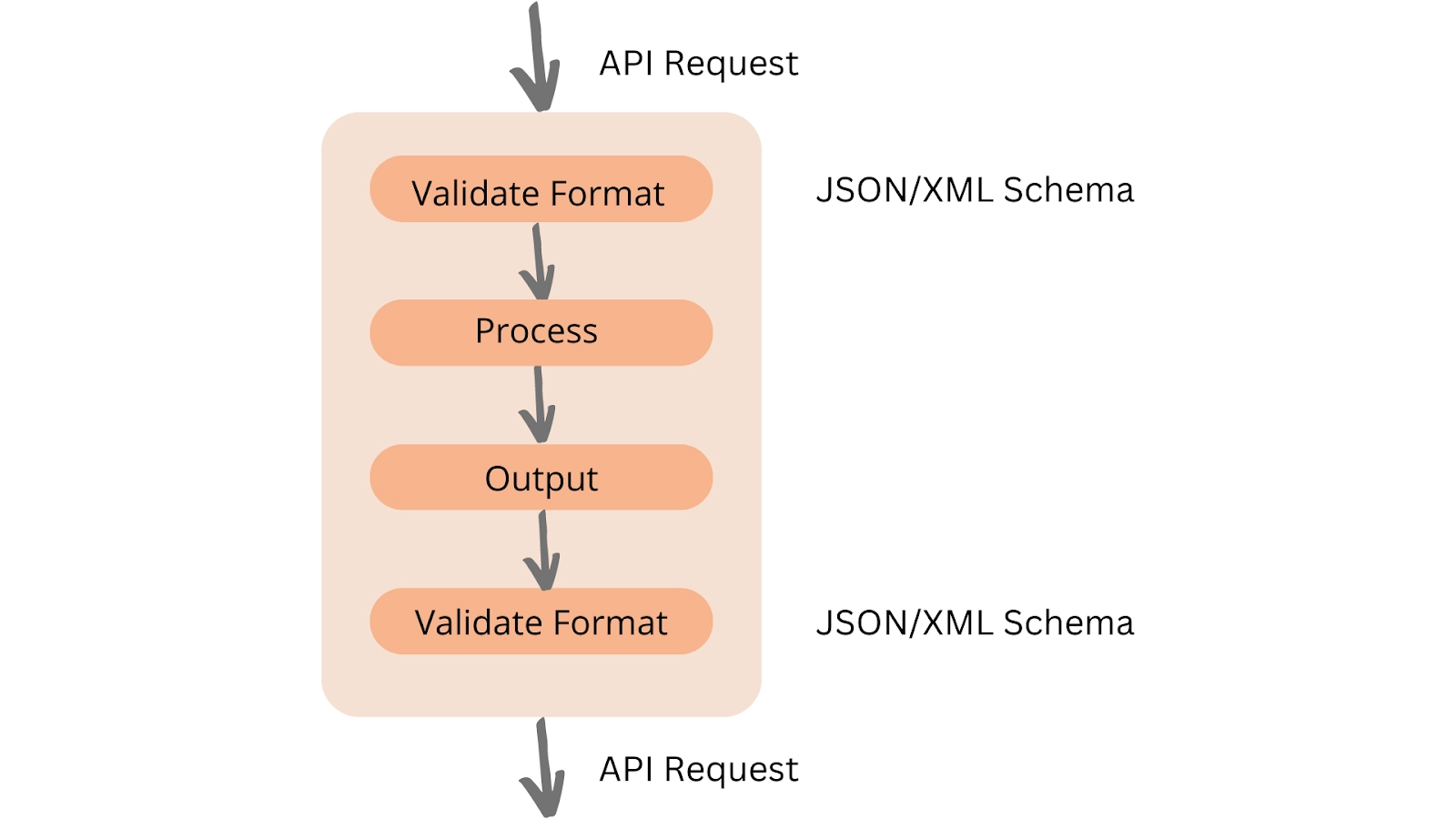
Validating against Schema in a Web Service Request
This module discusses validating against Schema in a Web Service Request as a part of Schema Compliance Testing in Katalon Studio. Use the steps below to complete the process successfully.
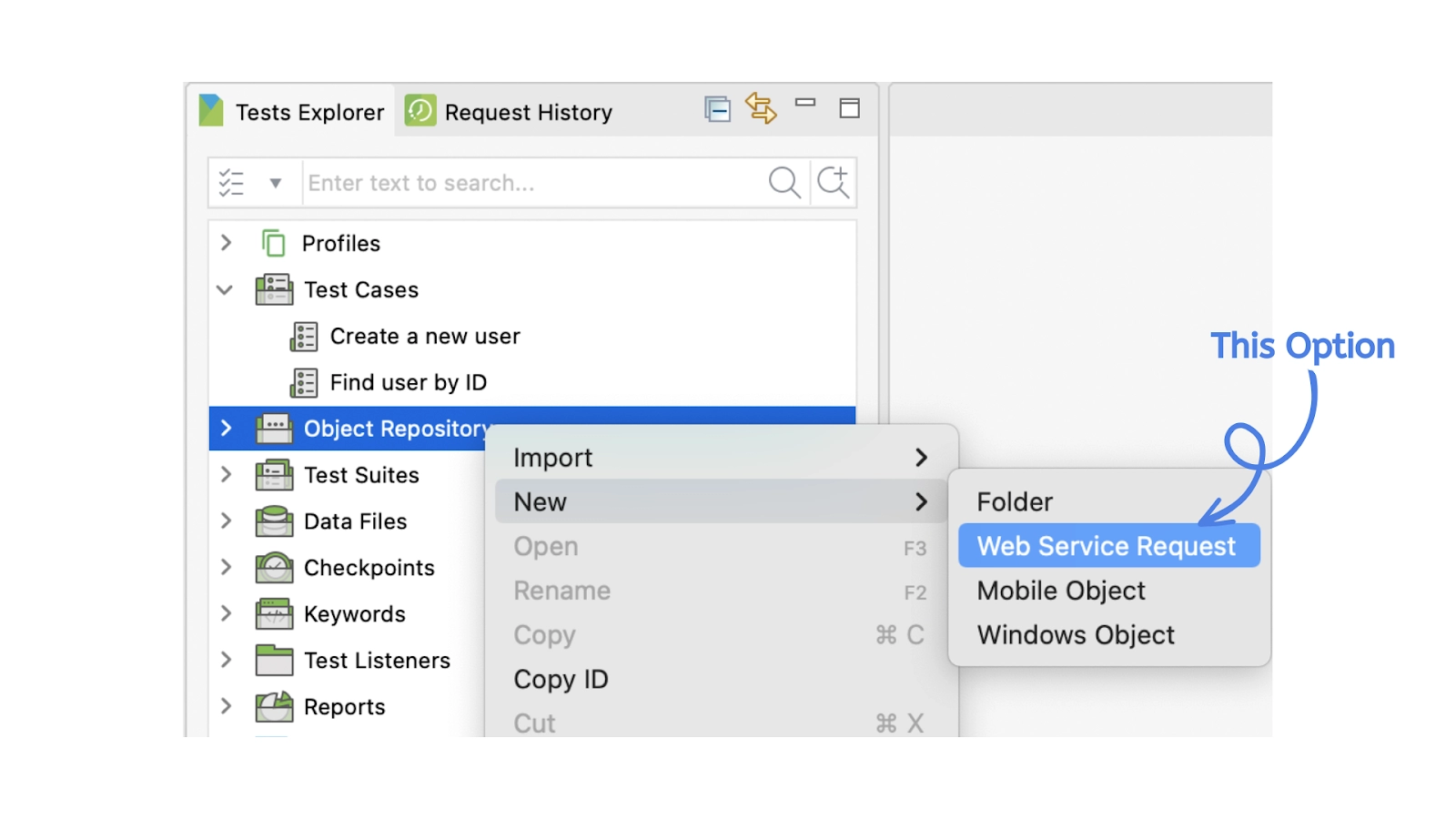
1. Open the Test Explorer Tab from the home screen of Katalon Studio.
2. Select the Object Repository option and create a new Web Service Request.
3. A screen appears displaying the parameters for a new Web Service Request. From the tabs given in the Object Editor View, select the Validation Tab.
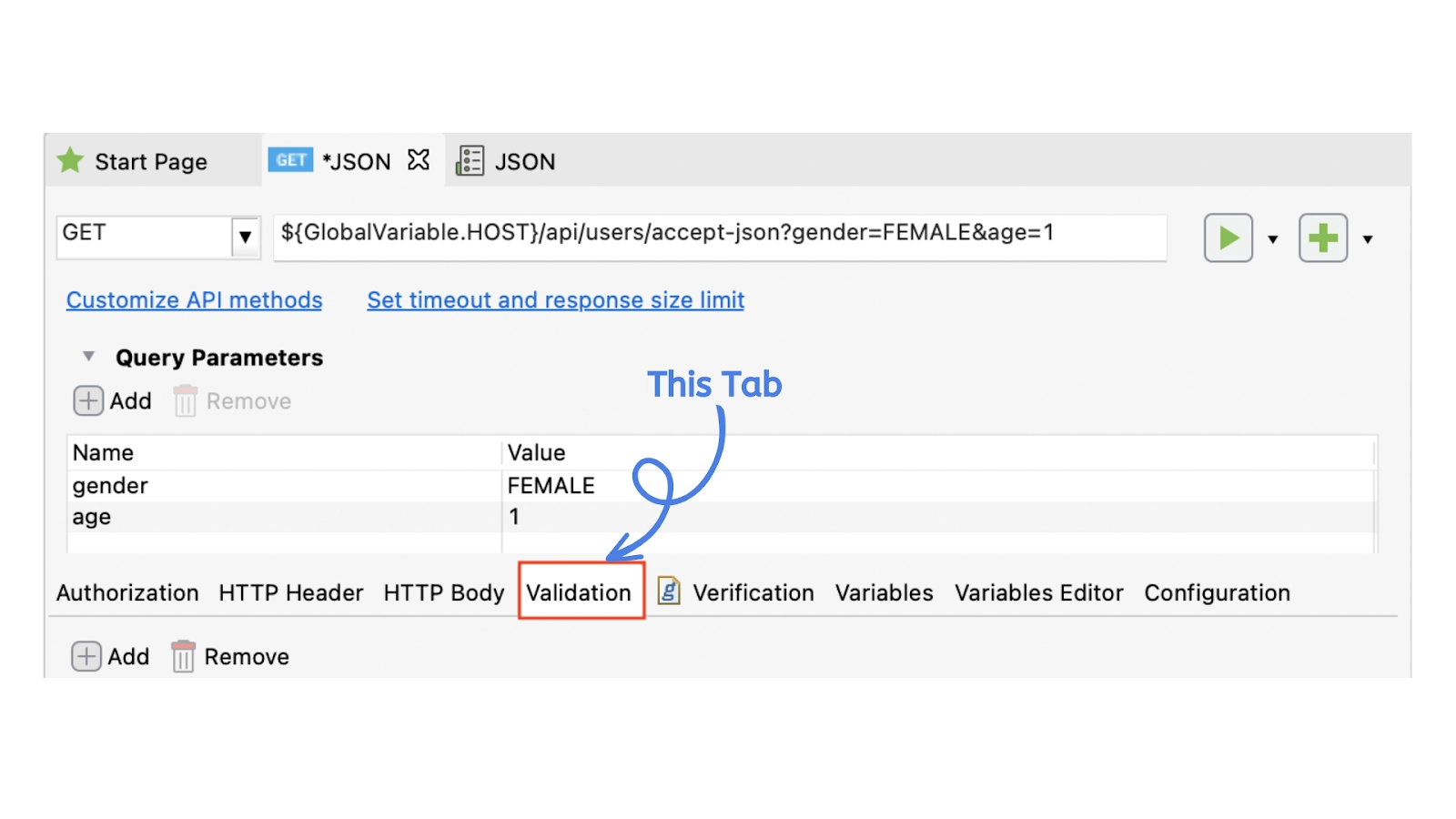
4. You can see two options there- Add and Remove. To add a new Validation, click on Add.
5. You will be asked to input the following information given in the table.
Option |
Description |
| Name | It is the name of the new validation. |
| Target | There can be two targets for any validation- Response or Request. |
| Schema Type | There are four options available in schema type parameter- JSON, XML, GraphQL, Auto Detect. |
| Input Type | There are three options available in input type parameter- URL, File, Auto Detect. |
| Location/Value | Here, you have to input an URL or file path leading to schema. If Input Type is File, select Browse on the Location/Value cell to get the appropriate schema file location. |
| Validate | This parameter selects the schema to validated against in Web Testing. |
6. When you are done with your inputs, Click on Save.
7. Now, open the dropdown menu of the Test and Request option and click on Test Request and Verify.
8. Refer to the Response section. Switch to the Validation Log Tab to see Validation Results on your screen.
PASSED: This means all the requests and responses have passed the validation.
FAILED: This means at least, or more requests or responses did not pass the validation.
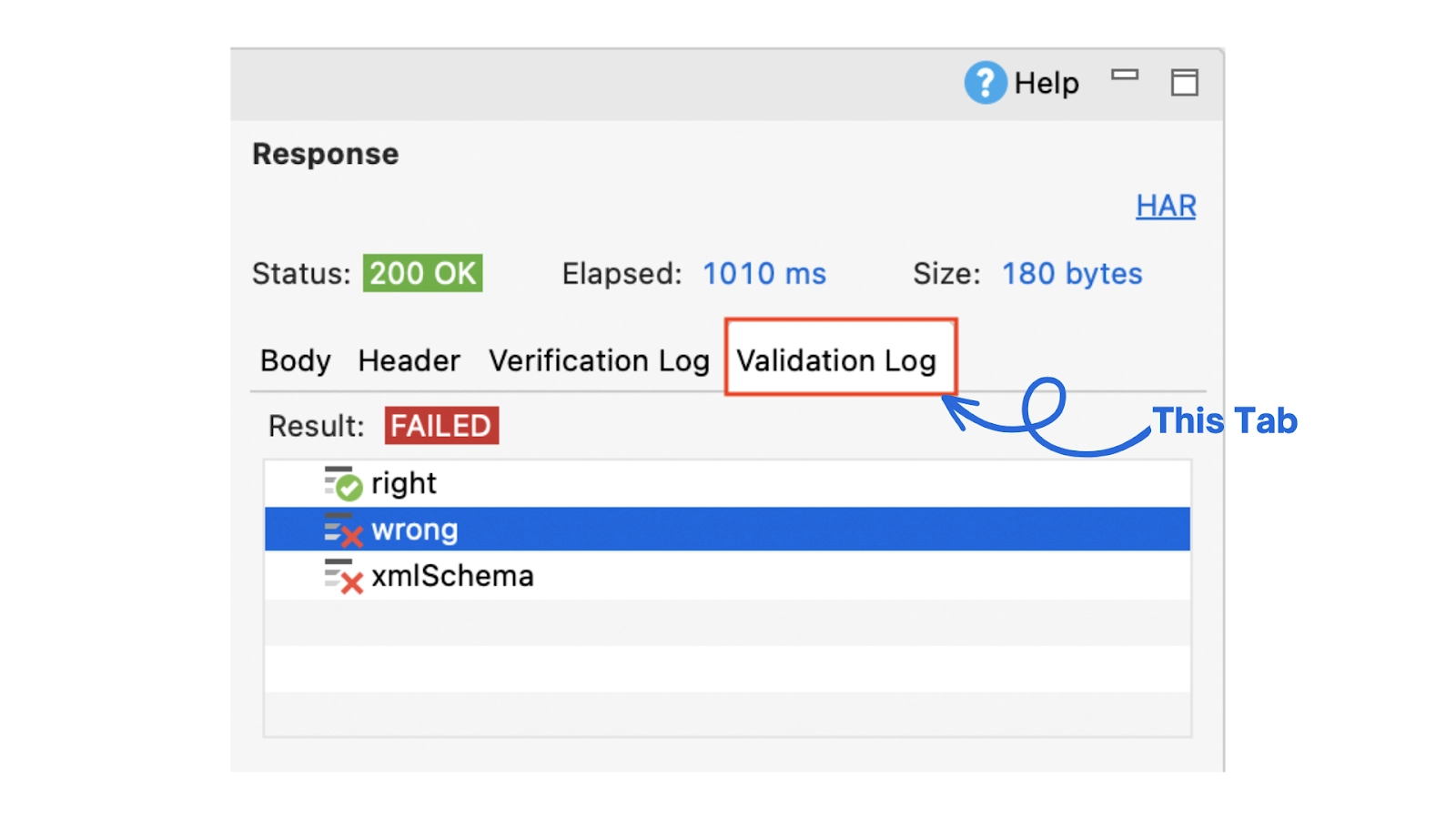
In case of failed response or request, select each line of the Result Table to view the problem details. This will open a dialog displaying a list of issues, if any.
You have completed validating against schema in a web service request.
Validating against Schema in Test Cases
This module discusses validating against Schema in Test Cases as a part of Schema Compliance Testing in Katalon Studio. There are three keywords used in the process.
- Validate GraphQL request against a GraphQL Schema
- Validate an XML string against a schema
- Validate a JSON string against a schema
Use the steps below to complete the process successfully.
1. Execute your scripted test case in the Log Viewer. Refer to the test case below in script mode for a better understanding.
result = Test.sendRequest(findTestObject('XML'))
String xml = '''<?xml version="1.0" encoding="utf-8"?>
<List>
   <item>
       <id>4</id>
       <username>Johnson & Johnson</username>
       <password>88170</password>
       <gender>MALE</gender>
       <age>56</age>
       <avatar/>
   </item>
</List>'''
String xmlFile = FileUtils.readFileToString(new File("example/xml/person.xml"), "utf-16");
Test.validateXmlAgainstSchema(result, "example/xml/person.xsd");
Test.validateXmlAgainstSchema(xml, "example/xml/person.xsd");
Test.validateXmlAgainstSchema(xmlFile, "http://localhost:8080/api/users/xsd", FailureHandling.STOP_ON_FAILURE);
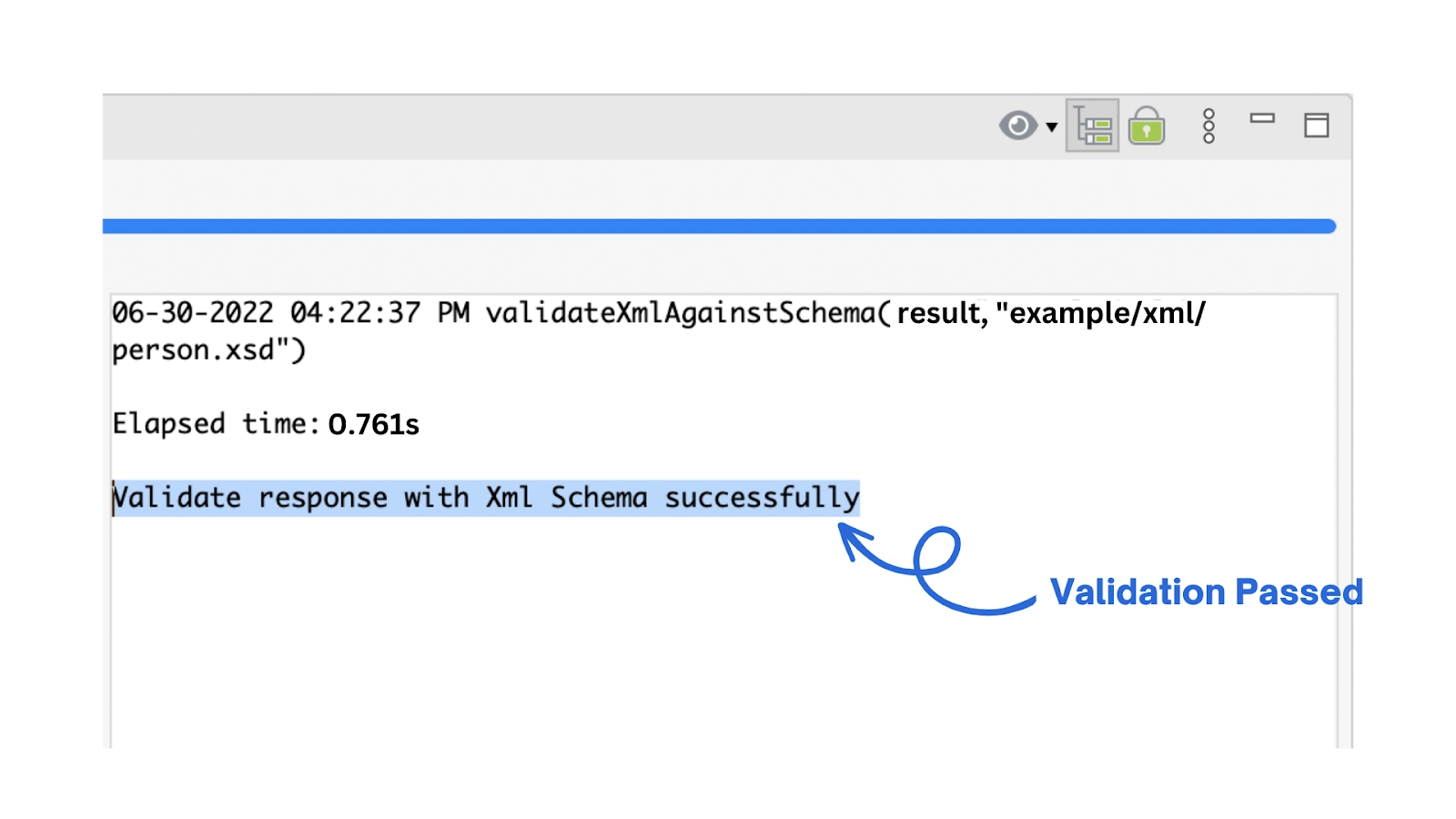
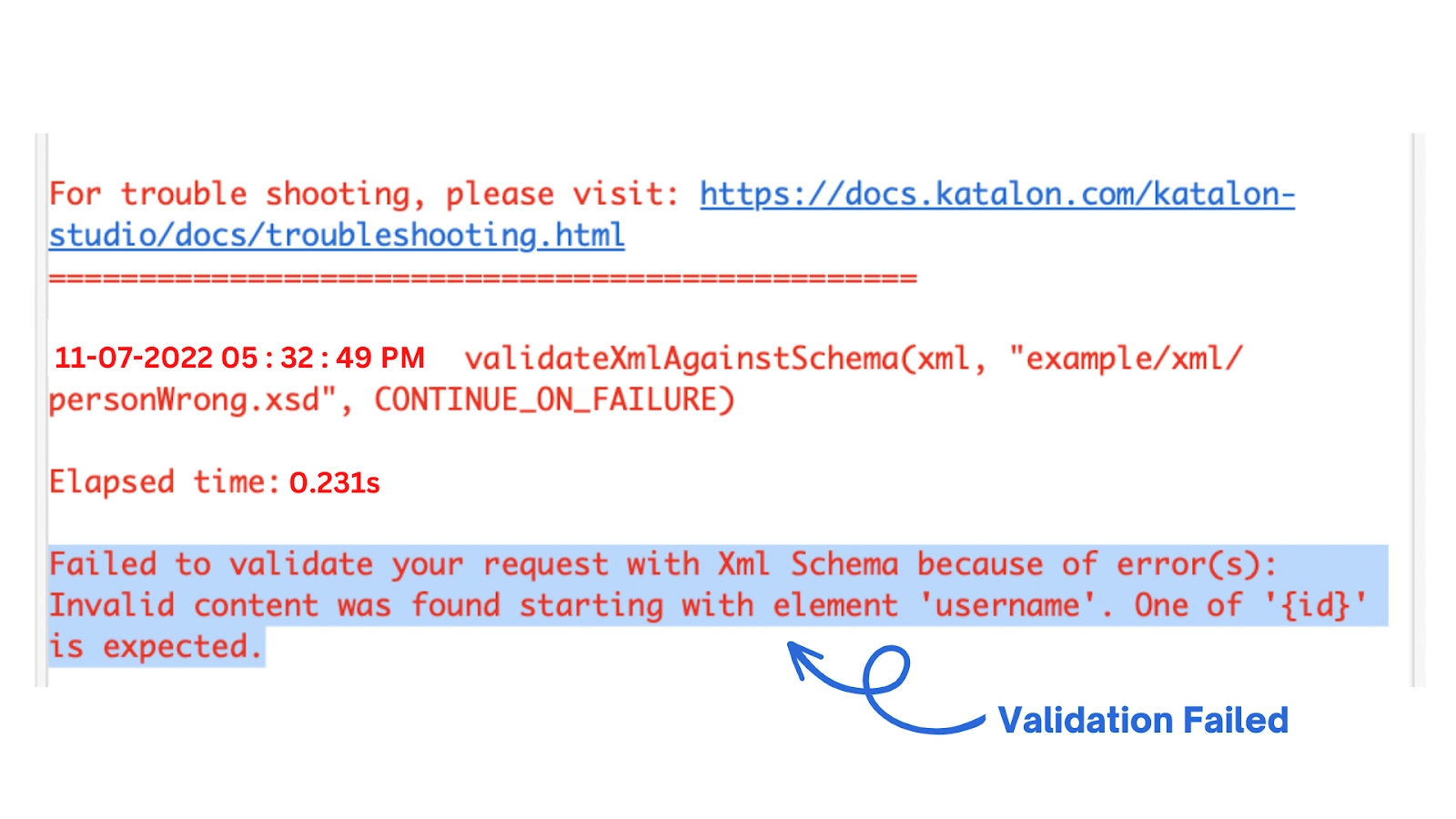
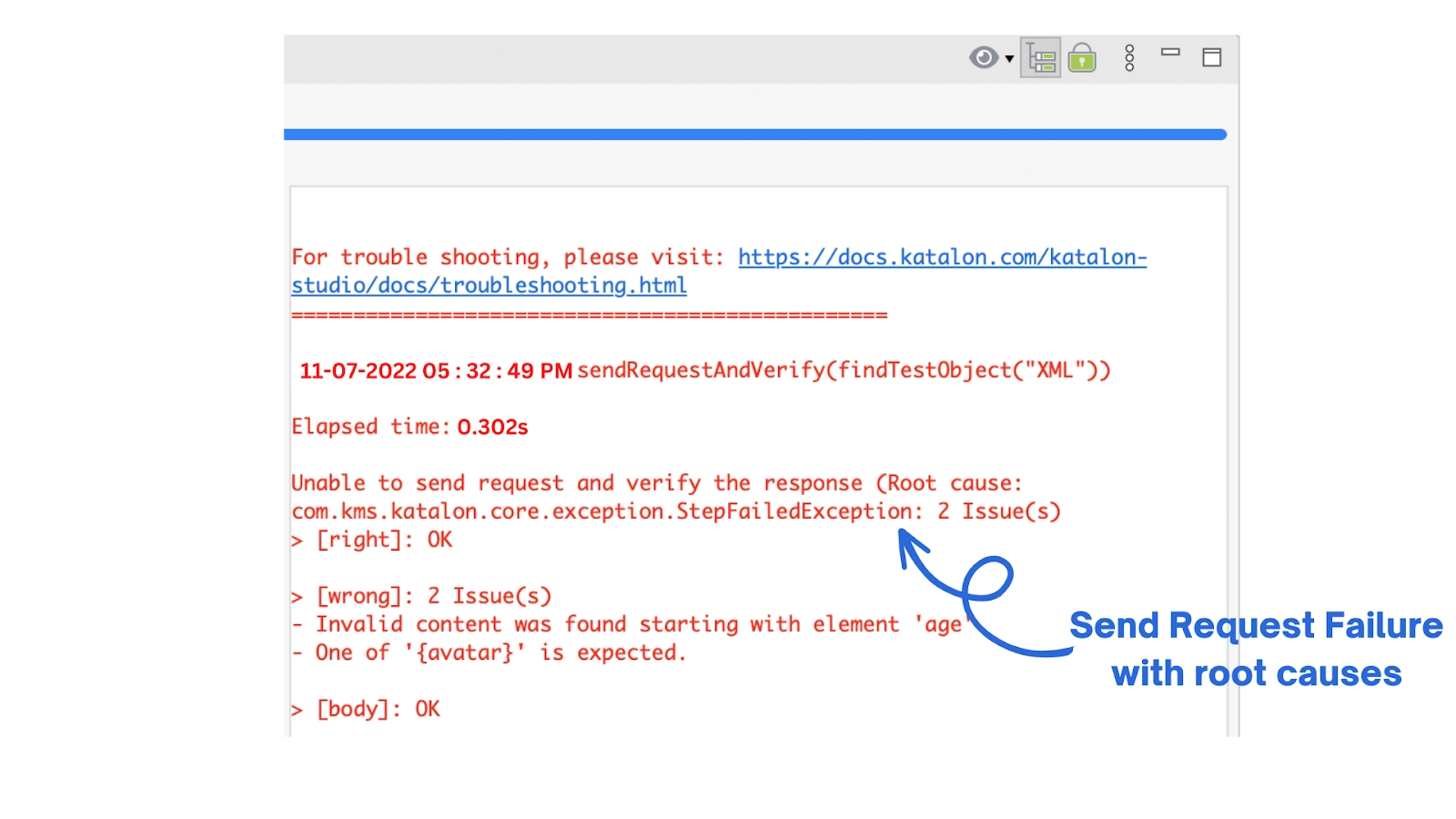
2. You will see the outcomes of the validation tests you added to your script. The most common outcomes are listed below.
- Validation passed
- Validation failed
- Send request failure over root cause
The above-given types can be used for several uses. The most prominent ones are listed below.
- JSON Schema: Validation of RESTful request and response body content.
- XML Schema: Validation of RESTful and SOAP request and response body content.
- GraphQL Schema: Validation of GraphQL request body content.


 1+ registered

