Do you think IIT Guwahati certified course can help you in your career?
Introduction
In graphic design, a path represents the outline of a shape that can be filled in or stroked. In addition to describing animation or positioning text, paths can be used as clipping paths. You can use a path for more than one of these functions simultaneously. A path is defined in SVG using the 'path' element. This article describes SVG paths' syntax, behavior, and DOM interfaces, and SVGPath demo Let us dive into the topic.
SVGPath
Scalable Vector Graphics(SVG) is an XML-based language used to define vector-based graphics. In JavaFX, images can be constructed by parsing SVG paths. Such shapes are represented by a class named SVGPath that belongs to the package javafx.scene.shape. An SVG path can be parsed in JavaFX by instantiating this class. The SVGPath class has a property named content of String datatype which represents the SVG Path encoded string from which you should draw the image. For drawing a shape by parsing an SVG path, you must pass values to this property, using the method setContent() as follows:
setContent(value);
Steps to Draw SVGPath
For drawing a shape by parsing an SVGPath in JavaFX, follow the steps listed below.
Step 1: Creating a Class
The first step is creating a Java class and inheriting the Application class of the package javafx.application. Then, we can implement the start() method of the class as follows.
Code:
public class ClassName extends Application {
   @Override
   public void start(Stage primaryStage) throws Exception {
   }
}
Step 2: Creating an Object of the SVGPath Class
The second step is to create a given shape in JavaFX by the parsing of an SVGPath. You can do so by instantiating the class named SVGPath, which belongs to a package javafx.scene.shape. You can instantiate this class as follows.
SVGPath svgpath = new SVGPath(); //Creating an object of the class SVGPath
Step 3: Setting the SVGPath
The third step is setting the content for the SVG object using the method setContent(). You need to pass the SVGPath to this method. Using this, a shape should be drawn as a string, as shown in the following code block.
String path = "M 100 100 L 300 100 L 200 300 z";
svgPath.setContent(path); //Setting the SVGPath in the form of string
Step 4: Creating a Group Object
The fourth step is to create a group object in the start() method by instantiating the class named Group. This class belongs to the package javafx.scene. To construct the Group class, pass the SVGPath (node) object created in the previous step as a parameter.
Group root = new Group(svgpath);
Step 5: Creating a Scene Object
The fifth step is to create a Scene by instantiating the class named Scene, which belongs to the package javafx.scene. You should pass the Group object (root) created in the previous step to this class. Besides the root object, you can even pass two double parameters representing the height and width of the screen along with the object of the Group class.
Scene scene = new Scene(group ,700, 400);
Step 6: Setting the Title of the Stage
The sixth step is setting the title to the stage using the setTitle() method of the Stage class. The primaryStage is a Stage object passed to the start method of the scene class as a parameter. Using the primaryStage object, set the scene's title as Sample Application.
primaryStage.setTitle("Sample Application");
Step 7: Adding Scene to the Stage
The seventh step is to add a Scene object to the stage using the method setScene() of the class named Stage. Then, this method will add the Scene object prepared in the previous steps.
primaryStage.setScene(scene);
Step 8: Displaying the Contents of the Stage
The eighth step is to display the scene's contents using the method show() of the Stage class.
primaryStage.show();
Step 9: Launching the Application
The ninth step: From the main x method, call the launch() method of the Application class to launch the JavaFX application.
Code:
public static void main(String args[]){
   launch(args);
}
Example
Let us see an example code which generates a shape by parsing SVG path using JavaFX. Save this code in a file with the name SVGExample.java.
Code:
import javafx.application.Application;
import javafx.scene.Group;
import javafx.scene.Scene;
import javafx.scene.shape.SVGPath;
import javafx.stage.Stage;
public class SVGEx extends Application {
   @Override
   public void start(Stage stage) {
      SVGPath svgPath = new SVGPath(); //Creating a SVGPath object
      String path = "M 100 100 L 300 100 L 200 300 z";
      svgPath.setContent(path); //Setting the SVGPath in the form of string
      Group root = new Group(svgPath); //Creating a Group object
      Scene scene = new Scene(root, 600, 300); //Creating a scene object
      stage.setTitle("Drawing a Sphere"); //Setting title to the Stage
      stage.setScene(scene); //Adding scene to the stage
      stage.show(); //Displaying the contents of the stage
   }
   public static void main(String args[]){
      launch(args);
   }
}
You can compile and execute the saved java file from the command prompt using the following commands.
javac SVGExample.java
java SVGExample
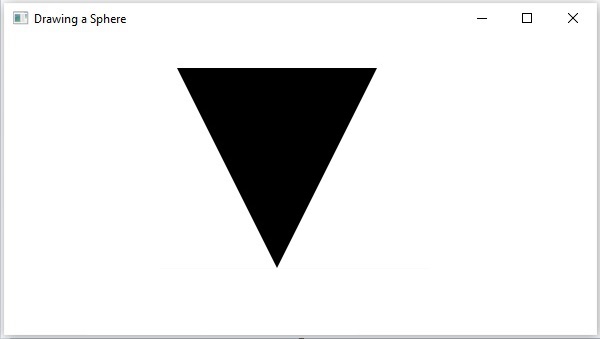
On executing, the above program generates a JavaFX window displaying a triangle drawn by parsing the SVG path as shown below.
Output:
SVGPath Demo
Let us see a demo code which generates a cloud shape by parsing SVGPath using Javafx.
All modern web browsers support SVG files including Chrome, Edge, Firefox, and Safari. Select File > Open, then choose the SVG file you'd like to see. It will appear in your browser window.
Do all browsers support SVG?
SVG is officially supported by all main web browsers, including Internet Explorer.
How do I open and edit an SVG file?
The svg files need to be opened in a vector graphics software application such as Adobe Illustrator, CorelDraw or Inkscape.
Conclusion
In this article, we have extensively discussed SVG paths' syntax, behavior, and DOM interfaces, and SVGPath demo. Having gone through this article, I am sure you must be excited to read similar blogs. Coding Ninjas has got you covered. Here are some similar blogs to redirect: SVG Graphics in HTML, Simple Paths and Path in a tree. We hope this blog has helped you enhance your knowledge, and if you wish to learn more, check out our Coding Ninjas Blog site and visit our Library. Here are some courses provided by Coding Ninjas: Basics of C++ with DSA, Competitive Programming and MERN Stack Web Development. Do upvote our blog to help other ninjas grow. Happy Learning!









 7+ registered

