Do you think IIT Guwahati certified course can help you in your career?
Introduction
CRUD (Create, Read, Update, Delete) is an acronym for the various operations that can be performed on stored data. It is a shorthand for the four fundamental functions of persistent storage. The Vaadin CRUD is the data management component of Vaadin flow.
In this article, we will discuss Vaadin CRUD. It will include various Vaadin CRUD application operations on columns, editor, grid replacement, and toolbar. Afterward, we will discuss sorting and filtering, item initialization, and localization on the Vaadin database, thus concluding our discussion of Vaadin CRUD. So let’s get started!
CRUD
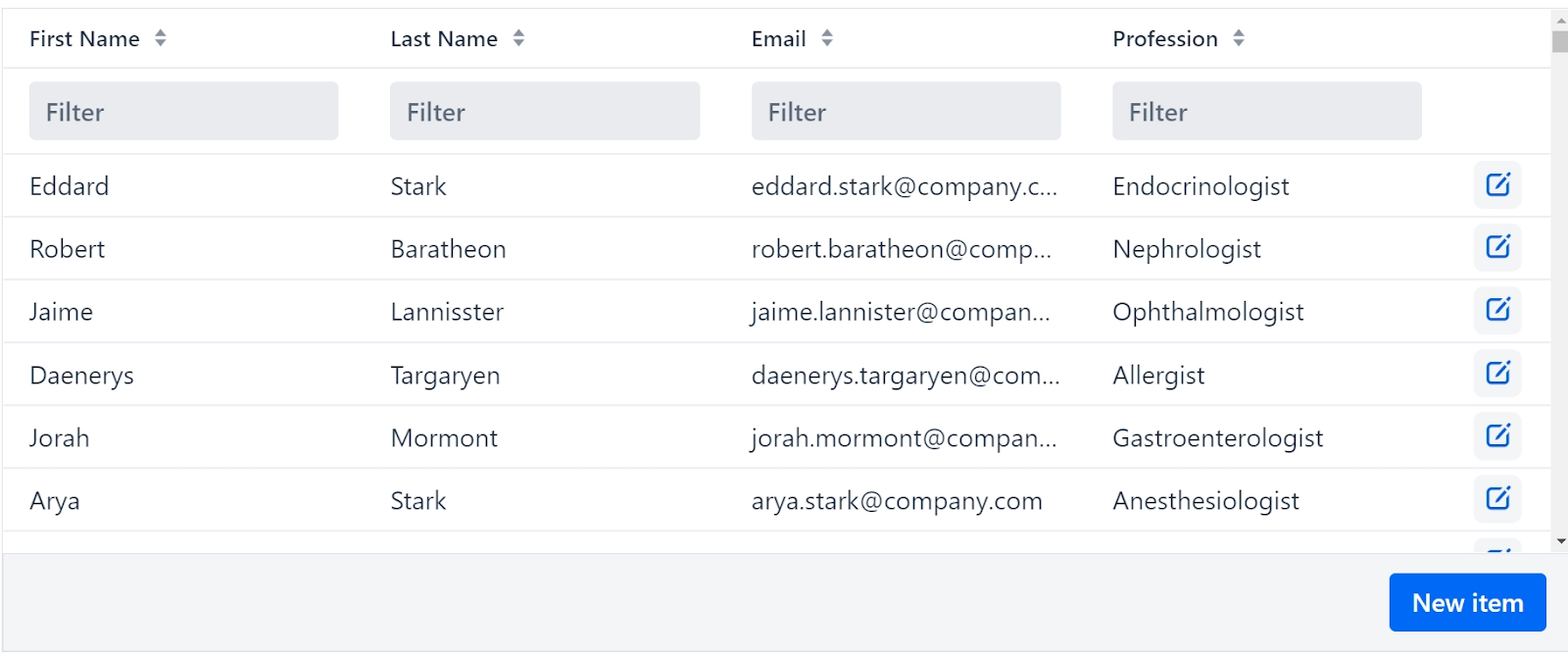
Vaadin CRUD is a dataset management component. It makes it simple to create, read (display), edit (update), and delete items.
crud = new Crud<>(
  Person.class,
  createEditor()
);

setupGrid();
setupDataProvider();

add(crud);
Columns
Vaadin CRUD generates columns for each field in the provided dataset automatically. You can add new columns as well as modify or remove existing ones.
crud = new Crud<>(
  Person.class,
  createEditor()
);

setupGrid();
setupDataProvider();

add(crud);
// Only show these columns (all columns shown by default):
List<String> visibleColumns = Arrays.asList(
  FIRST_NAME,
  LAST_NAME,
  PROFESSION,
);
grid.getColumns().forEach(column -> {
  String key = column.getKey();
  if (!visibleColumns.contains(key)) {
    grid.removeColumn(column);
  }
});
Editor
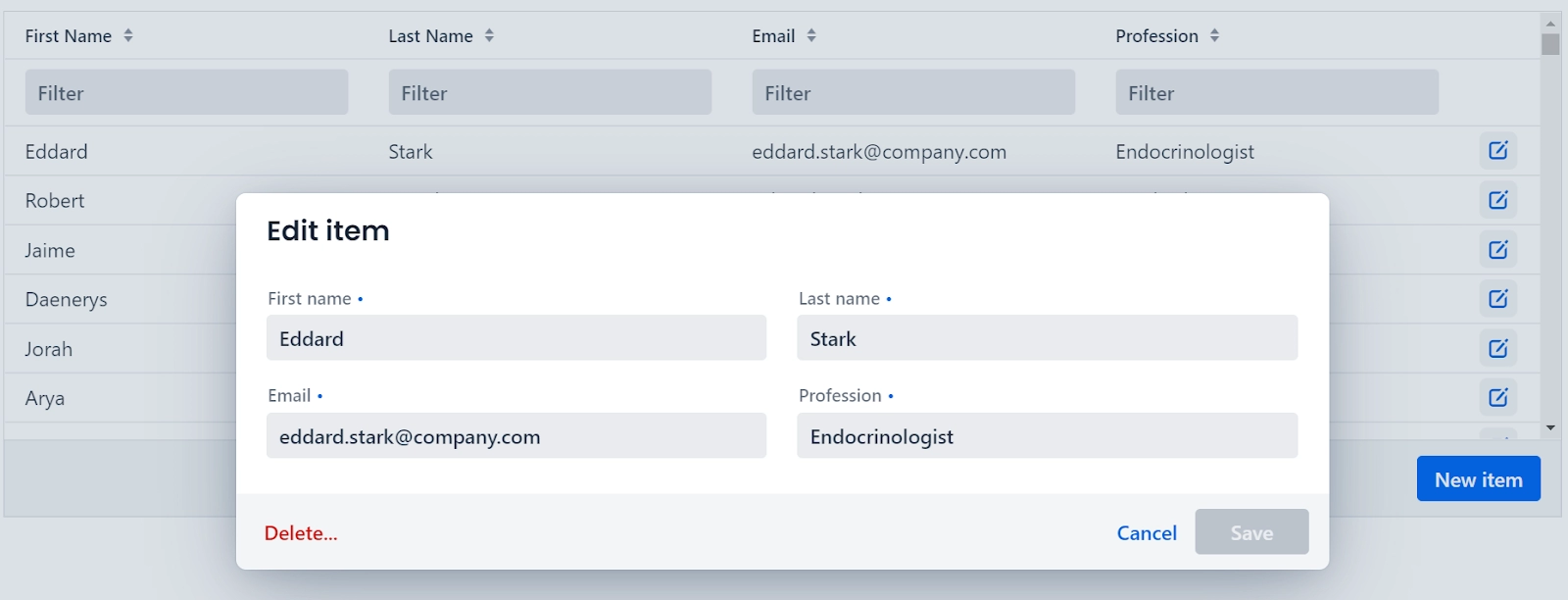
The editor UI of Vaadin CRUD is used to edit data.
Opening the Editor
The editor is opened by default by clicking the edit button in the last column, but this button column can be removed if you want to provide another way to engage with the editor. You can, for example, open it with a double click:
The editor can be placed in an overlay (the default), on the side, or at the bottom of the screen.
Overlay (Default)
The overlay position displays the editor in modal mode. Overlays are not limited by the size of the CRUD, making them ideal for complex forms. They do, however, prevent the user from viewing and interacting with the Grid beneath.
🍁 Aside
The editor appears as an overlay next to the grid in the aside position. When there is enough horizontal space to accommodate both the grid and the editor, and it is advantageous for the user to be able to view and interact with the grid while the editor is open, use this position. Aside positioning works well for single-column forms as well.
crud.setEditorPosition(CrudEditorPosition.ASIDE);
🍁 Bottom
When the user needs to see as many columns in the grid as possible while editing, when horizontal space is limited, or when a wider editor form is desired, the bottom position can be useful.
Except for the header and footer, the editor's content is completely customizable.
crud = new Crud<>(
  Person.class,
  createEditor()
);

...

private CrudEditor<Person> createEditor() {
  TextField firstName = new TextField("First name");
  TextField lastName = new TextField("Last name");
  EmailField email = new EmailField("Email");
  ComboBox<String> profession = new ComboBox<>("Profession");
  profession.setItems(professions);


  FormLayout form = new FormLayout(firstName, lastName, email, profession);
  form.setColspan(email, 2);
  form.setColspan(profession, 2);
  form.setMaxWidth("480px");
  form.setResponsiveSteps(
    new FormLayout.ResponsiveStep("0", 1),
    new FormLayout.ResponsiveStep("30em", 2)
  );

  Binder<Person> binder = new Binder<>(Person.class);
  binder.forField(firstName).asRequired().bind(Person::getFirstName, Person::setFirstName);
  binder.forField(lastName).asRequired().bind(Person::getLastName, Person::setLastName);
  binder.forField(email).asRequired().bind(Person::getEmail, Person::setEmail);
  binder.forField(profession).asRequired().bind(Person::getProfession, Person::setProfession);

  return new BinderCrudEditor<>(binder, form);
}
🍁 Editor Actions
There are three buttons in the editor:
"Delete" displays a confirmation dialogue asking the user to confirm that they want to delete the item.
"Cancel" closes the editor unless there are any unsaved changes, in which case a confirmation dialogue appears and the user can choose to discard the changes or continue editing.
The "Save" button saves the changes and closes the editor (disabled until a change is made).
Sorting and Filtering
CRUD supports sorting and filtering of any column by default.
Disabling Sorting and Filtering
We have a method by which we can disable sorting and filtering.
crud = new Crud<>(
  Person.class,
  createGrid(),
  createEditor()
);

...

private CrudGrid<Person> createGrid() {
  // Create the new CrudGrid to disable filtering (last boolean parameter)
  CrudGrid<Person> grid = new CrudGrid<>(Person.class, false);

  // Disable sorting
  grid.setSortableColumns();

...

return grid;
}
Grid Replacement
The default Grid in CRUD can be changed. This is useful if you want to customise the Grid, such as putting the edit Button in the first column.
The "New item" button in the CRUD toolbar is used to create new items. The toolbar and its Button can both be customised. We can use the toolbar to display statistics such as the size of the dataset and the number of search results, for example.
Html total = new Html("<span>Total: <b>" + dataProvider.DATABASE.size() + "</b> employees</span>");

Button button = new Button("New employee", VaadinIcon.PLUS.create());
button.addClickListener(event -> {
  crud.edit(new Person(), Crud.EditMode.NEW_ITEM);
});
button.addThemeVariants(ButtonVariant.LUMO_TERTIARY);

HorizontalLayout toolbar = new HorizontalLayout(total, button);
toolbar.setAlignItems(FlexComponent.Alignment.CENTER);
toolbar.setFlexGrow(1, toolbar);
toolbar.setJustifyContentMode(FlexComponent.JustifyContentMode.BETWEEN);
toolbar.setSpacing(false);

crud.setToolbar(toolbar);
Hiding the Toolbar
If not required, the toolbar can be hidden.
crud = new Crud<>(
  Person.class,
  createEditor()
);
crud.setToolbarVisible(false);
Item Initialization
Data can be added to newly created items.
crud = new Crud<>(
  Person.class,
  createEditor()
);
crud.addNewListener(event -> {
  Person person = event.getItem();
  person.setEmail("@vaadin.com");
  person.setProfession("Developer");
  crud.getEditor().setItem(person);
});
Frequently Asked Questions
Is the Vaadin application scalable?
To summarise, Vaadin applications scale well. As with any framework, mistakes are possible. However, by adhering to standard Java best practices, it is simple to create applications with Vaadin that not only scale well but also look great and work well, making your users happy.
Is the Vaadin application stateless?
From what we had known from Vaadin Fusion, the fusion does not create server sessions by default and instead employs the token-based authentication mechanism. The server is then stateless, allowing for easier horizontal scaling of instances and high service availability.
What do you know about Vaadin flow?
Vaadin Flow is a one-of-a-kind framework that allows you to create web apps without having to write HTML or JavaScript.
Conclusion
In this article, we have extensively discussed the Vaadin CRUD, including various Vaadin CRUD applications, such as columns, editor, grid replacement, and toolbar. Afterward, we discussed sorting and filtering, and item initialization, thus concluding our discussion of Vaadin CRUD.
But suppose you have just started your learning process and are looking for questions asked by tech giants like Amazon, Microsoft, Uber, etc. In that case, you must look at the problems, interview experiences, and interview bundle for placement preparations.
Nevertheless, you may consider our paid courses to give your career an edge over others!








 7+ registered

