Constructors of GWT Label Widget🧑🏻💻
The GWT CheckBox comes equipped with various constructors. Let us discuss some of these in this section,
-
Label(): This is the primary constructor for the creation of an empty Label.
-
Label(java.lang.String text): This is used to create a Label with the given text.
-
Label(java.lang.String text, boolean wordWrap): This is used to create a Label with the provided text.
- protected Label(Element element): This constructor is used to utilise an existing class by other subclasses.
Methods of GWT Label Widget🧑🏻💻
The GWT Label Widget also has various class methods. Let us look at the GWT Label Widget class methods,
-
void addClickListener(ClickListener listener): This method is used to add a listener interface for receiving clickable events.
-
void addMouseListener(MouseListener listener): This method is used to add a listener interface for receiving mouse events.
-
void addMouseWheelListener(MouseWheelListener listener): This method is used to add a listener interface for receiving mouse wheel events.
-
HasDirection.Direction getDirecion: This method is used to fetch the directionality of the widget.
-
HasHorizontalAlignment HorizontalAlignmentConstant getHorizontal Alignment(): This method is used to fetch the horizontal elements.
-
java.lang.String getText(): We can fetch the object's text using the getText method.
-
boolean getWordWrap(): This returns true if the word wrap has been enabled.
-
void onBrowserEvent(Event event): This method is used to add a previously used event listener.
-
void removeClickListener(ClickListener listener): This method is used to detach the click event listener from the browser’s document.
-
void removeMouseListener(MouseListener listener): This method is used to detach the mouse event listener from the browser’s document.
-
void removeMouseWheelListener(MouseWheelListener listener): This method is used to detach the mouse wheel event listener from the browser’s document.
-
void setDirection(HasDirection.Direction direction): This method can be used to set directions for a widget.
-
HasHorizontalAlignment HorizontalAlignmentConstant getHorizontal Alignment(): This method is used to set the horizontal alignment.
-
void setText(java.lang.String text): We can set the text of the object using the setText method.
-
void setWordWrap(): This method is used to enable word wrap for the widget.
- static Label wrap(Element element): This method is used to create a label widget that is used to wrap an existing <span> or <div> element.
Inherited Methods🤘🏻
The GWT label widget class inherits the following Java classes,
- com.google.gwt.user.client.ui.Widget
- com.google.gwt.user.client.ui.UIObject
GWT Label Widget Example💻
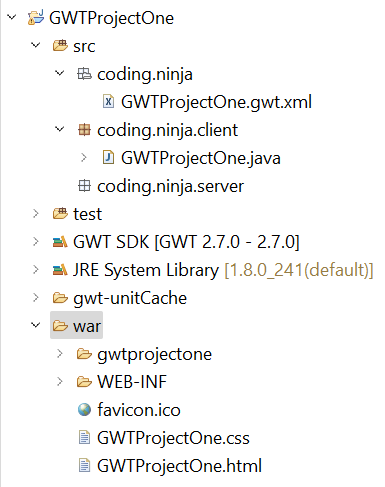
In this section, we will go through the simple steps to show the usage of the GWT Label Widget. Here you need to modify files ‘GWTProjectOne.css’, ‘GWTProjectOne.gwt.xml’, ‘GWTProjectOne.html’, and ‘GWTProjectOne.java’ by changing the code with the below code.
The Eclipse IDE and file structure will look something like this -

GWTProjectOne.gwt.xml
<?xml version = "1.0" encoding = "UTF-8"?>
<module rename-to = 'gwtprojectone'>
  <!-- Let's inherit the core GWT things. -->
  <inherits name = 'com.google.gwt.user.User'/>

  <!-- Let's inherit the default Google Web Toolkit style sheet. -->
  <inherits name = 'com.google.gwt.user.theme.clean.Clean'/>

  <!-- Let's specify the application entry-point class. -->
  <entry-point class = 'coding.ninja.client.GWTProjectOne'/>

  <!-- Let's specify the souce paths for the translatable code. -->
  <source path = 'client'/>
  <source path = 'shared'/>

  <add-linker name="xsiframe"/>

  <set-configuration-property name="devModeRedirectEnabled" value="true"/>
  <!-- enable source maps -->
  <set-property name="compiler.useSourceMaps" value="true" />
</module>
GWTProjectOne.css
body{
	text-align: center;
	font-family: Inter, sans-serif;
}

h1{
	font-size: 2em;
	font-weight: bold;
	color: #6907E6;
	margin: 40px 0px 70px;
	text-align: center;
}

.gwt-Label{
	font-size: 150%;
	font-weight: bold;
	color:orange;
	padding:10px;
	margin:10px;
}

.gwt-Yellow-Border{
	border:2px solid yellow;
	background: black;
}

.gwt-Purple-Border{
	border:2px solid purple;
	background: black;
}

.gwt-Red-Border{
	border:2px solid red;
	background: black;
}
GWTProjectOne.html
<!DOCTYPE html>
<html>
  <head>
    <meta http-equiv="content-type" content="text/html; charset=UTF-8">
    <link rel="stylesheet" href="GWTProjectOne.css">
    <script type="text/javascript" language="javascript" src="gwtprojectone/gwtprojectone.nocache.js"></script>
  </head>

  <body>
    <h1>Coding Ninjas Label Widget</h1>
      <div id = "codingNinjas"></div>
  </body>
</html>
GWTProjectOne.java
package coding.ninja.client;

import com.google.gwt.core.client.EntryPoint;
import com.google.gwt.user.client.ui.Label;
import com.google.gwt.user.client.ui.RootPanel;
import com.google.gwt.user.client.ui.VerticalPanel;

public class GWTProjectOne implements EntryPoint {
public void onModuleLoad() {
	// We are creating three labels here
	Label label1 = new Label("Here is ninja's first GWT Label");
	Label label2 = new Label("Here is ninja's second GWT Label");
	Label label3 = new Label("Here is ninja's third GWT Label");

	// We are using UIObject methods for setting label
	label1.setTitle("Ninja here is your first label");
	label1.addStyleName("gwt-Yellow-Border");
	label2.setTitle("Ninja here is your second label");
	label2.addStyleName("gwt-Purple-Border");
	label3.setTitle("Ninja here is your third label");
	label3.addStyleName("gwt-Red-Border");

	// We are adding labels to root panel.
	VerticalPanel panel = new VerticalPanel();
	panel.add(label1);
	panel.add(label2);
	panel.add(label3);

	RootPanel.get("codingNinjas").add(panel);
	}
}

You can also try this code with Online Java Compiler
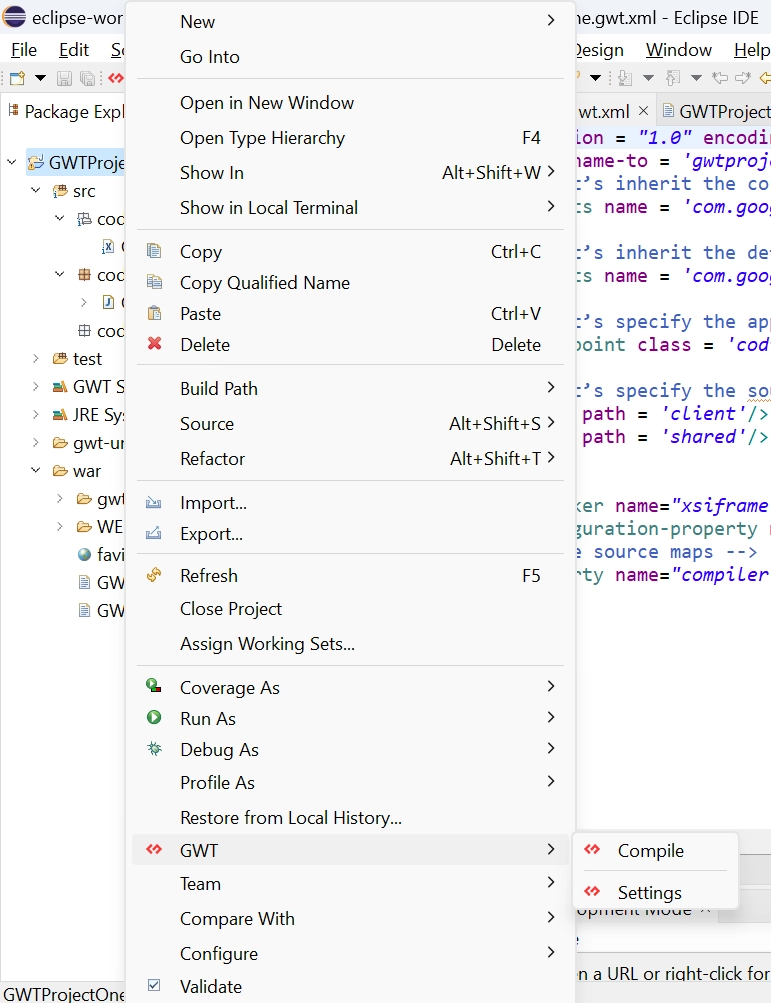
After modifying all the files, right-click the project, go to GWT and then select compile button, and then you will see one dialog box where you have again click on compile button.
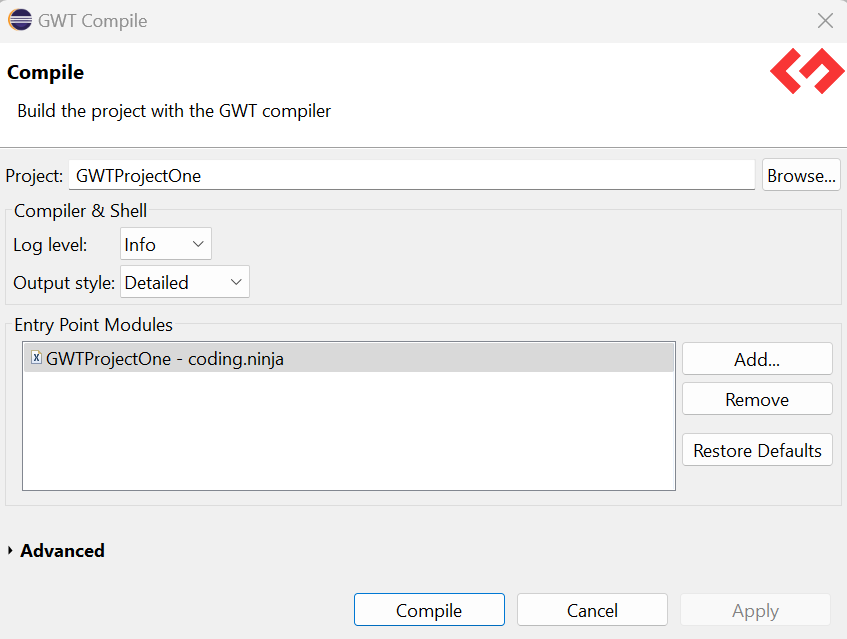
And after clicking it, you will see the following output in the console.

Now click on the dropdown button of the run button and select the project you want to run that is, in our case, GWTProjectOne.
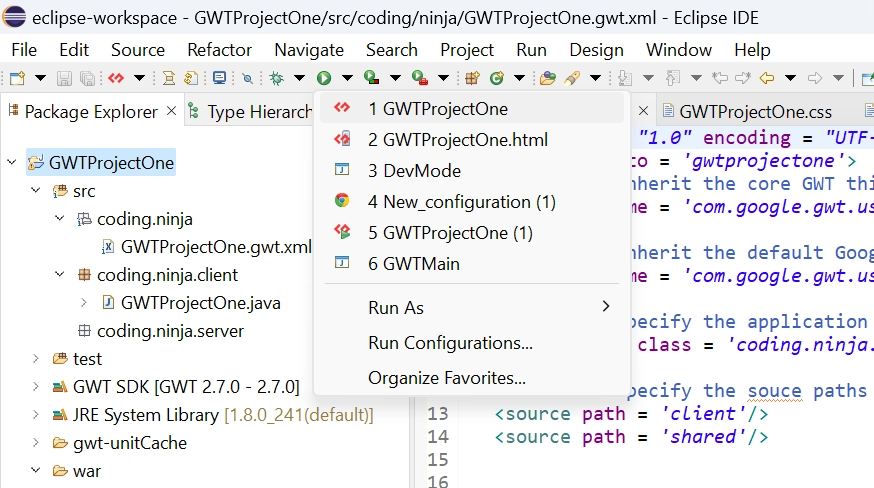
After clicking, you will see the following outputs in the console and development mode tab.

After clicking on the link in development mode, you will see the output of the code.

Output

We hope you have completely understood the GWT Label Widget. 😁
Frequently Asked Questions
What is the google web toolkit?
GWT (Google web toolkit) is an open-source development toolkit provided by google for developing browser-based, complex Ajax applications.
What is an IDE?
IDE is an integrated development environment. It is a software application that provides comprehensive facilities to programmers for software development.
What is JDK?
JDK is a java development kit. It is the distribution of java technology by oracle corporation. It implements java virtual and Java language specifications.
What is the advantage of developing a web application in GWT?
We can develop GWT apps in Java, and the advantages of developing in Java are auto-complete, refactoring, debugging, code reuse, etc.
What are the tools used by Java for development?
Java's development tools are Netbeans, Eclipse, JUnit, Maven, etc., also used to develop Rich Internet Applications.
Conclusion
In this blog, we went through GWT Label Widget. We saw class declaration, CSS style rules, constructors, and inherited methods. At last, we will see an example of the GWT Label Widget and if you want to learn more, check out our articles on-
Refer to our guided paths on Coding Ninjas Studio to learn more about DSA, Competitive Programming, JavaScript, System Design, etc. Enroll in our courses and refer to the mock test and problems available. Take a look at the interview experiences and interview bundle for placement preparations.
Do upvote our blog to help other ninjas grow.
Happy Learning Ninja! 🥷





 7+ registered

