




Introduction
Hello and welcome, readers! We hope you are doing well.
Today, we will discuss the JavaFX File Chooser. The JavaFX File Chooser allows users to browse files on the file system. After completing this article, you will clearly understand the JavaFX File Chooser. So follow the article till the end.
So, without further ado, let’s jump into the article.
JavaFX FileChooser
JavaFX includes the FileChooser class. File open dialogues are used to pick a single file (showOpenDialog), many files (showOpenMultipleDialog), and file save dialogues are also invoked using this method (showSaveDialog). Object class is inherited by FileChooser class.
There is only one constructor for JavaFX FileChooser and that is FileChooser().
(showOpenDialog) is used to invoke file open dialogs for selecting a single file, (showOpenMultipleDialog) is used to open file dialogs for selecting multiple files, and (showSaveDialog) is used to save dialogs.
Syntax
The syntax for creating a FileChooser in JavaFX:
FileChooser fl = new FileChooser();Commonly Used Methods

Implementation
To implement the demo application, we need to follow the steps below.
- Create a demo project in any IDE that supports Java Web applications, such as NetBeans. Choose File, then New Project from the NetBeans IDE Main menu.
- Select the web application project type from the Java with Maven category.
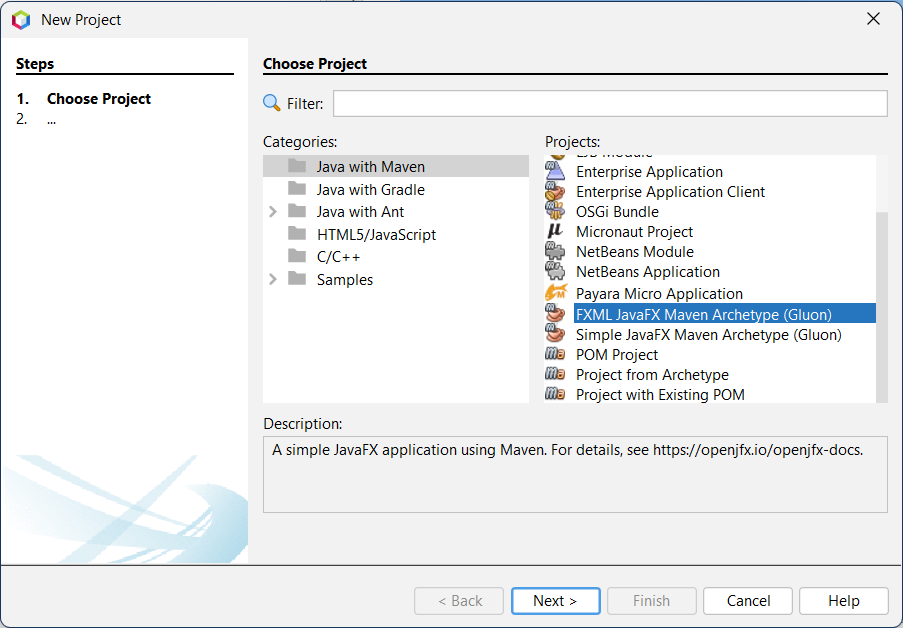
- Choose FXML JavaFX Maven Archetype and pick any practical name for your project and packages.
- Choose Java EE 7 for the web and the GlassFish Server.
- Modify the "App.Java" file on the project folder, as shown in the image below.
- Compile and execute the application to see if it is being compiled in the previously configured environment.
- Create the web application and deploy it as a war file via the GlassFish server. After execution, the program's output should be displayed in the default browser window.
Folder Structure
As previously stated, the folder structure should resemble the image below.

Code
package com.mycompany.javafxdemo;

import javafx.application.Application;
import javafx.stage.FileChooser;
import javafx.scene.control.Button;
import javafx.scene.control.Label;
import javafx.scene.layout.HBox;
import javafx.scene.control.TextField;
import javafx.stage.Stage;
import javafx.scene.Scene;

public class App extends Application {

    @Override
    public void start(Stage primaryStage) throws Exception
    {
        //creating labels, buttons, and select file field
    Label newlabel = new Label("Select File:");
           TextField text1= new TextField();
           Button button1 = new Button("Click to Browse");
           //assigning action to the button
           button1.setOnAction(e->
           {
               //creating new instance of file chooser
               FileChooser newfile = new FileChooser();
               newfile.setTitle(" FileChooser in JavaFX ");
               newfile.showOpenDialog(primaryStage);
           });
           //defining Hbox
           HBox box = new HBox();

           box.setSpacing(30);
           //adding required labels, text fields and button to program
           box.getChildren().addAll(newlabel,text1,button1);
           Scene scene = new Scene(box,500,200);
           //setting the stage and scene of JavaFX application
           primaryStage.setScene(scene);
           primaryStage.setTitle("Filechooser in JavaFX - Demo");
           primaryStage.show();
        }
    //driver function
    public static void main(String[] args) {
        Application.launch(args);
    }
}
Output 1(Before Clicking the Browse Button)

Output 2(After Clicking the Browse Button)


 7+ registered

