

Table of contents
1.
Introduction
2.
Backup and Restore
2.1.
Backup
2.2.
Restore
2.2.1.
Backend Restore
2.2.2.
Front-end Restore
3.
Backend Failure Recovery
3.1.
Node Failures
3.2.
Partitions
4.
Service level Failures
5.
Monitor
5.1.
Application Checks
5.2.
System Checks
6.
Server Tuning
7.
Server Log files
8.
Frequently Asked Questions
8.1.
How important is installing SSL certificates in Chef?
8.2.
What is bootstrap in Chef?
8.3.
Mention one best practice to maintain a useful backup.
9.
Conclusion
Last Updated: Mar 27, 2024

Managing Chef Infra Server

Author Yashesvinee V
0 upvote
Career growth poll
Do you think IIT Guwahati certified course can help you in your career?

Introduction

The Chef Infra Server is a powerful configuration tool that stores cookbooks, policies and other metadata related to its registered nodes. Thus, managing the Chef Infra Server is an essential task. This includes setting up periodic backups, failure recovery, monitoring, server tuning and maintaining server log files. Let us discuss each of these in detail.

Chef Infra Server Manage

Backup and Restore

Periodic backups of Chef Infra Server help maintain a healthy configuration and availability of critical data during a restore operation. A backend data backup saves Chef Backend cluster data, and a server configuration backup saves Chef Infra Server configuration file data. Restore and backup are closely connected. Both have specific subcommands that can be used to carry out these operations.

Backup

Chef Infra Server data backups can be created using the backup subcommand. This command requires the installation of rsync on the Chef Infra Server before running the command. It also requires a chef-server-ctl reconfigure. Note that the backup subcommand must not be run in a configuration with an external PostgreSQL database.

Syntax:

chef-server-ctl backup

Upon running the backup command, it puts the initial backup as a tar.gz file in the /var/opt/chef-backup directory. The file can be moved to a new location for safekeeping. The command had five additional options.

  • -y, --yes: It specifies if the Chef Infra Server can go offline during tar.gz-based backups.
     
  • --pg-options: It passes additional options to PostgreSQL during backups.
     
  • -c, --config-only: This allows you to back up the Chef Infra Server configuration without backing up data.
     
  • -t, --timeout: It sets the maximum time to wait for shell commands. By default, the value is 600. 
     
  • -h, --help: It shows a guide to backup data.

Restore

We can restore Chef Infra Server data from a backup using the restore subcommand. It can also be used to add Chef Infra Server data to a newly-installed server. Similar to the backup subcommand, this command must not be run in a Chef Infra Server configuration that uses an external PostgreSQL database. It also requires a preinstalled rsync on the Chef Infra Server and a chef-server-ctl reconfigure before running the command.

A restore server has the same fully qualified domain name as the server that was backed up. If it has a different FQDN, the following steps must be carried out.

Step 1: Replace the FQDN in the /etc/opscode/chef-server.rb and the /etc/opscode/chef-server-running.json files.

Step 2: Delete the old SSL certificate, key and -ssl.conf file from /var/opt/opscode/nginx/ca.

Step 3: Update the /etc/chef/client.rb file to point to the new server FQDN in all clients.

Step 4: Run chef-server-ctl reconfigure.

Step 5: Run chef-server-ctl restore.

Syntax: 

chef-server-ctl restore PATH_TO_BACKUP (options)

The restore subcommand has the following options:

  1. -c--cleanse: It removes all the data on the Chef Infra Server.
     
  2. -d DIRECTORY--staging-dir DIRECTORY: It specifies the path to an empty directory used for the restore process. 
     
  3. --pg-options: It is used to specify and pass additional PostgreSQL options during backups. 
     
  4. -t, --timeout: It sets the maximum time allowed to wait for shell commands. The default value is 600.
     
  5. -h, --help: It displayed the help message and a guide to using the command.


Backend Restore

Restoring a backend service creates a new cluster and a JSON secrets file that sets up communication between nodes. First, select one node and restore the backup on it using its IP address as the value in the following command.

chef-backend-ctl restore --publish_address my.company.ip.address /path/to/backup.tar.gz

The JSON secret file is located at /etc/chef-backend/chef-backend-secrets.json. Copy the file at tmp/chef-backend-secrets.json for each node. The join cluster subcommand can be used to establish communication inside the cluster.

chef-backend-ctl join-cluster --accept-license --yes --quiet IP_OF_LEADER_NODE --publish_address IP_OF_FOLLOWER_NODE -s /tmp/chef-backend-secrets.json


Front-end Restore

Step 1: Configuration for the front-end chef-server can be generated using the command.

chef-backend-ctl gen-server-config chefserver.internal > /tmp/chef-server.rb

Step 2: Restore the Chef Infra Server from the backed-up configuration generated by the new cluster.

chef-server-ctl restore /path/to/chef-server-backup.tar.gz

Step 3: Copy the generated config from step 1  to the front-end node and replace it with /etc/opscode/chef-server.rb. Reconfigure the save the changes.

chef-server-ctl reconfigure

Step 4: To repopulate the search index run the reindex command.

chef-server-ctl reindex --all

Backend Failure Recovery

This section describes the failure recovery actions for the Chef Backend cluster. 

Node Failures

Node failures occur when a node is down or off the network. It can be of two types: 

Single node failure and two node failure.

Single node failures are temporary and require less administrator intervention to resolve. After the failure is addressed and the node is restarted, it reconnects to the cluster and syncs front the current leader. If the node is unable to restart, it must be replaced.

Step 1: Remove the node.

chef-backend-ctl remove-node NODE_NAME

Step 2: Run the command to delete the node. This also saves the configuration files under the root.

chef-backend-ctl cleanse

Step 3: Make a directory for the configuration files and copy the required files.

Step 4: Run the following command.

chef-backend-ctl join-cluster LEADER_IP --recovery

In two node failures, the cluster will no longer operate as a leader election requires the quorum of two nodes.

Partitions

A partition refers to a loss of network connectivity between two nodes. For other nodes in the cluster, it is hard to tell whether a node is partitioned or down. Often, a partition is characterised by the node and the software on the node.

If a network partition does not result in a loss of quorum, the failed nodes must recover on their own once the connectivity is restored. If the lack of network connectivity results in a loss of quorum between the nodes, then two potential remediation options are to promote a specific node or a previous leader.

Promoting a specific node works only if the administrator can take action before the network split is already resolved. In this method, after resolving the network split, the online nodes are now in a waiting_for_leader state. A node can be promoted by running the command.

chef-backend-ctl promote NODE_NAME_OR_IP

A previous leader can be promoted if the deposed leader has the most up-to-date data. The first step is to override the safety checks that prevent the start of PostgreSQL.

rm /var/opt/chef-backend/leaderl/data/no-start-pgsql

Restart PostgreSQL and promote the leader node by running the commands.

chef-backend-ctl restart postgresql
chef-backend-ctl promote NODE_NAME_OR_IP

Service level Failures

Service level failures can be related to either a process on the machine dying or a process returning incorrect results.

  • In PostgreSQL, the leader and follower state is managed by leaderl. It also performs health checks on PostgreSQL. Failed nodes can be resynced from the leader node after the service-level failures are resolved.
     
  • In Elasticsearch, one of the three nodes can have a service-level failure without affecting the availability of the cluster. These failures are independent of PostgreSQL failures. However, if Elasticsearch fails on the leader node, Leaderl will encounter a PostgreSQL failover to another node. After the service-level problems are solved, the failed node rejoins the cluster.
     
  • Leaderl uses Etcd to choose a PostgreSQL leader and store the status and cluster state. If the Etcd failure is on the current leader, a PostgreSQL failure will occur.
     
  • Leaderl ensures that leadership is assigned to a node that can resolve all requests. It works closely with Etcd. If Leaderl fails on the leader node, failures in the PostgreSQL service are not attended. The other nodes in the cluster try to take over the leader when they detect Leaderl’s failure.

Monitor

Monitoring in Chef Infra Server involves Application and system checks. Usually, running out of disk space is the primary cause of failures. Disk usage in the Chef Infra Server can be monitored using two commands.

du -sh /var/opt/opscode
du -sh /var/log/opscode

The result displayed on running these commands must not exceed 80% to ensure the safety of the Chef Infra Server.

Application Checks

These checks are performed to ensure enough disk space and memory. It also checks the communication between the front end and the back end. 

  • Application checks can be carried out using the eper package of debugging tools while using Erlang. 
     
  • Nginx can be used to monitor the services that return 504 errors.
     
  • Psql, a management tool for PostgreSQL, can be used to obtain information about the stored data.
     
  • The redis_lb service handles requests from the Nginx service located on all front-end machines in a Chef Infra Server cluster. The service is located on the backend machines. When the Redis data store has a full disk, the dump.rdb becomes corrupt and is saved as a zero-byte file. Once the redis_lb service starts, all events are stored as logs.

System Checks

System-level checks are done for port and service status. 

  • The chef-backend-ctl status command is used to check the status services running in the Chef Backend. It checks the status of leaderl, PostgreSQL, etcd, epmd and elasticsearch services on the current node.
     
  • Opscode-authz API provides a high-level view of the opscode-authz service with the _ping endpoint that is accessible using cURL and GNU Wget.
     
  • Opscode-erchef status API provides a high-level view of the system's health with a _status endpoint that is accessible using cURL and GNU Wget.

Server Tuning

All configuration options for the Chef Infra Server are listed in the server configuration file. These values can be modified and tuned for large-scale installations and other applications.

The non-default configuration settings used by the Chef Infra Server are stored in the /etc/opscode/chef-server.rb file. The default settings are added to the chef-server.rb file to apply the non-default values.

Some of the settings usually added to the server configuration file are

  • Api_fqdn: The fully qualified domain name of the Chef Infra Server.
     
  • Bootstrap: It is set to true by default.
     
  • Ip_version: It can be set to ipv4 or ipv6. The default value is ipv4.
     
  • Notification_email
     

To tune and configure the Chef Infra Server to use SSL certificates, the following settings are modified from their defaults.

  • Nginx['ssl_certificate'] - The certificate used to verify communication over HTTPS.
     
  • Nginx['ssl_certificate_key'] - The certificate key used for SSL communication.
     
  • Nginx['ssl_ciphers'] - The list of cypher suites used to establish a secure connection.
     
  • Nginx['ssl_protocols'] - The SSL protocol versions are enabled for the Chef Infra Server API.

Server Log files

The Server log files of the Chef Infra Server are stored in /var/log/opscode. Every service has a subdirectory /var/log/opscode/service_name that stores service-specific logs. The command to view the logs of all services in the Chef Infra Server is as follows.

chef-server-ctl tail

For service-specific logs:

chef-server-ctl tail SERVICENAME

For services like Bifrost, bookshelf, ElasticSearch, Nginx, PostgreSQL and Redis, supervisor logs are created and managed by a service supervisor. Supervisor logs are automatically rotated when the current log file reaches 1,000,000 bytes, and the latest log is stored in /var/log/service_name/current. Rotated log files have a filename starting with @ followed by a tai64n timestamp stating the time the file was rotated.

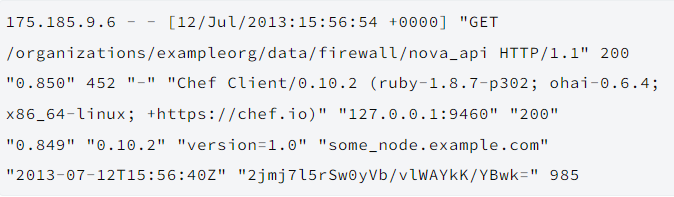
Another important log file is the Nginx service’s access.log file. It contains every HTTP request made to the front-end machine and is very useful when debugging and investigating request rates and usage patterns. Nginx services create supervisor and administrator logs. Administrator logs contain access and error logs for all virtual hosts utilised by the Chef Infra Server. Here is an example of a log entry.

Sample log entry

Source

Frequently Asked Questions

How important is installing SSL certificates in Chef?

SSL certificates are digital signatures for a website and provide encrypted connections with authentication facilities. They help secure the website from security attacks to access sensitive data. Users can create private keys to ensure secure data transmission between the Chef Server and the Chef Client.

What is bootstrap in Chef?

Bootstrapping is a process that installs the Chef Infra Client on a target system so that it can run as a client and communicate with the Chef Infra Server. This can either be done by running the knife bootstrap from a workstation or by performing an install to bootstrap from the node itself without requiring an SSH or WinRM connection.

Mention one best practice to maintain a useful backup.

Periodically verifying the backup by restoring any Chef Backend node and one Chef Infra Server node can help maintain a useful backup.

Conclusion

This blog discusses how to manage the Chef Infra Server. It explains the backup and restore options, backend failure recovery actions, server monitoring and tuning and accessing log files. Check out our articles on Chef InSpec TerminologyChef Shell for Debugging and Troubleshooting Chef Workstation. Explore our Library on Coding Ninjas Studio to gain knowledge on Data Structures and Algorithms, Machine Learning, Deep Learning, Cloud Computing and many more! Test your coding skills by solving our test series and participating in the contests hosted on Coding Ninjas Studio! 

Looking for questions from tech giants like Amazon, Microsoft, Uber, etc.? Look at the problems, interview experiences, and interview bundle for placement preparations.

Upvote our blogs if you find them insightful and engaging! Happy Coding!

Thank you

Live masterclass


