




Introduction
Doing everything manually is tiring and time-consuming for developers. A work like testing multiple aspects every time you make changes would become a problem. As a solution to this, Katalon Studio offers Testing Automation. It has a rich set of features to allow test automation. This includes scaling, managing, and collaboration. You can perform the entire test cycle in Katalon Studio.

What is Katalon Studio?
Katalon Studio is a closed-source automation testing platform for web, application, and API testing. It was in 2015 for internal testing. Later, in 2016, it was released to the public.
We can create, execute, or view our reports for test automation using Katalon Studio. You require no special skills to use the Katalon Studio. It offers both the manual view and the script view. It is helpful to anyone who wants to test their software irrespective. of their experience in programming.
Features of Katalon Studio
Various special features of Katalon Studio have led to its popularity. Some prominent features are mentioned below.
- The Katalon Studio covers everything a tester needs in a single and organized package. This makes its deployment very easy.
- The Katalon Studio is simple to install with no tedious processes involved.
- As mentioned above, it is optional for you to require any specific specialized skill to work with Katalon Studio.
- You can complete every stage, from organizing the project, creating the tests, and running the tests, to producing the final report using in-built example copies and giving a few instructions. This helps you achieve faster results.
In detail, this article will discuss the steps involved in performing pinch to zoom in action with Katalon Studio. So, without further ado, let’s start.
Performing Pinch to Zoom In Action with Katalon Studio
This module explains the steps of performing pinch to zoom in action with Katalon Studio using examples and relevant images. Certain parameters you must pay attention to are mentioned in the table below.
| Parameters | Parameter Type | Mandatory | Description |
| x | Number | Yes | It determines the original X-axis position. |
| y | Number | Yes | It determines the original Y-axis position |
| offset | Number | Yes | It specifies the length decided to be pinched. |
| flowControl | FailureHandling | No | This parameter specifies whether to continue the execution or not when a failure has occurred. |
There are two ways of performing pinch to zoom in action with Katalon Studio- Manual Mode and Script Mode.
Login Scenario
We have used a sample application for this demonstration. The application works on Android OS with Android Device API greater than 18.
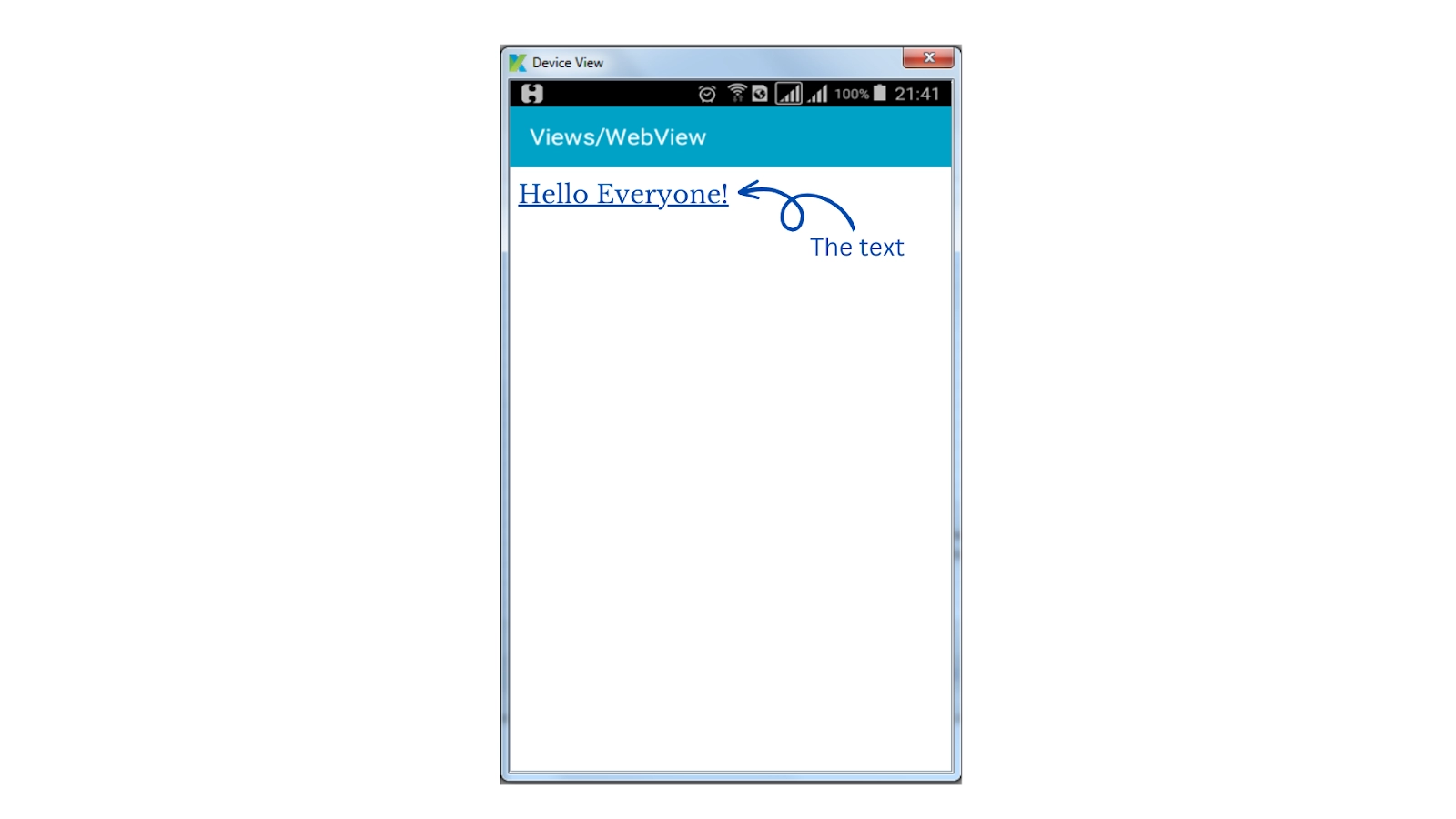
In the screenshot below is the text ‘Hello Everyone!’. We will use this text to illustrate performing pinch to zoom in action with Katalon Studio.
Manual Mode
This is the first way for performing pinch to zoom in action with Katalon Studio. To complete the process accurately, follow these steps properly.
1. Start the Application and click on Input to open a window. The image below shows the window that appears.
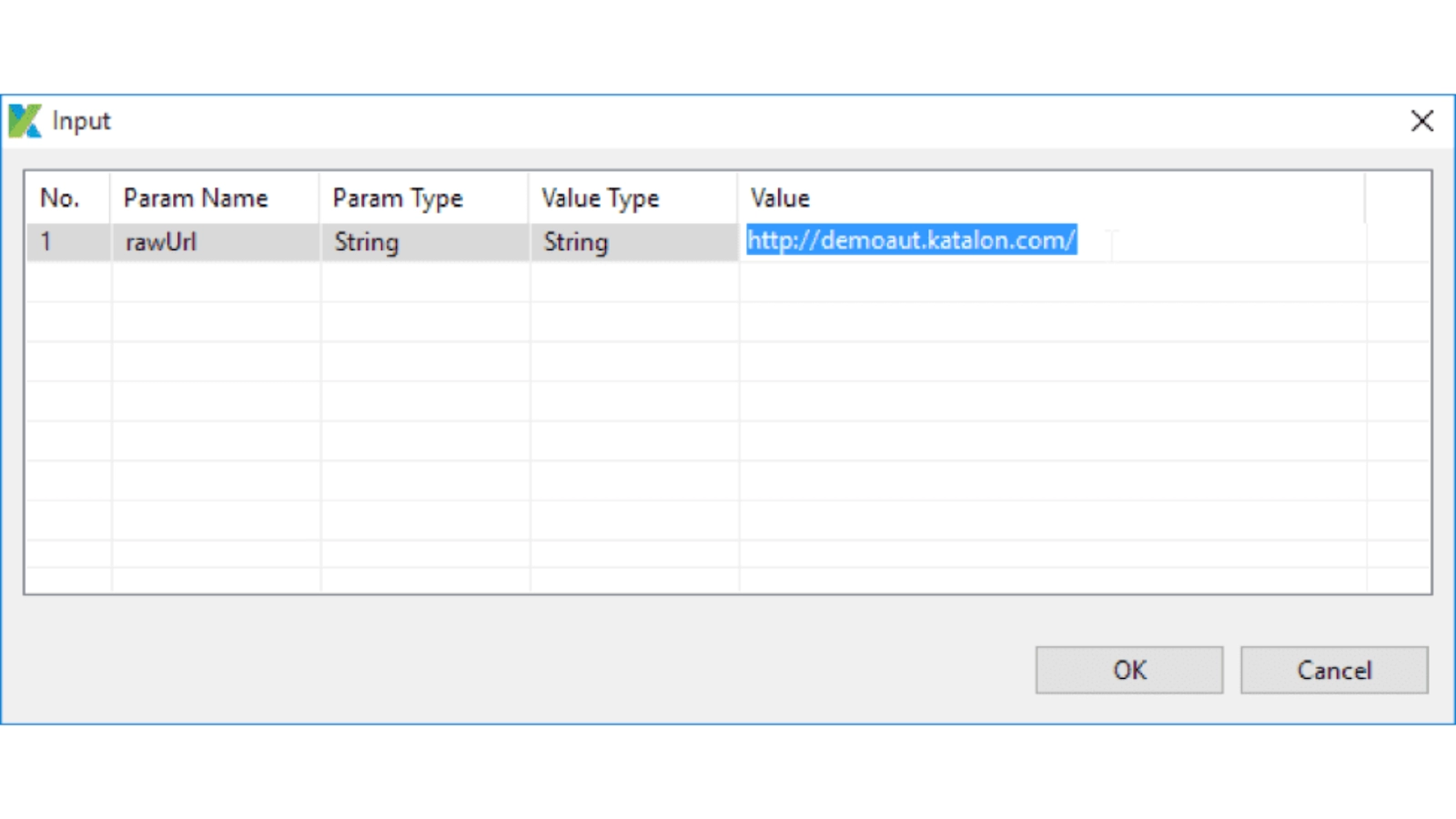
2. Carefully understand the available parameters, their type, and their value type. Figure out what values you can pass.
3. Click Ok.
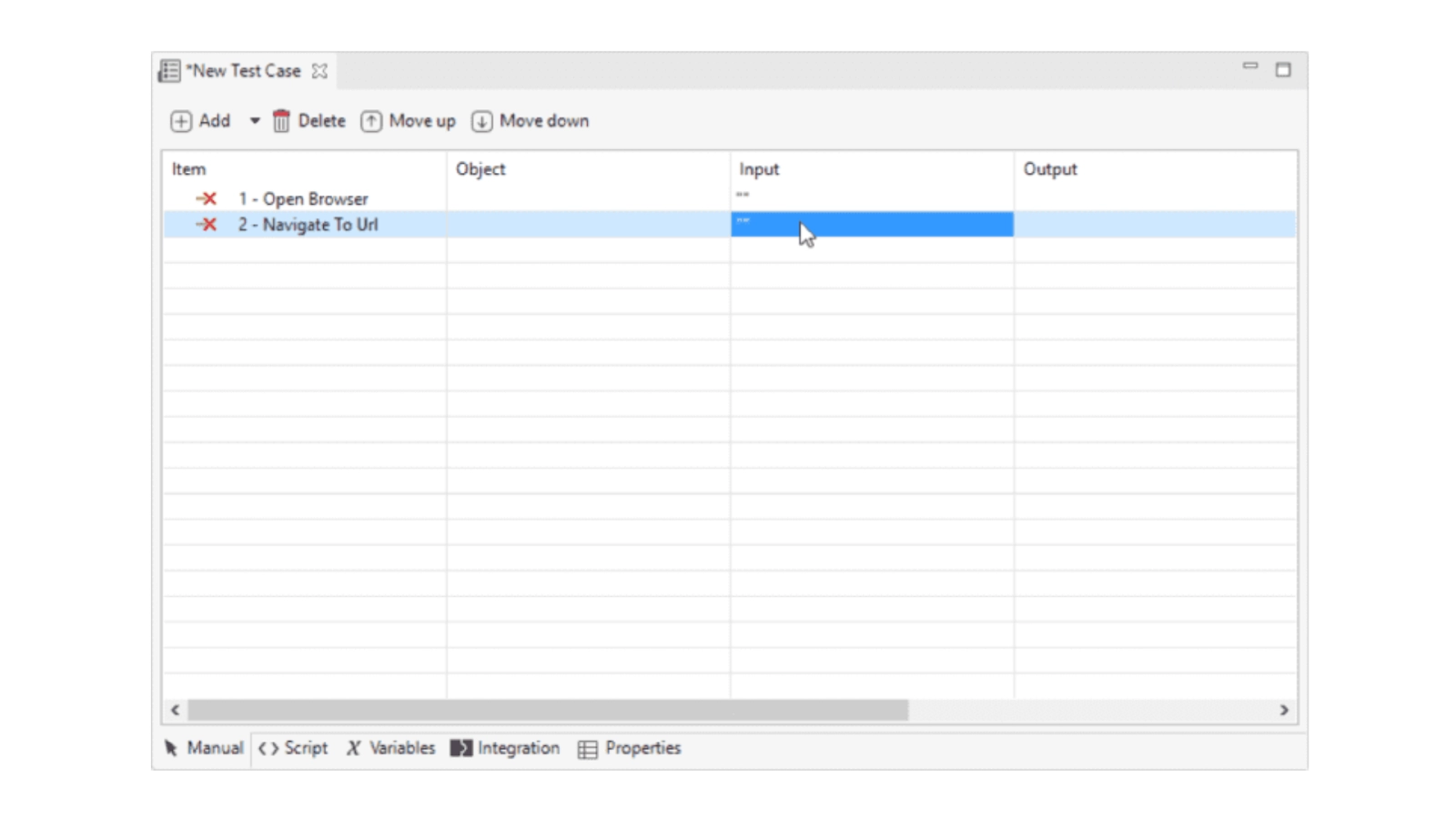
4. A screen appears where you will have to add the required number of items. The image below shows the screen that appears. These items influence your experience while performing pinch to zoom in action with Katalon Studio.
A new test case screen looks like this.
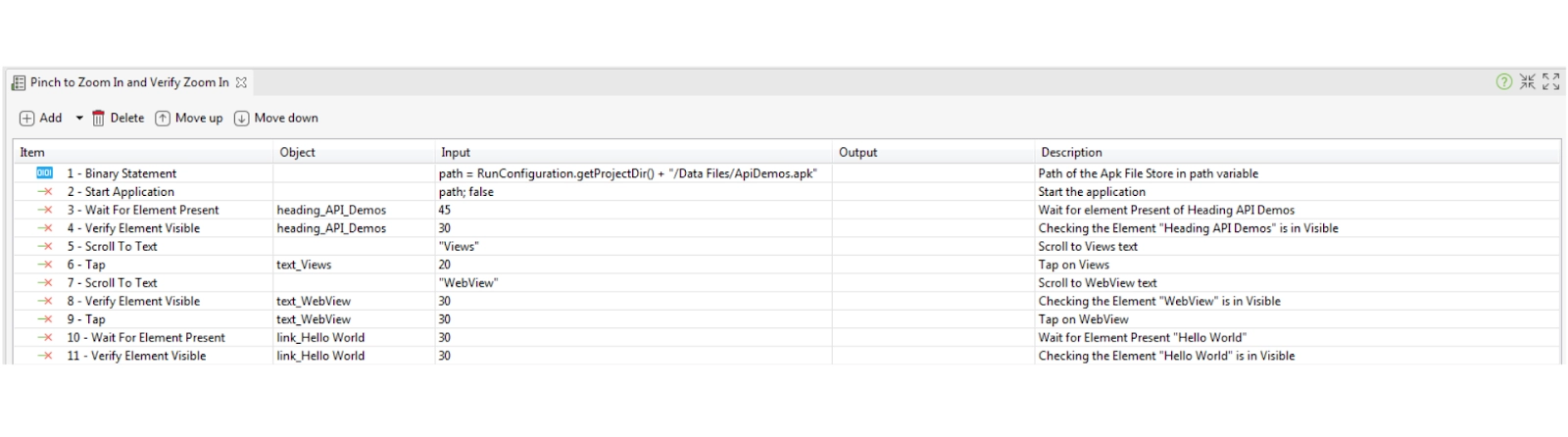
5. Now, add a few items, as shown in the image below. Carefully pass the required Objects, Inputs, and descriptions.
6. It’s time to add a few more elements that need extra attention. Call Get Element Height method to capture the actual height of ‘Hello Everyone!’. After capturing, store it in a variable name ele_Height.
7. Call the Get Element Width method to capture the actual width of ‘Hello Everyone!’. After capturing, store it in a variable name ele_Width.
8. We will add Pinch to Zoom in At Position method from the mobile keyword list to pass the inputs such as ele_Height, ele_Width, and Offset value.
9. After successfully adding the elements below, you will see a screen like this.
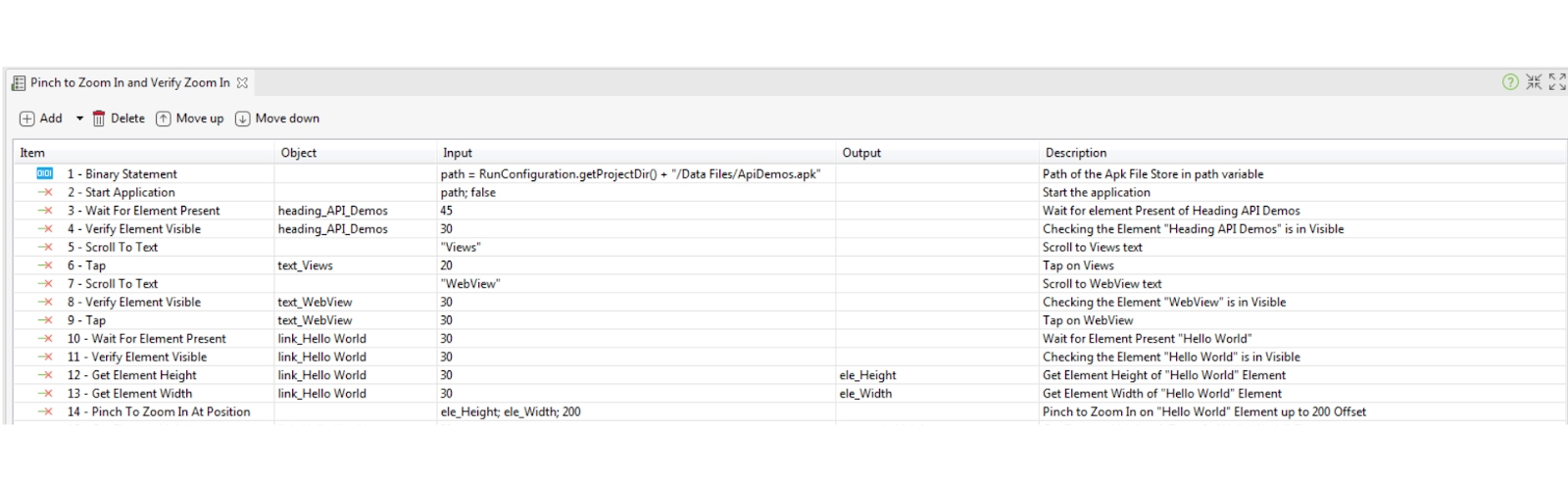
10. We have zoomed in on a particular value. We want to check if the output is the same as expected or not. For this, we will get the height and width using Get Element Height and Get Element Width methods, respectively.
11. We will verify the values we got using Verify Greater than methods in the way shown below in the image.
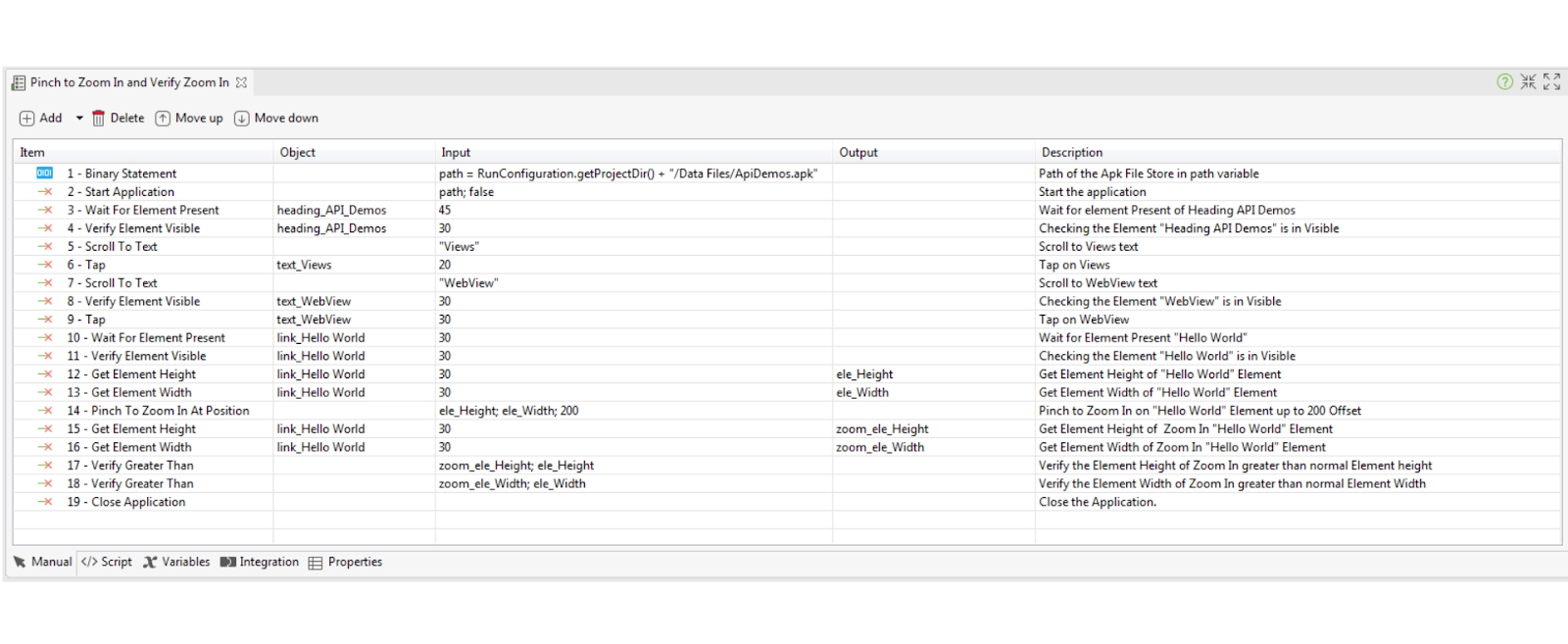
12. Close the Application.
Script Mode
This is the second way for performing pinch to zoom in action with Katalon Studio. Enter the code below in the editor to proceed.
import static com.kms.katalon.core.testobject.ObjectRepository.findTestObject
import com.kms.katalon.core.configuration.RunConfiguration as RunConfiguration
import com.kms.katalon.core.mobile.keyword.MobileBuiltInKeywords as Demo
import com.kms.katalon.core.model.FailureHandling as FailureHandling

'Path of the Apk File Store in path variable.'
def path = RunConfiguration.getProjectDir() + '/Data Files/ApiDemos.apk'

'Starting the application.'
Demo.startApplication(path, false)

'Wait for element Present of Heading API Demos.'
Demo.waitForElementPresent(findTestObject('API Demos Objects/Zoom_IN/heading_API_Demos'), 60)

'Checking the Element "Heading API Demos" is in Visible '
Demo.verifyElementVisible(findTestObject('API Demos Objects/Zoom_IN/heading_API_Demos'), 35)

'Scroll to Views text.'
Demo.scrollToText('Views', FailureHandling.STOP_ON_FAILURE)

'Tap on Views'
Demo.tap(findTestObject('API Demos Objects/Zoom_IN/text_Views'), 15)

'Scroll to WebView text.'
Demo.scrollToText('WebView', FailureHandling.STOP_ON_FAILURE)

'Checking the Element "WebView" is in Visible '
Demo.verifyElementVisible(findTestObject('API Demos Objects/Zoom_IN/text_WebView'), 35)

'Tap on WebView'
Demo.tap(findTestObject('API Demos Objects/Zoom_IN/text_WebView'), 35)

'Wait for Element Present "Hello Everyone!"'
Demo.waitForElementPresent(findTestObject('API Demos Objects/Zoom_IN/link_Hello Everyone!'), 35)

'Checking the Element "Hello Everyone!" is in Visible '
Demo.verifyElementVisible(findTestObject('API Demos Objects/Zoom_IN/link_Hello Everyone!'), 35)

'Get Element Height of "Hello Eveyone!" Element'
ele_Height = Demo.getElementHeight(findTestObject('API Demos Objects/Zoom_IN/link_Hello Everyone!'), 35)

'Get Element Width of "Hello Everyone!" Element'
ele_Width = Demo.getElementWidth(findTestObject('API Demos Objects/Zoom_IN/link_Hello Everyone!'), 35)

'Pinch to Zoom In on "Hello Everyone!" Element up to 300 Offset'
Demo.pinchToZoomInAtPosition(ele_Height, ele_Width, 300)

'Get Element Height of  Zoom In "Hello Everyone!" Element'
zoom_ele_Height = Demo.getElementHeight(findTestObject('API Demos Objects/Zoom_IN/link_Hello Everyone!'), 35)

'Get Element Width of Zoom In "Hello Everyone!" Element'
zoom_ele_Width = Demo.getElementWidth(findTestObject('API Demos Objects/Zoom_IN/link_Hello Everyone!'), 35)

'Verify the Element Height of Zoom In greater than normal Element height.'
Demo.verifyGreaterThan(zoom_ele_Height, ele_Height)

'Verify the Element Width of Zoom In greater than normal Element width.'
Demo.verifyGreaterThan(zoom_ele_Width, ele_Width)

'Close the Application.'
Demo.closeApplication()

 5+ registered

