




Introduction
A progress indicator is a graphical control element that displays the progression of an extended computer process, such as a download, file transfer, or installation. The image is sometimes accompanied by a written representation of the development in a percent style. When a user works, it is common for him to have to wait for some time after making an action. This results in a vexing user experience. The user has no idea whether the activity is being carried out. He should either wait on the screen or leave. The progress indicators improve the user's perception of the waiting time. It simply implies that we must provide user input till the waiting period is over, and the ongoing process is finished.
Progress Indicator in JavaFX
A progress indicator is a UI component that indicates the status of a given action. It is a control that indicates whether progress is unlimited or finite. JavaFX progress indicators show the duration of an operation or depict an undetermined wait time. By instantiating the javafx.scene.control.ProgressIndicator class, we can construct a progress indicator. The JavaFX package includes ProgressIndicator. They are frequently used in conjunction with the task Application Programming Interface (API) to indicate the progress of background Tasks. It usually shows the percentage of a task's completion. Simply put, it is utilised to convey an estimate to the user. It indicates how far the system has proceeded in a task.
Types
In general, there are two types of progress indicators in JavaFX:
- First is the indeterminate progress indicator, a series of dots that go in a circular motion. It does not definitively display the progress in numbers.
- The second is the determinate progress indicator. It is a version in which we can see the actual proportion of work performed. This is an overview of what a JavaFX progress indicator entails.
Constructor of Class
We see the constructor of the class below:
- ProgressIndicator(): This function generates a new intermediate progress indicator.
- ProgressIndicator(double p): This returns a progress indicator with the supplied progress value.
We can see the uses and advantages of JavaFX progress indicators below:
Uses
- JavaFX progress indicators notify users about the state of ongoing activities such as launching an app, submitting a form, or saving updates.
- They communicate the condition of an app and show accessible actions, such as whether users may traverse the current screen.
- To reassure the user that the system is not frozen or waiting for input from the user.
Advantages
- Reduce user's uncertainty: The JavaFX progress indicator reassures the user that it is working. When the UI is idle, users become impatient. Even if we change the mouse pointer to a clock or hourglass, which we can do in any situation, we do not want to have the user wait for an unknown amount of time.
- Enhanced Patience: Experiments have shown that if consumers see a sign that something is wrong, they will be much more patient, even if they must wait longer. Perhaps it is because they realise "the system is thinking", and it is not just hanging or waiting for them to do something.
- Reason to wait: The JavaFX progress indicator gives users a cause to wait and decreases their impression of time. The JavaFX progress indicator gives the user something to look at while they wait. As a result, people are paying less attention to the delay.
Commonly Used Methods
The JavaFX progress indicator's commonly used methods and explanations are as follow:

Example
We will look into an example where we create a JavaFX progress indicator.
package application;

import javafx.application.Application;
import javafx.beans.value.ChangeListener;
import javafx.beans.value.ObservableValue;
import javafx.beans.InvalidationListener;
import javafx.stage.Stage;
import javafx.scene.Scene;
import javafx.scene.control.ProgressIndicator;
import javafx.scene.layout.BorderPane;

public class Main extends Application {
	@Override
	public void start(Stage primaryStage) {
		try {
			BorderPane root = new BorderPane();

			//Instantiate a new ProgressIndicator Object
			//Indeterminate ProgressIndicator
			//ProgressIndicator progressIndicator = new ProgressIndicator();
			//Finite ProgressIndicator
			ProgressIndicator progressIndicator = new ProgressIndicator(0.25);

			//Configure the ProgressIndicator Object
			progressIndicator.setMinSize(150, 150);
			progressIndicator.setStyle("-fx-progress-color: red;");

			//Add ProgressIndicator to Scene Graph
			root.setCenter(progressIndicator);

			//Set value of ProgressIndicator
			progressIndicator.setProgress(0.37);

			//Get value of ProgressIndicator
			Double progress = progressIndicator.getProgress();
			System.out.println("Current Progress: " + progress);

			//Add ChangeListener to a Property of the ProgressIndicator
			progressIndicator.progressProperty().addListener(new ChangeListener<Number>() {
				@Override
				public void changed(ObservableValue<? extends Number> observable, Number oldValue, Number newValue) {
					System.out.println("Progress Changed: " + newValue);
				}
			});
			progressIndicator.setProgress(0.55);
			Scene scene = new Scene(root,400,400);
			scene.getStylesheets().add(getClass().getResource("application.css").toExternalForm());
			primaryStage.setScene(scene);
			primaryStage.show();
		} catch(Exception e) {
			e.printStackTrace();
		}
	}
	public static void main(String[] args) {
		launch(args);
	}
}
Code Explanation
In the above code, we create a finite progress indicator. Then we configure it by giving it a minimum size. Now, when the value of the progress indicator has been set. We give it a number which displays the percentage of the process that has been completed.
Now we set the style of the progress indicator using "progressIndicator.setStyle("-fx-progress-color: red;")" and change the progress indicator's colour to red.
Let us now set the value of the progress indicator. It is simply done by adding "progressIndicator.setProgress". Next, we will get the value of the progress indicator. It returns a double value. So we assign it to a double variable. Then we request a system output to the eclipse console's current progress and the uneven progress we use to hold the variable from the "progressIndicator.getProgress". Once we run that, we see the current progress of 37 percent or 0.37 completed in the terminal. We can also add a change listener to any property of the progress indicator. Here we picked one. So, "progressIndicator.progressProperty().addListener". Here we use an anonymous inner class. ChangeListener<Number> change listener, and then we will add the unimplemented method. Now, after we have attached it to "progressIndicator.setProgress()", we change it to 55 percent 0r 0.55.
Then we will add the system out request again and run it to show the new value that the change listener after the value has changed.
Output
We will get an output from the above code displaying a circular progress indicator.
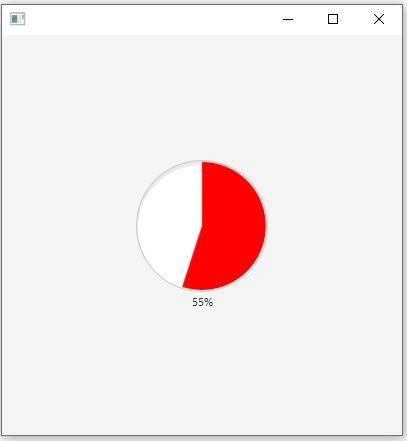
The indicator shows that the process progress is 55%. The colour property of the JavaFX progress indicator is Red. It is different from a default coloured progress indicator.
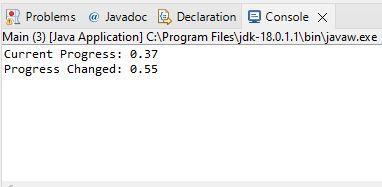
We can also look at the terminal above, which shows the "Current Progress" and "Progress Changed" values. They are 0.37 and 0.55, respectively. If we take the total completion value of the task as 1, the value of "Current Progress: 0.37" would be 37% and the value of the task. Similarly, Progress Changed: 0.55 would be 55% respectively. Here the value of 55% will be displayed in the progress indicator in Red.


 7+ registered

