


 Try this free template
Executive Pro
Clean corporate design for senior roles
Choose free Microsoft Word resume templates for different roles and career levels. All our templates are designed for Indian job applications and ATS compatibility.
Try this free template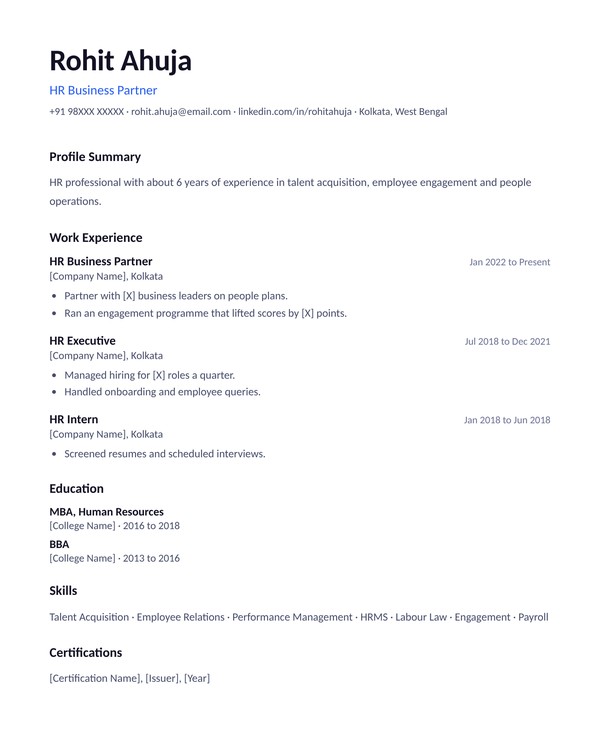 Try this free template
 Try this free template
 Try this free template
 Try this free template
 Try this free template
 Try this free template
 Try this free template
 Try this free template
A Microsoft Word resume template is a ready-made resume layout designed for use in Word. It includes preset sections that you can customize with your details.
Features of Microsoft Word resume templates include:
You can also find free professional Word resume templates on Naukri if you want more design choices for different roles and career levels.
Yes. Microsoft Word includes free built-in resume templates that you can access directly from the application. Open File > New and search for Resume to browse the available designs. You can select a template and replace the sample content with your own details.
Yes. Microsoft Word is a practical option if you are comfortable using the software and want more control over how your resume is formatted. The benefits of using Microsoft Word for your resume include:
Microsoft Word gives you flexibility when building a resume, but manual formatting can take extra time. If you want to start with a professional ATS-friendly layout, Naukri’s free resume templates can help you create your resume faster.
Yes. Simple Microsoft Word resume templates can be ATS-friendly because they keep important details easy to read. However, not every Word template is automatically suitable for applicant tracking systems. Layouts with heavy design elements may cause parsing issues.
To make a Word resume more ATS-friendly:
Naukri’s Word resume templates are designed to be ATS-friendly and easy for applicant tracking systems to read.
You can create a resume in Microsoft Word by choosing a built-in template and replacing the sample content with your own details.
The best Microsoft Word resume format is reverse-chronological because it puts recent experience first and is easy for recruiters to scan.
Microsoft Word can be used to create three main resume formats:
This Microsoft Word resume format starts with your current or most recent position and then lists earlier roles in order. It is a strong choice when your work history shows steady progress.
It works well for:
A combination format brings skills and work experience together in one structure. It gives you space to show your expertise before moving into your employment history.
It works well for:
A functional format places greater focus on skills and capabilities instead of the order of past jobs. It can be useful when work history is limited or less relevant to the target role.
It may work for:
A Microsoft Word resume should cover the key details recruiters need to evaluate your profile. Organize the sections clearly and give more space to the information that is most relevant to your experience.
Key sections include:
A good Microsoft Word resume should use simple formatting that keeps your content clear and consistent. Avoid unnecessary design elements that can make the document harder to read.
Use these settings as a practical starting point:
| Element | Recommended Format |
|---|---|
| Page Layout | One-column layout |
| Font | Arial, Calibri, Times New Roman |
| Body Text | Keep text between 10 and 12 pt |
| Headings | Use 14 to 16 pt with consistent styling |
| Margins | Keep around 0.5 to 1 inch on each side |
| Line Spacing | Use around 1.0 to 1.15 |
| Section Names | Clear labels such as Experience and Education |
| Bullet Point | Simple round bullet (•) |
| Date Format | Follow one date style (Jan 2025 – Mar 2026) |
| File Name | Firstname-Lastname-Resume |
| File Format | DOCX or PDF |
| Length | 1 page for freshers and 2 pages for experienced |
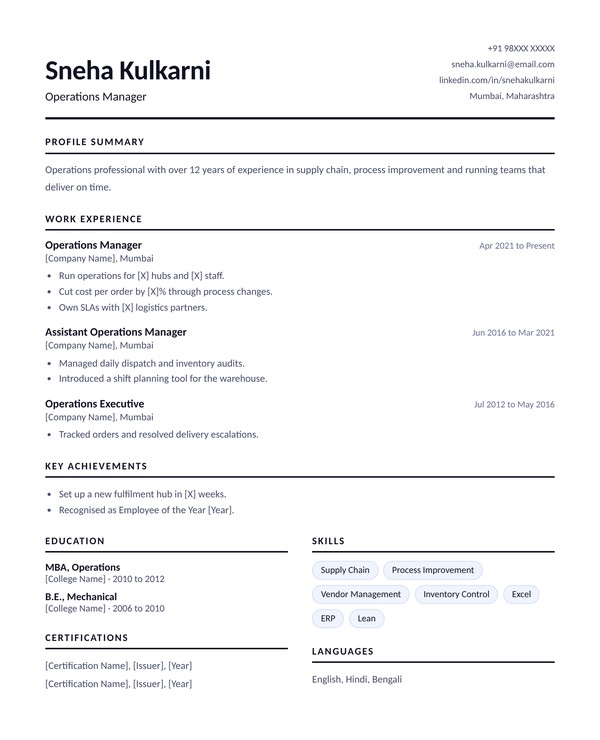
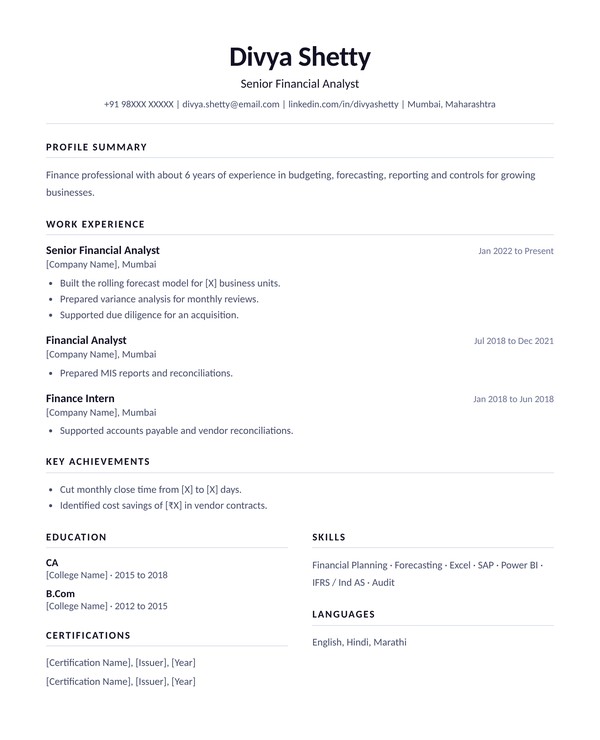
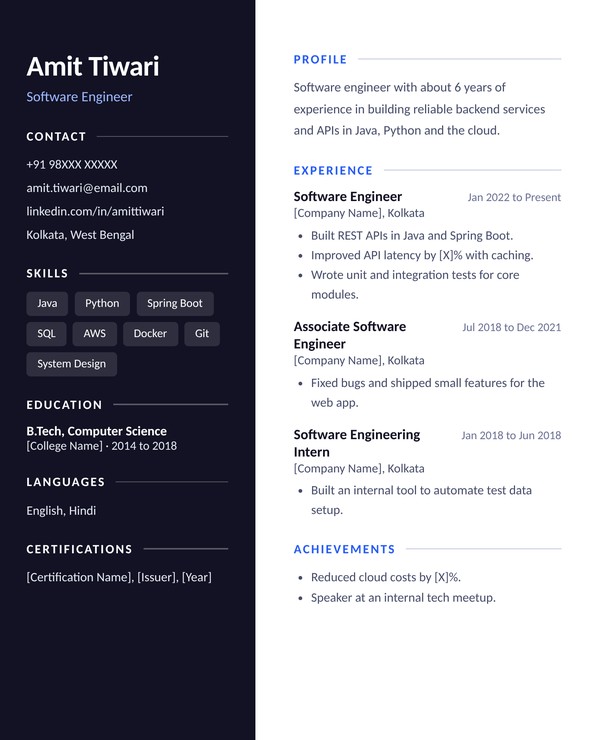
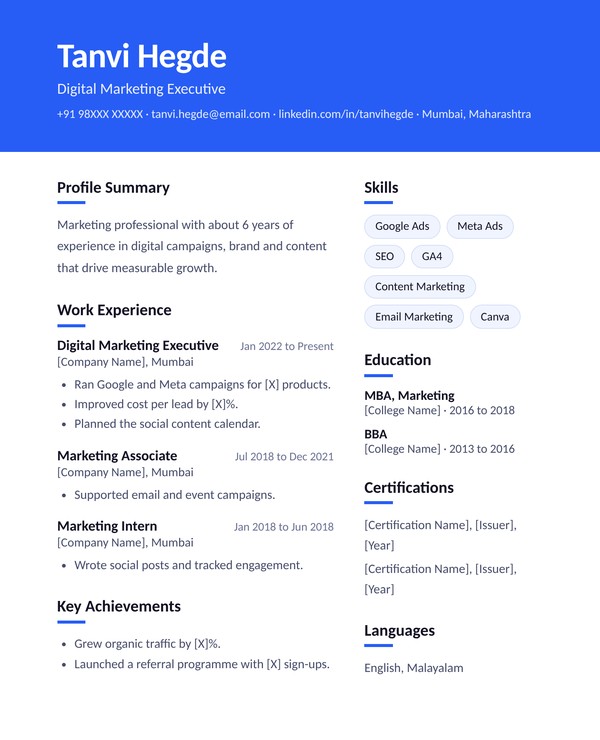
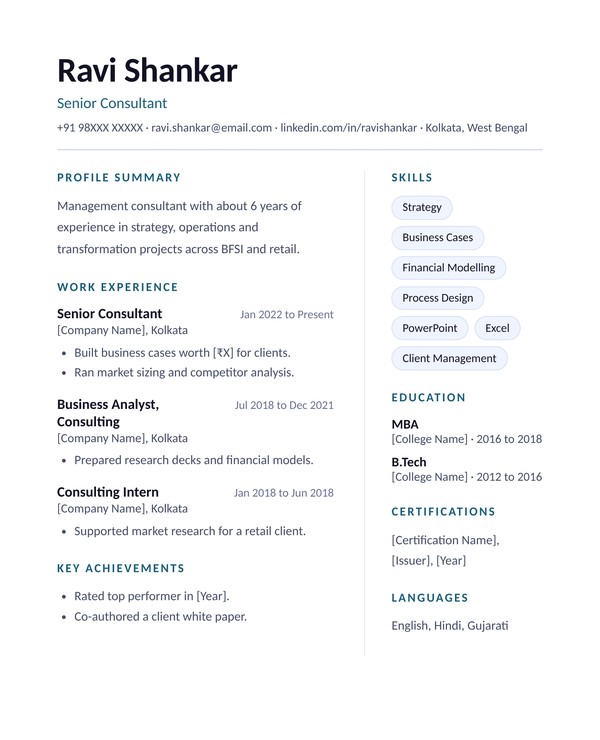
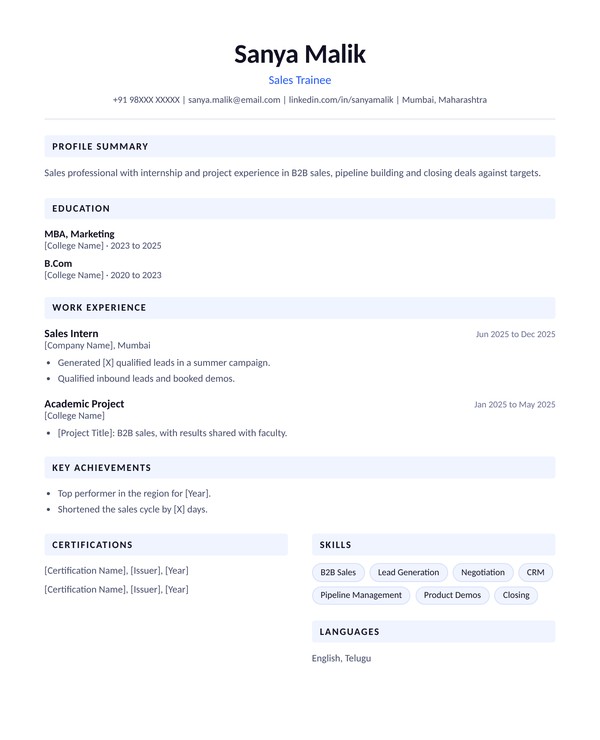
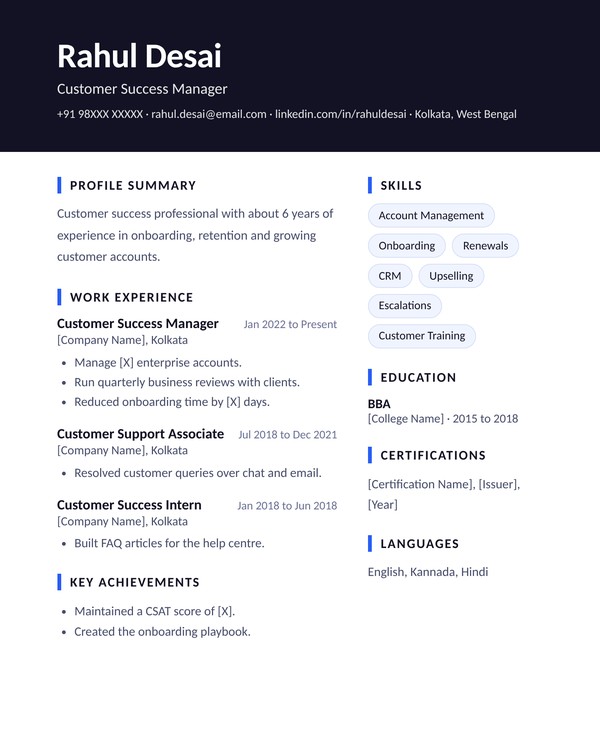
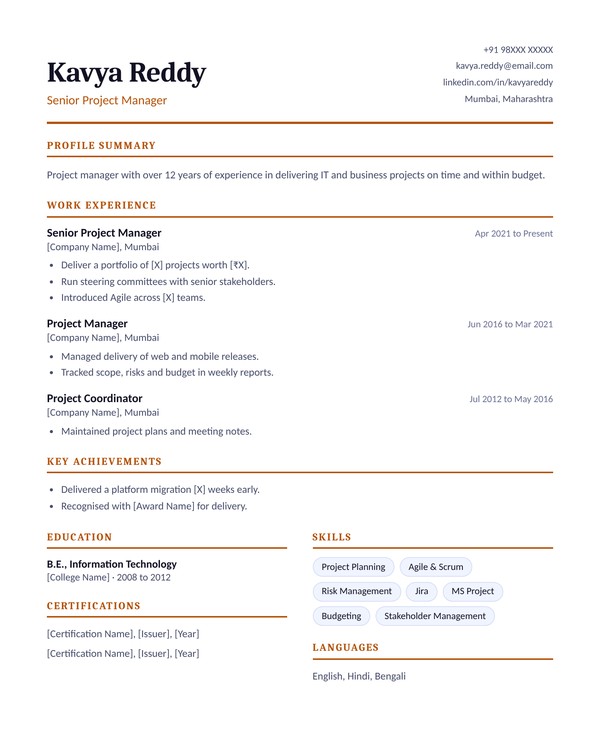
Use this MS Word sample resume to see how each section should appear in a finished Word resume.
These resume samples show how a finished Word-style layout carries each section:
A Microsoft Word resume template is useful when you want more control over your resume and need a format that is easy to update.
Use a Microsoft Word resume template when:
Choose a Microsoft Word resume template based on your experience and the type of information you want to highlight.
| Candidate | Recommended Style | Naukri Template |
|---|---|---|
| Freshers | Simple education-focused layout | Fresh Start |
| Mid-Level Professionals | Clean balanced format | Minimal Edge |
| Senior Professionals | Executive-style layout | Executive Pro |
| Technology Professionals | Skills-focused format | Tech Stack |
| Corporate Professionals | Structured professional layout | Corporate Slate |
| Traditional Roles | Classic resume format | Classic Plus |
| Creative Professionals | Visual professional design | Creative Spark |
| Career Changers | Skills and experience-focused layout | Bold Impact |
Microsoft Word resume templates are flexible and familiar, but they may not suit every application.
Creating a resume manually in Microsoft Word can take time. Naukri’s Microsoft Word resume templates give you a faster way to start with professional layouts and useful resume tools.
Naukri helps you spend less time on formatting and more time improving your resume content.
Naukri’s AI resume builder makes it easy to customize a Word resume template without setting up the layout yourself.
PDF is usually the better choice for sending your resume because it keeps the layout fixed across devices. However, always follow the file format mentioned in the job posting.
A Word resume is useful when the employer asks for an editable DOC or DOCX file. It is also helpful to keep a Word copy for future updates.
Most ATS can read PDF resumes easily. Benefits of PDF include:
Keep both Word and PDF versions ready so you can use the format required for each application.
Use these tips to make your Word resume more effective:
The templates were amazing. Got 3 interviews in my first week.

Naukri360 saved me hours. Done in 15 minutes.
Outstanding quality. Got a call that doubled my salary.
Helped me highlight transferable skills. Hired in 2 weeks!
Open Microsoft Word and go to File > New. Search for Resume and choose a template. Replace the sample content with your details and adjust the formatting as needed.
You can find free Microsoft Word CV templates in Word itself or explore professional Word CV templates on Naukri.
Yes. If you are looking for a resume template Word free download option, Naukri offers free templates that you can customize before downloading.
Yes. You can customize Naukri’s Microsoft Word CV template in the Resume Builder by adding your details and arranging sections based on your profile
Yes. Open your resume in Word and use Save As or Export to save the document as a PDF.
One page usually works well for freshers and early-career candidates. Experienced professionals may use two pages when they have relevant experience to include.
Yes. You can open and edit supported Word documents using the Microsoft Word mobile app. Check the final formatting before submitting your resume.
You can find MS Word resume examples on Naukri for inspiration and use them as a reference when creating your own resume.
Browse our complete library of professional templates
Choose a professional Microsoft Word resume template and add your details to create an ATS-friendly resume for your next application.
